Free Shipping on Domestic Orders $75+

Dell XPS 15 9570 CMOS Battery Replacement

What you need

    1. Dell XPS 15 9570 CMOS Battery Replacement, Base Cover: step 1, image 1 of 1
      • Make sure your device is powered off and unplugged before starting

      • Flip the device over so the base cover of the computer is facing upwards.

      Ask FixBot

      Add Comment

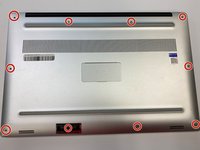
    2. Dell XPS 15 9570 CMOS Battery Replacement: step 2, image 1 of 3 Dell XPS 15 9570 CMOS Battery Replacement: step 2, image 2 of 3 Dell XPS 15 9570 CMOS Battery Replacement: step 2, image 3 of 3
      • Using a Torx T5 screwdriver, remove the ten 3 mm screws on the back.

      Ask FixBot

      Add Comment

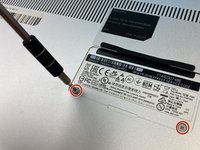
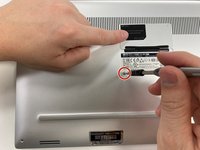
    3. Dell XPS 15 9570 CMOS Battery Replacement: step 3, image 1 of 2 Dell XPS 15 9570 CMOS Battery Replacement: step 3, image 2 of 2
      • Flip open the system badge and with a Phillips #00 screwdriver, remove the two 8.5 mm screws.

      Ask FixBot

      Add Comment

    4. Dell XPS 15 9570 CMOS Battery Replacement: step 4, image 1 of 1
      • Lift the back cover off of the device.

      Ask FixBot

      Add Comment

    1. Dell XPS 15 9570 CMOS Battery Replacement, Battery: step 5, image 1 of 1
      • Using the Phillips #00 screwdriver, remove the four 4 mm screws holding the battery in place.

      Ask FixBot

      Add Comment

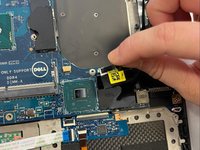
    2. Dell XPS 15 9570 CMOS Battery Replacement: step 6, image 1 of 1
      • Use the iFixit opening tool to disconnect the battery connector from the motherboard.

      Ask FixBot

      Add Comment

    3. Dell XPS 15 9570 CMOS Battery Replacement: step 7, image 1 of 1
      • With your hands, pick up and remove the battery from the system.

      Ask FixBot

      Add Comment

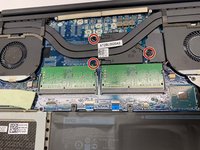
    1. Dell XPS 15 9570 CMOS Battery Replacement, Heat Sink: step 8, image 1 of 2 Dell XPS 15 9570 CMOS Battery Replacement, Heat Sink: step 8, image 2 of 2
      • Use the Phillips #00 to remove the three (without graphics card) or four (with graphics card) 3 mm screws that connect the heat sink to the system board.

      Ask FixBot

      Add Comment

    2. Dell XPS 15 9570 CMOS Battery Replacement: step 9, image 1 of 1
      • Lift the heat sink from the device. The thermal paste may have dried and make this handling more complicated, be careful.

      Ask FixBot

      Add Comment

    1. Dell XPS 15 9570 CMOS Battery Replacement, Fan: step 10, image 1 of 2 Dell XPS 15 9570 CMOS Battery Replacement, Fan: step 10, image 2 of 2
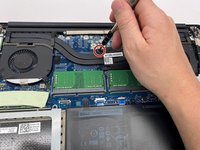
      • Use the Phillips #00 screwdriver to remove the two 4 mm screws securing the grey display cable bracket.

      Ask FixBot

      Add Comment

    2. Dell XPS 15 9570 CMOS Battery Replacement: step 11, image 1 of 1
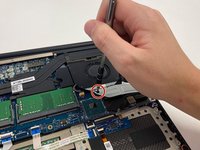
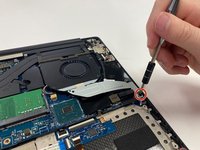
      • Using the Phillips #00 screwdriver, remove the 4 mm screw at the back right corner of the fan.

      Ask FixBot

      Add Comment

    3. Dell XPS 15 9570 CMOS Battery Replacement: step 12, image 1 of 2 Dell XPS 15 9570 CMOS Battery Replacement: step 12, image 2 of 2
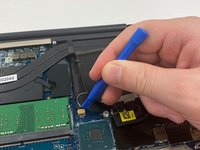
      • Disconnect the fan cable on the left of the fan and on the right side from the RAM, using the opening tool.

      Ask FixBot

      Add Comment

    4. Dell XPS 15 9570 CMOS Battery Replacement: step 13, image 1 of 1
      • Lift the right fan off of the device.

      • Repeat steps 8-11 to remove the left fan from the system board.

      • The left fan is fixed with two 4 mm screws. Make sure you have removed them if the fan does not come off easily.

      Ask FixBot

      Add Comment

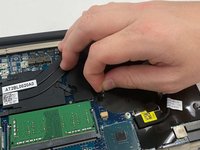
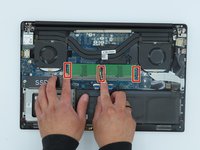
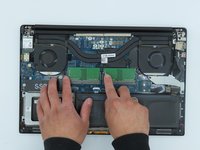
    1. Dell XPS 15 9570 CMOS Battery Replacement, RAM: step 14, image 1 of 2 Dell XPS 15 9570 CMOS Battery Replacement, RAM: step 14, image 2 of 2
      • Use your fingers to pinch down the metal tabs holding the RAM in place. Do this for each tab.

      Ask FixBot

      Add Comment

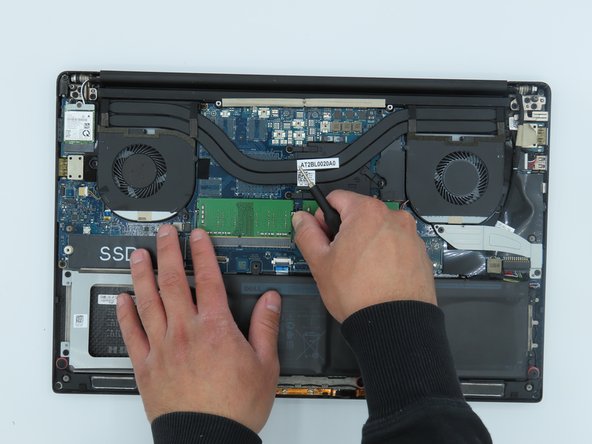
    2. Dell XPS 15 9570 CMOS Battery Replacement: step 15, image 1 of 1
      • Use your hands to carefully lift the RAM up and away from the tabs to safely take it out.

      Ask FixBot

      Add Comment

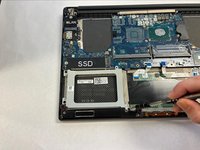
    1. Dell XPS 15 9570 CMOS Battery Replacement, SSD: step 16, image 1 of 2 Dell XPS 15 9570 CMOS Battery Replacement, SSD: step 16, image 2 of 2
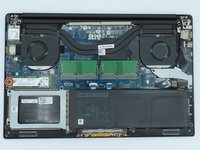
      • Use the Phillips #00 screwdriver to remove the 5.5 mm screw next to the SSD.

      Ask FixBot

      Add Comment

    2. Dell XPS 15 9570 CMOS Battery Replacement: step 17, image 1 of 2 Dell XPS 15 9570 CMOS Battery Replacement: step 17, image 2 of 2
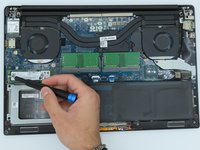
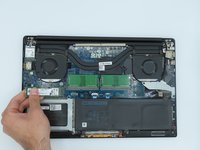
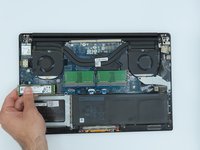
      • Using your hands, hold the SSD and slightly pull to the left.

      Ask FixBot

      Add Comment

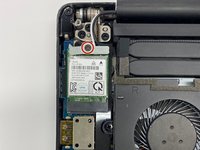
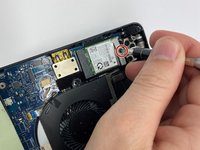
    1. Dell XPS 15 9570 CMOS Battery Replacement, Wireless Card: step 18, image 1 of 2 Dell XPS 15 9570 CMOS Battery Replacement, Wireless Card: step 18, image 2 of 2
      • Using a Phillips #00 screwdriver, loosen the captive screw holding the wireless card bracket in place.

      Ask FixBot

      Add Comment

    2. Dell XPS 15 9570 CMOS Battery Replacement: step 19, image 1 of 1
      • Lift the wireless card bracket off of the wireless card.

      Ask FixBot

      Add Comment

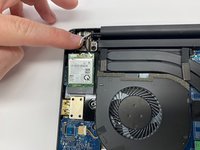
    3. Dell XPS 15 9570 CMOS Battery Replacement: step 20, image 1 of 2 Dell XPS 15 9570 CMOS Battery Replacement: step 20, image 2 of 2
      • Using a spudger, disconnect the coaxial antenna cables from the Wi-Fi card by popping them gently off.

      Ask FixBot

      Add Comment

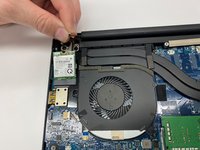
    4. Dell XPS 15 9570 CMOS Battery Replacement: step 21, image 1 of 1
      • Carefully remove the wireless card.

      Ask FixBot

      Add Comment

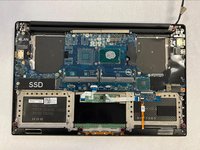
    1. Dell XPS 15 9570 CMOS Battery Replacement, Motherboard: step 22, image 1 of 2 Dell XPS 15 9570 CMOS Battery Replacement, Motherboard: step 22, image 2 of 2
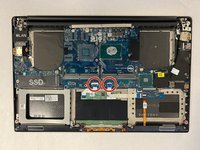
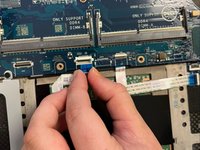
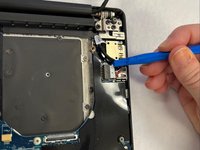
      • Disconnect the two motherboard cables located on the bottom of the motherboard using the opening tool.

      Ask FixBot

      Add Comment

    2. Dell XPS 15 9570 CMOS Battery Replacement: step 23, image 1 of 3 Dell XPS 15 9570 CMOS Battery Replacement: step 23, image 2 of 3 Dell XPS 15 9570 CMOS Battery Replacement: step 23, image 3 of 3
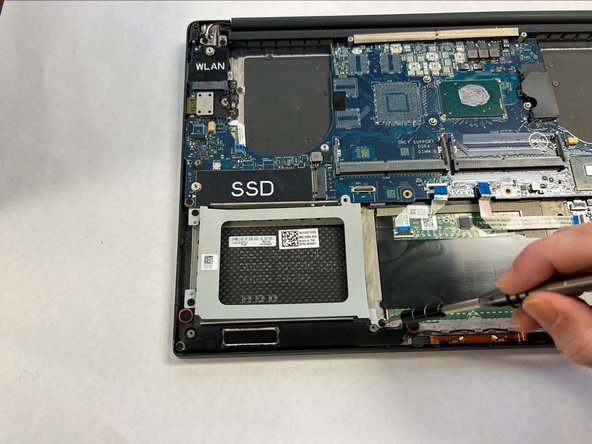
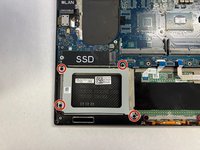
      • Using a Phillips #0 screwdriver, remove the four 4mm screws securing the hard drive cover.

      Ask FixBot

      Add Comment

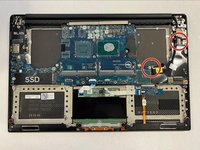
    3. Dell XPS 15 9570 CMOS Battery Replacement: step 24, image 1 of 3 Dell XPS 15 9570 CMOS Battery Replacement: step 24, image 2 of 3 Dell XPS 15 9570 CMOS Battery Replacement: step 24, image 3 of 3
      • Disconnect the two motherboard cables located on the right of the motherboard using the opening tool.

      Ask FixBot

      Add Comment

    4. Dell XPS 15 9570 CMOS Battery Replacement: step 25, image 1 of 2 Dell XPS 15 9570 CMOS Battery Replacement: step 25, image 2 of 2
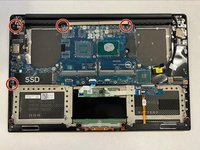
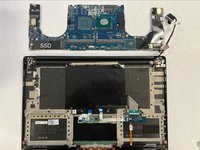
      • Using a Phillips #0 screwdriver, unscrew the 4 remaining 4mm screws holding the motherboard in place.

      • Remove the motherboard.

      Ask FixBot

      Add Comment

Conclusion

To reassemble your device, follow these instructions in reverse order.

Cancel: I did not complete this guide.

Justin Pfister

Member since: 03/01/25

147 Reputation

1 Guide authored

0 Guide Comments

Add Comment

View Statistics:

Past 24 Hours: 6

Past 7 Days: 42

Past 30 Days: 157

All Time: 916