
Dell XPS 15 9560 Touchpad Replacement

Taylor Hancock and 10 other contributors
Last updated on Jan 14, 2026
Views: 5.8K
View statistics:
- Past 24 Hours:
- 4
- Past 7 Days:
- 41
- Past 30 Days:
- 151
- All Time:
- 5,827
Comments: 7
7 comments on steps.
Completed: 0 1
No one has marked this guide "completed." Will you be the first?
1 person has marked this guide "completed." It's you — great job!
Favorites: 0 1
No one has favorited (and subscribed to) this guide. Will you be the first?
1 person has favorited (and subscribed to) this guide — and that's you!
Action Shots
Be an action hero! This guide needs images that better demonstrate how to perform specific actions.
Needs More Images
A few more images would make this guide's procedures crystal clear.
Needs Better Images
Better photos will improve this guide. Help out by taking, editing, or uploading new ones!
Introduction
Go to step 1 ↓How to replace a scratched, cracked, or unresponsive touchpad on a Dell XPS 15 9560 laptop.
Before using this guide, check for other possible causes of touchpad issues.
- Trackpad Drivers: Your issue may be related to drivers. Watch this video by MDTechVideos for a fix.
- Dust or Debris: Clean the trackpad by spraying isopropyl alcohol on a microfiber cloth. Apply medium pressure and wipe in small circles on and around the trackpad.
Before you begin this repair, power off your laptop and unplug it from the charging adapter and any peripherals, like an external display.
What you need
Fix Kits
These kits contain all the parts and tools needed to complete this guide.


Parts


Tools


-
-
-
Remove the ten 4.0 mm screws from the back panel of the laptop using a T5 Torx screwdriver.
-
-
-
Remove the two 5 mm screws underneath the XPS badge door using a Phillips screwdriver
-
-
-
-
Use a Phillips screwdriver to remove the remaining 4 mm screws that secure the battery.
-
-
-
Use your fingernails to gently "walk" the battery connector directly out of its socket.
-
-
-
-
-
Using a Phillips #0 screwdriver, remove four 4.0 mm screws of the hard drive bracket.
-
Unplug the hard drive cable.
-
-
-
-
-
-
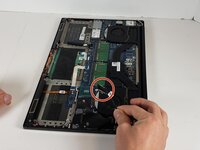
Use a screwdriver to remove the single 5 mm screw securing the silver plate.
-
-
-
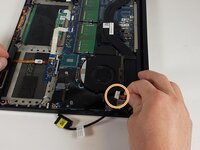
Use a spudger, pushing on alternating sides of the connector, to get it out of the socket.
-
-
-
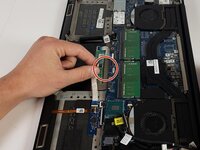
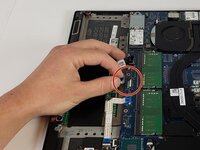
Disconnect the white ribbon cables, and use a spudger or your fingernail to gently lift the looped tab away from the connector. It should pop up easily.
-
Next, use the spudger or your fingernail to push the plastic tab away from the socket. It should move slightly.
-
Now, pull the white ribbon cables out.
-

 Ask FixBot





To reassemble your device, follow these instructions in reverse order. Take your e-waste to an R2 or e-Stewards certified recycler.

Team

Embry-Riddle Aeronautical University, Team 2-6, Rauch Spring 2022 Member of Embry-Riddle Aeronautical University, Team 2-6, Rauch Spring 2022
ERAU-RAUCH-S22S2G6
3 Members
12 Guides authored
