
Dell XPS 15 9550 Wireless Card Replacement

Hunter J Laska and 2 other contributors
Last updated on Dec 19, 2018
Views: 11K
View statistics:
- Past 24 Hours:
- 2
- Past 7 Days:
- 16
- Past 30 Days:
- 72
- All Time:
- 11,102
Comments: 9
9 comments on steps.
Completed: 4 5
4 people have marked this guide "completed." Will you be next?
5 people have marked this guide "completed." Including you — great job!
Favorites: 0 1
No one has favorited (and subscribed to) this guide. Will you be the first?
1 person has favorited (and subscribed to) this guide — and that's you!
Featured Student Guide
This guide has been the hard work of our awesome students and is found to be exceptionally cool by the iFixit staff.
Introduction
Go to step 1 ↓If the laptop will not connect to wireless internet, you may need a new wireless card.
What you need
Tools


-
-
-
Turn the laptop upside down.
-
Use a T5 Torx Screwdriver to remove the ten 3 mm long screws from the perimeter of the back of the laptop.
 Ask FixBot
-
-
-
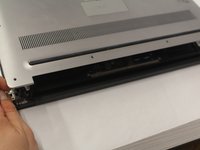
Open up the information panel door (on the middle of the back side).
-
While holding the door open, use a Phillips #00 Screwdriver to remove the two 10 mm long screws.
-
-
-
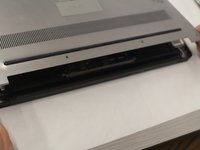
Carefully lift the 2 corners of the back panel close to the hinge upwards, to release the whole panel.
-
-
-
-
-
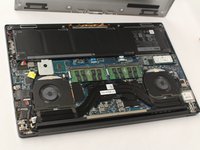
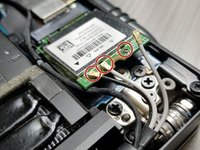
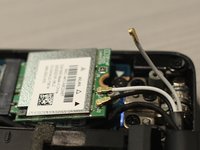
With a Philips #00 Screwdriver bit, remove one 4 mm long black screw located by the antenna connections on the wireless card.
-
Set the screw and metal holder aside.
-
-
-
-
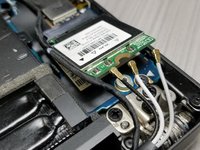
Gently lift up each of the antennas (3) to disconnect them from the wireless card.
-
-
-
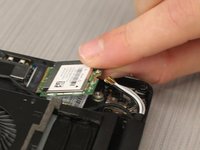
With the antennas disconnected, gently pull the wireless card out at the angle it sits at.
-
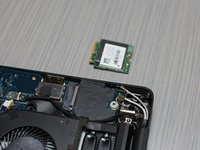
The wireless card has been successfully removed!
-
-






To reassemble your device, follow these instructions in reverse order.
Cancel: I did not complete this guide.
4 other people completed this guide.

Team

UW Stout, Team S6-G1, Ogden Fall 2018 Member of UW Stout, Team S6-G1, Ogden Fall 2018
UWSTOUT-OGDEN-F18S6G1
4 Members
60 Guides authored
