
Dell XPS 15 9550 Solid State Drive Replacement

Zach Jones and 2 other contributors
Last updated on Nov 16, 2022
Views: 3.2K
View statistics:
- Past 24 Hours:
- 0
- Past 7 Days:
- 21
- Past 30 Days:
- 69
- All Time:
- 3,174
Comments: 4
4 comments on steps.
Completed: 1 2
1 person has marked this guide "completed." Will you be next?
2 people have marked this guide "completed." Including you — great job!
Favorites: 0 1
No one has favorited (and subscribed to) this guide. Will you be the first?
1 person has favorited (and subscribed to) this guide — and that's you!
Introduction
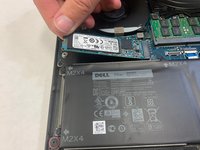
Go to step 1 ↓The may need to be replaced if you are running out of storage space, or if you have saved files being corrupted. If the battery works but the computer will not boot up, it may be the SSD. On the Dell XPS 15 9550, it is easily accessible after the back panel is removed.
What you need
Fix Kit
This kit contains all the parts and tools needed to complete this guide.

Parts


Tools


-
-
-
Turn the laptop upside down.
-
Use a T5 Torx Screwdriver to remove the ten 3 mm long screws from the perimeter of the back of the laptop.
 Ask FixBot
-
-
-
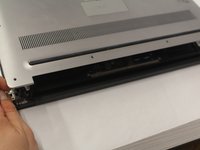
Open up the information panel door (on the middle of the back side).
-
While holding the door open, use a Phillips #00 Screwdriver to remove the two 10 mm long screws.
-
-
-
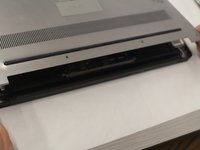
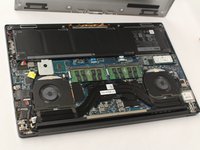
Carefully lift the 2 corners of the back panel close to the hinge upwards, to release the whole panel.
-
-
-




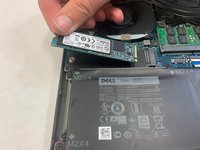
To reassemble your device, follow these instructions in reverse order.
Cancel: I did not complete this guide.
One other person completed this guide.

Team

IUPUI, Team 2-4, Harley Spring 2022 Member of IUPUI, Team 2-4, Harley Spring 2022
IUPUI-HARLEY-S22S2G4
3 Members
36 Guides authored
