
Dell XPS 15 9530 Fan Replacement

Chien Shih and 4 other contributors
Last updated on May 7, 2024
Views: 2.1K
View statistics:
- Past 24 Hours:
- 1
- Past 7 Days:
- 21
- Past 30 Days:
- 90
- All Time:
- 2,074
Comments: 0
No one has left comments on this guide. Will you be first?
Go to guide commentsCompleted: 1 2
1 person has marked this guide "completed." Will you be next?
2 people have marked this guide "completed." Including you — great job!
Favorites: 1 2
1 person has favorited (and subscribed to) this guide. Will you be next?
2 people have favorited (and subscribed to) this guide — including you!
Introduction
Go to step 1 ↓The Dell XPS 15 9530 touchscreen laptop has an easily accessible fan that is relatively simple to replace. The purpose of the fan is to distribute cool air over the internal components of the laptop and prevent them from overheating. If the laptop is generating excessive noise or heat, the fan should be inspected for dust or blockage. Use a dry microfiber cloth or compressed air to clean the fan. If problems persist, it may be time to replace the fan. Make sure to perform any maintenance on a flat non-carpet surface and use ESD-safe tools to prevent static buildup. Turn off the laptop entirely and back up any crucial data before opening up back panel.
What you need
Tools


-
-
-
Turn the laptop upside down.
-
Unscrew ten 3 mm screws on the back cover with a Torx T5 screwdriver.
-
Remove two more 3 mm screws with a Phillips #0 screwdriver.
 Ask FixBot
-
-
Tool used on this step:Tweezers$4.99
-
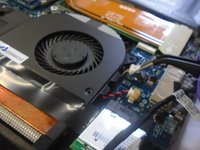
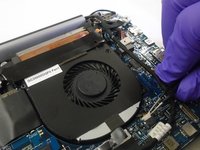
Use metal tweezers to carefully unplug the fan cables from the motherboard.
-
-
-
-
Remove the fans by gently lifting up the edges until the fans disconnect from the motherboard completely.
-
-



To reassemble your device, follow these instructions in reverse order.
Cancel: I did not complete this guide.
One other person completed this guide.

Team

The Citadel Military College of South Carolina, Team S2-G7, Eggleston Fall 2019 Member of The Citadel Military College of South Carolina, Team S2-G7, Eggleston Fall 2019
CMCSC-EGGLESTON-F19S2G7
2 Members
36 Guides authored
