
Dell XPS 15 9500 SSD Replacement

Bryan Chung and 3 other contributors
Last updated on Nov 15, 2022
Views: 6.5K
View statistics:
- Past 24 Hours:
- 4
- Past 7 Days:
- 33
- Past 30 Days:
- 128
- All Time:
- 6,504
Comments: 1
1 comment on steps.
Completed: 1 2
1 person has marked this guide "completed." Will you be next?
2 people have marked this guide "completed." Including you — great job!
Favorites: 0 1
No one has favorited (and subscribed to) this guide. Will you be the first?
1 person has favorited (and subscribed to) this guide — and that's you!
Introduction
Go to step 1 ↓This guide will show the steps required to replace the M.2 SSD on a Dell XPS 15 9500. The M.2 SSD is used to store data and the operating system on this laptop. You may want to follow this guide if you are having trouble with running out of storage space on your laptop, or if you noticed the storage speeds are getting slow and want to replace it. You may want to wear an anti-static strap but that is optional as it should be fine to do this process without one.
Before you begin this process make sure to completely shut down the laptop. It will require that you take off the bottom panel on the laptop, remove the screw holding the SSD in place, and lift the SSD out of its slot.
What you need
Fix Kit
This kit contains all the parts and tools needed to complete this guide.

Parts


Tools


-
-
-
Remove the eight 3.0 mm screws from the bottom panel with a T5 Torx screwdriver.
 Ask FixBot
-
-
-
Gently wedge an opening tool in the gap between the base panel and chassis, and pry vertically around the perimeter until it releases from the chassis.
-
Lift the base panel up and away from the chassis.
-
-
-
-
-
Use a Phillips #000 screwdriver to remove the single 3.0 mm screw on the right side of the SSD.
-
-
-
-
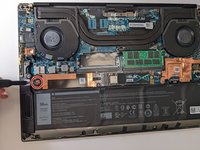
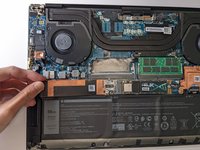
Use a Phillips #000 screwdriver to remove the one 3.0 mm screw on the left side of the SSD slot.
-
Pull the cover out directly toward the left.
-
-


To reassemble your device, follow these instructions in reverse order.
Cancel: I did not complete this guide.
One other person completed this guide.

Team

UC Santa Barbara, Team A-1, Bator Winter 2022 Member of UC Santa Barbara, Team A-1, Bator Winter 2022
UCSB-BATOR-W22SAG1
4 Members
48 Guides authored
