Introduction
The battery is the main power supply to the laptop. Keeping a healthy battery is good for your device's health. A worn out battery can cause overheating of the device and it will have a shorter battery life. The removal of the battery is fairly simple and this guide will show you how to remove it. You will need a plastic opening tool and a Phillips #0 screwdriver.
What you need
-
-
-
Remove the back cover of the laptop by unscrewing eight 3.5mm screws using a Phillips #0 screwdriver.
 Ask FixBot
-
-
-
-
-
-
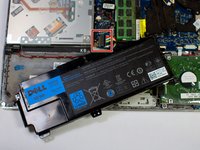
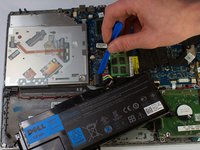
Using the plastic opening tools, carefully unplug the battery connection.
-
Then, plug your replacement battery into the new connection.
-


To reassemble your device, follow these instructions in reverse order.
Cancel: I did not complete this guide.
5 other people completed this guide.

Team

UW Stout, Team S8-G3, Ogden Spring 2018 Member of UW Stout, Team S8-G3, Ogden Spring 2018
UWSTOUT-OGDEN-S18S8G3
4 Members
72 Guides authored
1 Guide Comment
It worked smoothly! Less than 15 minutes. I used a OEM-battery, instead of an original one.
