Free Shipping on Domestic Orders $75+

Dell XPS 14 L401X Mini Card Replacement

What you need

    1. Dell XPS 14 L401X Mini Card Replacement, Battery: step 1, image 1 of 2 Dell XPS 14 L401X Mini Card Replacement, Battery: step 1, image 2 of 2
      • Make sure that the laptop is shut off before attempting to remove any components from the device.

      • The laptop in this example did not have a battery equipped.

      • Locate the spring latch on the bottom of the device that will unlatch the battery.

      • Hold the spring latch in the open position and pull the battery out of its recess.

      Ask FixBot

      Add Comment

    1. Dell XPS 14 L401X Mini Card Replacement, Mini Card: step 2, image 1 of 3 Dell XPS 14 L401X Mini Card Replacement, Mini Card: step 2, image 2 of 3 Dell XPS 14 L401X Mini Card Replacement, Mini Card: step 2, image 3 of 3
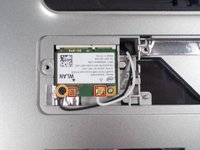
      • Locate the mini card access panel marked with a radio tower emblem on the bottom of the laptop near the battery bay.

      • Use a JIS 1 screwdriver to loosen the captive screw securing the panel to the device.

      • The captive screw will not come off of the panel.

      • Carefully remove the panel by prying it upwards, unlocking it from the tabs that are securing it in place.

      Ask FixBot

      Add Comment

    2. Dell XPS 14 L401X Mini Card Replacement: step 3, image 1 of 3 Dell XPS 14 L401X Mini Card Replacement: step 3, image 2 of 3 Dell XPS 14 L401X Mini Card Replacement: step 3, image 3 of 3
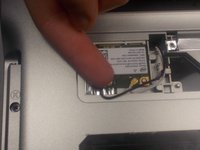
      • Disconnect the two wires on the mini card by carefully plucking them upwards by the metal contact points at the terminals.

      • Do not pluck the contacts off of the terminals by pulling on the wires, this can damage the cables.

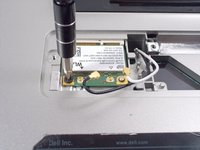
      • Remove (1) 2mm screw from the bottom left corner of the mini card with a JIS 1 screwdriver.

      Ask FixBot

      Add Comment

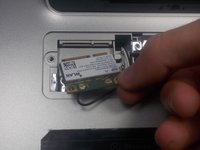
    3. Dell XPS 14 L401X Mini Card Replacement: step 4, image 1 of 2 Dell XPS 14 L401X Mini Card Replacement: step 4, image 2 of 2
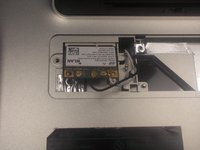
      • Remove the mini card as it flips upward.

      Ask FixBot

      Add Comment

Conclusion

To reassemble your device, follow these instructions in reverse order.

Cancel: I did not complete this guide.

Mark

Member since: 10/19/17

655 Reputation

6 Guides authored

Team

UMass Dartmouth, Team S4-G3, Julie Fall 2017 Member of UMass Dartmouth, Team S4-G3, Julie Fall 2017

UMASSD-JULIE-F17S4G3

3 Members

132 Guides authored

0 Guide Comments

Add Comment

View Statistics:

Past 24 Hours: 2

Past 7 Days: 8

Past 30 Days: 42

All Time: 716