
Dell XPS 13 9370 Battery Replacement

Caleb Markham and one other contributor
Last updated on Dec 18, 2025
Views: 898
View statistics:
- Past 24 Hours:
- 10
- Past 7 Days:
- 38
- Past 30 Days:
- 154
- All Time:
- 898
Comments: 0
No one has left comments on this guide. Will you be first?
Go to guide commentsCompleted: 2 3
2 people have marked this guide "completed." Will you be next?
3 people have marked this guide "completed." Including you — great job!
Favorites: 0 1
No one has favorited (and subscribed to) this guide. Will you be the first?
1 person has favorited (and subscribed to) this guide — and that's you!
Introduction
Go to step 1 ↓If you are experiencing issues with the battery in your Dell XPS 13 9370 such as overheating or the device not charging, you may need to replace the battery.
What you need
Tools


-
-
-
Using a Torx #5 screwdriver, remove the eight 3mm screws along the edges of the back panel.
 Ask FixBot
-
-
-
Insert a spudger into the seam between the back panel and the computer frame.
-
Pop the back panel out of place and remove it.
-
-
-
-
-
Grab the battery connector cable plug on both sides, pinch it and pull it out.
-
-
-
-
Remove the silver 4 mm screw from the top of the battery using a Phillips #000 screwdriver.
-
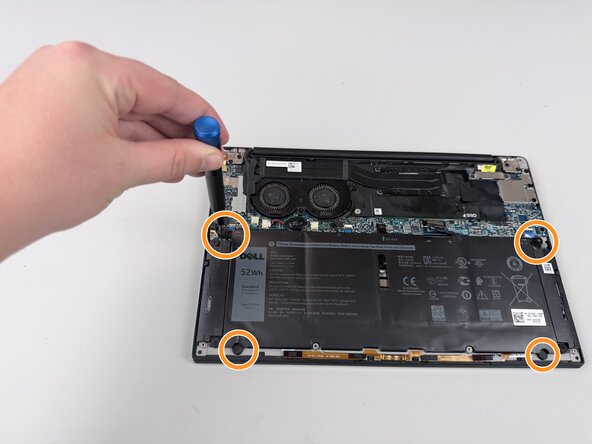
Remove the four black 2 mm screws holding in the battery along the edges using a Phillips #1 screwdriver.
-
Lift the battery out of the laptop.
-
-




To reassemble your device, follow these instructions in reverse order.
Cancel: I did not complete this guide.
2 other people completed this guide.

Team

Texas Tech, Team 46-1, Johansen Fall 2025 Member of Texas Tech, Team 46-1, Johansen Fall 2025
TTU-JOHANSEN-F25S46G1
5 Members
72 Guides authored
