
Dell Vostro 3590 Battery Replacement

Olga Okhotnikova and 3 other contributors
Last updated on May 13, 2025
Views: 817
View statistics:
- Past 24 Hours:
- 2
- Past 7 Days:
- 30
- Past 30 Days:
- 126
- All Time:
- 817
Comments: 0
No one has left comments on this guide. Will you be first?
Go to guide commentsCompleted: 3 4
3 people have marked this guide "completed." Will you be next?
4 people have marked this guide "completed." Including you — great job!
Favorites: 0 1
No one has favorited (and subscribed to) this guide. Will you be the first?
1 person has favorited (and subscribed to) this guide — and that's you!
Introduction
Go to step 1 ↓Is your laptop losing charge quickly, overheating, or recharging slowly? These could be signs that your battery needs replacement. Check the battery's health to determine if it's time for a new one.
Replacing the battery in a Dell Vostro 3590 is straightforward but requires precision. Follow each step of this guide to ensure a safe and accurate replacement.
Beware of swollen batteries: they can catch a fire. This guide will show you how to handle swollen batteries safely.
What you need
Tools


-
-
-
Turn off the laptop by clicking the Shut Down button in the Windows Start menu.
-
Unplug the laptop.
 Ask FixBot
-
-
-
Return the laptop to its normal position and open it.
-
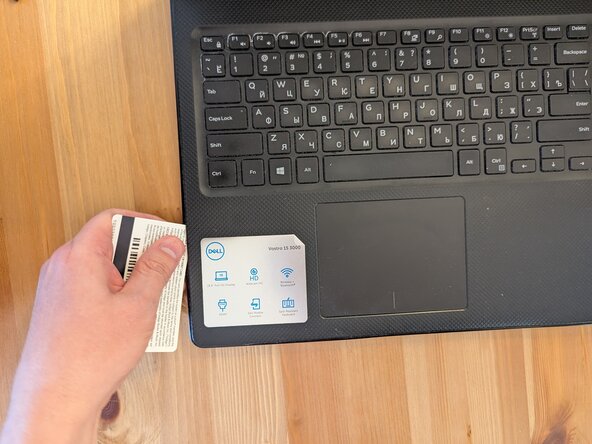
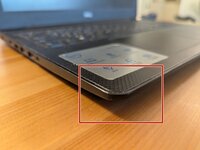
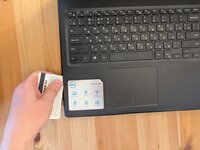
Locate the seam at the corner of the laptop and gently insert a pry tool or a plastic card into the gap.
-
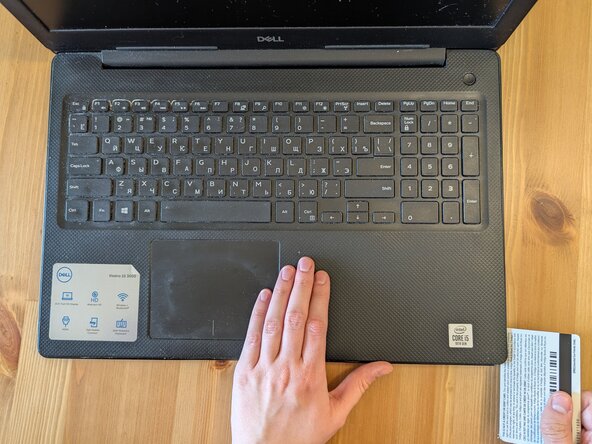
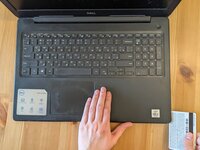
Carefully slide the tool or card along the seam to separate the panels.
-
-
-
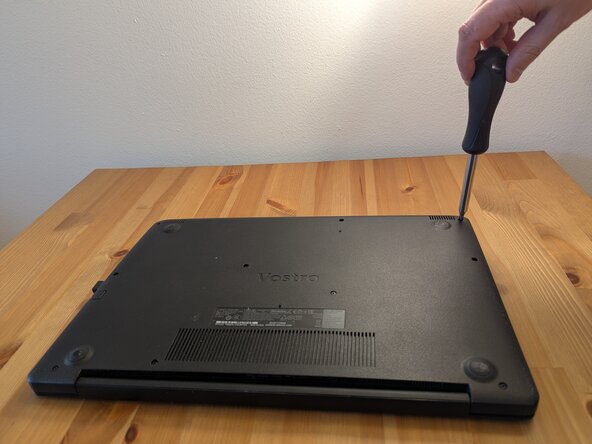
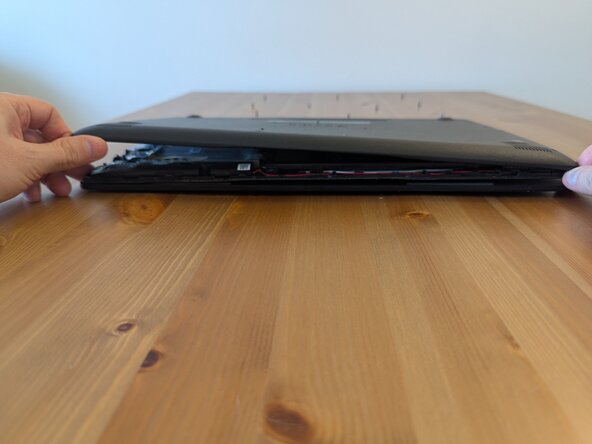
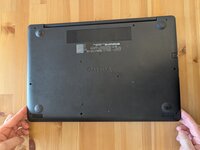
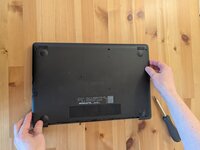
Turn the laptop over so that the back panel is facing up.
-
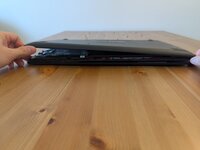
Remove the back panel by lifting upwards.
-
-
-
-
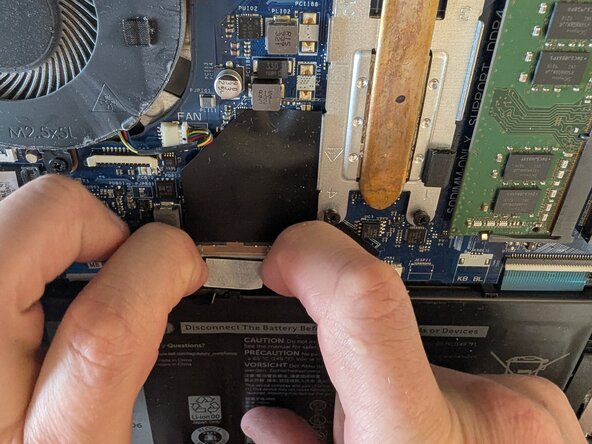
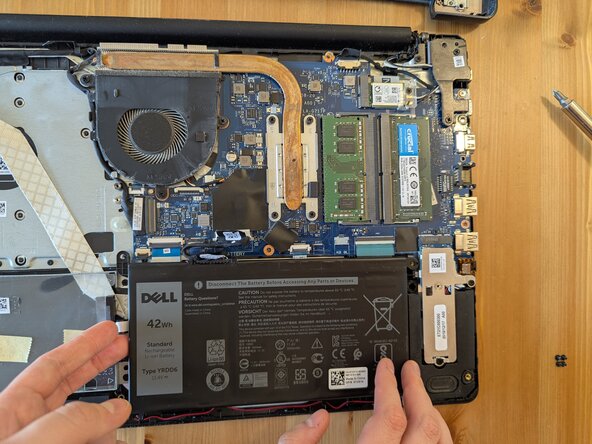
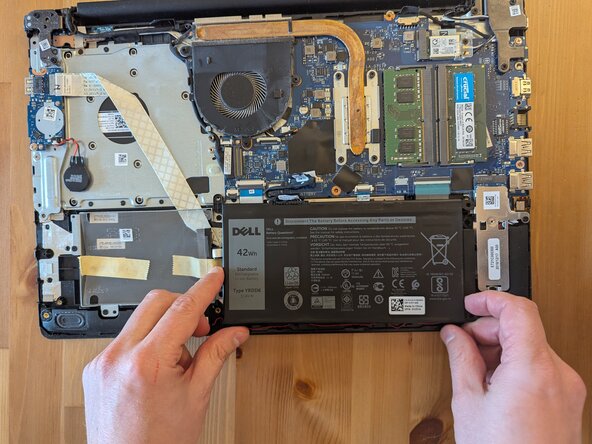
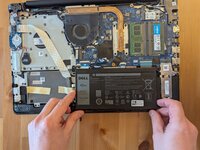
Locate the battery and the cable.
-
The battery is attached to the motherboard with a cable.
-
-
-
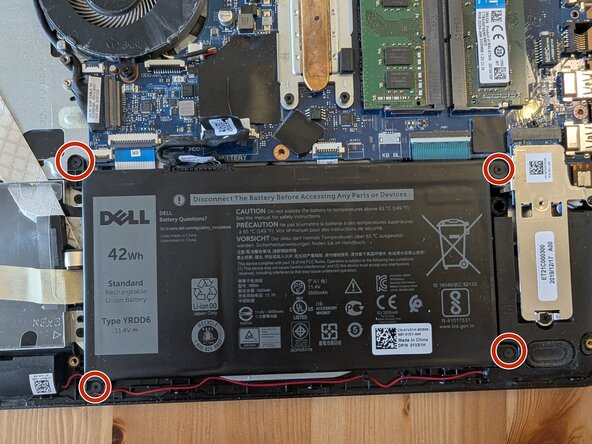
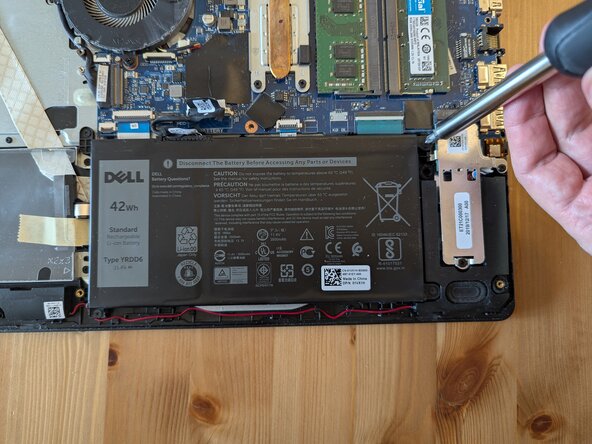
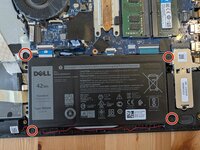
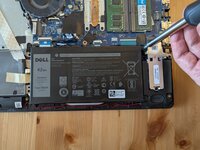
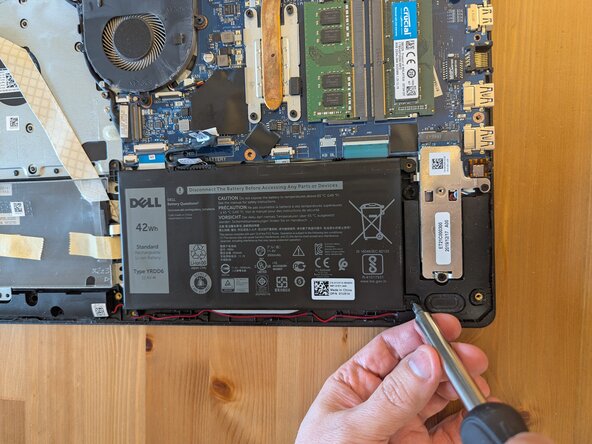
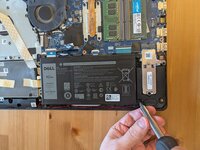
Remove four screws holding the battery in place.
-
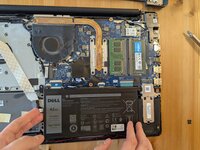
Lift and remove the battery.
-
-
-
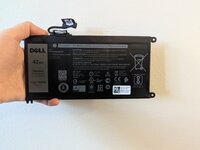
Place the new battery exactly where the old one was. Ensure that the battery logo is facing the same direction.
-
Secure it with the original four screws.
-
-
-
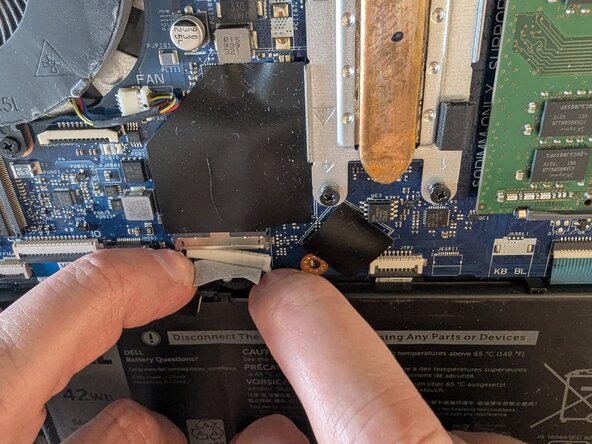
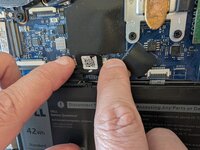
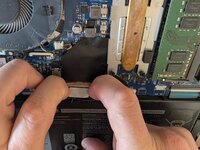
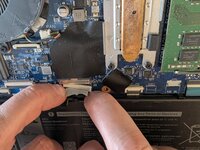
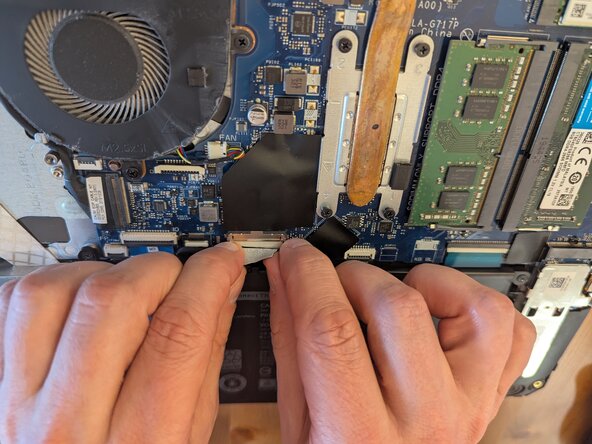
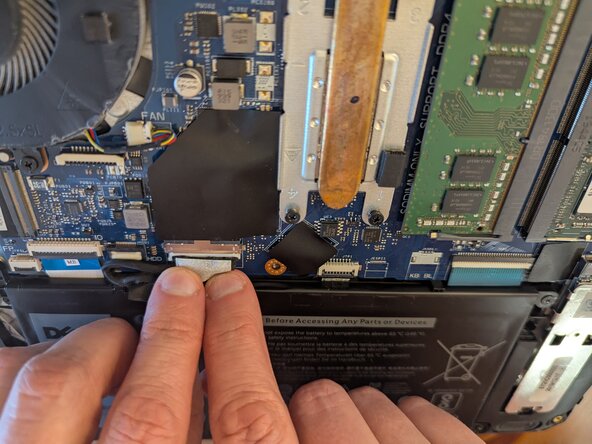
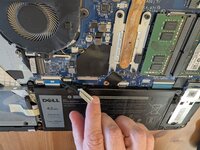
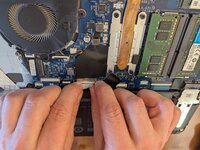
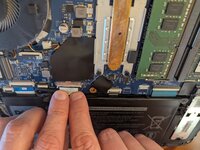
Plug the cable back into the motherboard.
-
Make sure that the white part of the cable fits perfectly into the metal socket on the motherboard.
-
-
-
Reattach the back panel.
-
Make sure no space is left between panels.
-
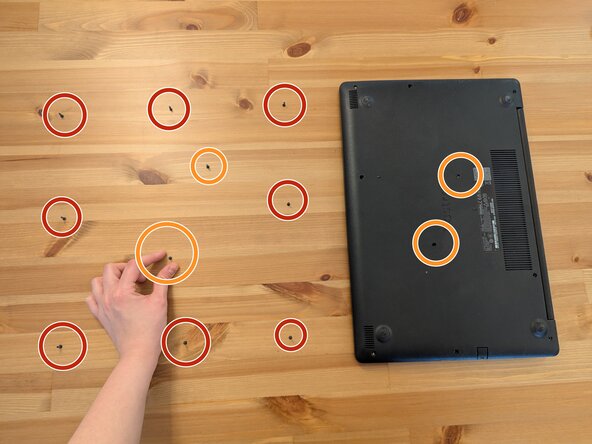
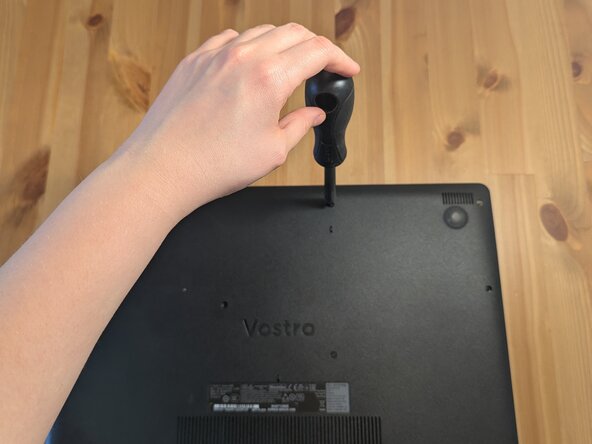
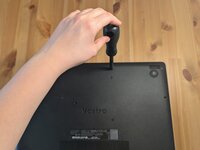
Put the screws back in the correct order.
-
-
-
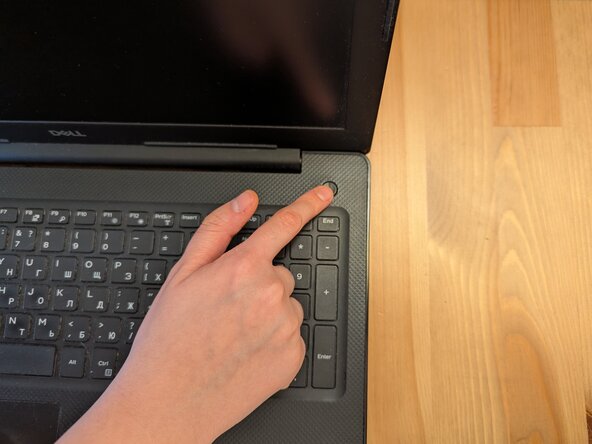
Plug in and turn on the laptop.
-
Check the battery status in the lower right corner of the display.
-
Run a battery report if any concerns arise.
-
The repair is finished after you ensure that the battery is working properly!
-
-












Cancel: I did not complete this guide.
3 other people completed this guide.

Team

York University, Team 2-1, Woodhouse Winter 2025 Member of York University, Team 2-1, Woodhouse Winter 2025
YORK-WOODHOUSE-W25S2G1
4 Members
12 Guides authored
