Introduction
This guide will show you how to replace and upgrade the RAM on this computer.
You may need to replace or upgrade your RAM if your laptop frequently crashes or experiences performance issues.
Upgrading the RAM may help prevent the system from slowing down when you open more programs or use memory-intensive software like games or editing tools.
Before you begin, power off the laptop and disconnect it from the charging adapter and any peripherals.
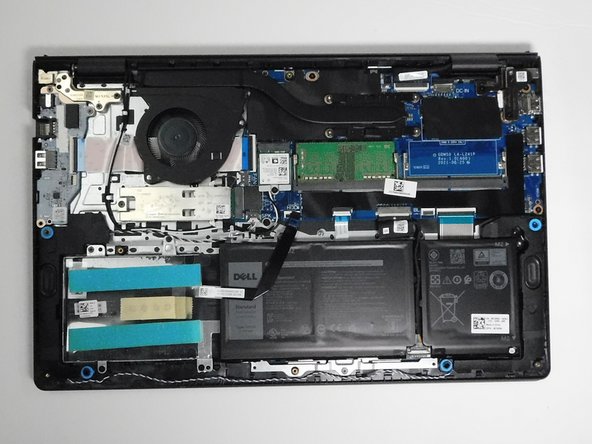
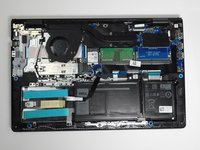
Note: You don’t need to remove the battery to complete this repair, but be sure to disconnect the battery connector from the motherboard.
What you need
-
-
Tool used on this step:Magnetic Project Mat$19.95
-
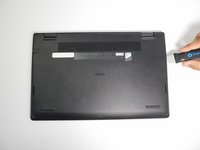
Use a Phillips #0 screwdriver to remove the screws highlighted with red circles.
-
Loosen the two 1 mm captive screws (orange circles in the image) on the back corners of the bottom cover.
-
-
-
-
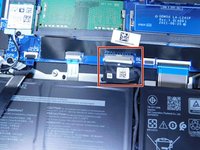
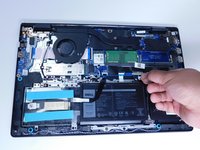
Remove the battery cable from the motherboard by lightly pulling on the black tape attached to the ribbon cable.
-
-
-
-
Use your fingers to gently push the clips outward until the RAM module pops up slightly.
-
-


 Ask FixBot






To reassemble your device, follow these instructions in reverse order. Take your e-waste to an R2 or e-Stewards certified recycler.

Team

Austin Community College, Team 1-2, Tijerina Fall 2025 Member of Austin Community College, Team 1-2, Tijerina Fall 2025
AUSTINCC-TIJERINA-F25S1G2
3 Members
36 Guides authored
