
Dell Vostro 3510 CPU Fan Replacement

Jhoan Cruz and 2 other contributors
Last updated on Sep 12, 2024
Views: 535
View statistics:
- Past 24 Hours:
- 0
- Past 7 Days:
- 14
- Past 30 Days:
- 78
- All Time:
- 535
Comments: 0
No one has left comments on this guide. Will you be first?
Go to guide commentsCompleted: 0 1
No one has marked this guide "completed." Will you be the first?
1 person has marked this guide "completed." It's you — great job!
Favorites: 0 1
No one has favorited (and subscribed to) this guide. Will you be the first?
1 person has favorited (and subscribed to) this guide — and that's you!
Better Introduction
Improve this guide by completing or revising its introduction.
Introduction
Go to step 1 ↓When a laptop overheats, one of the biggest reasons could be that the fans died.
What you need
Tools
-
-
Spudger4.9


-
-
Tool used on this step:Magnetic Project Mat$19.95
-
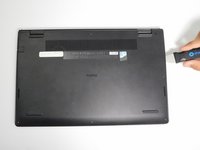
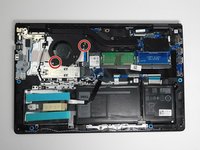
Use a Phillips #0 screwdriver to remove the six 1 mm screws (circled in red).
-
Loosen the two captive 1 mm screws on the back corners.
-
-
-
-
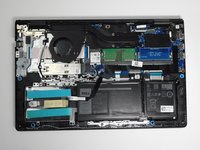
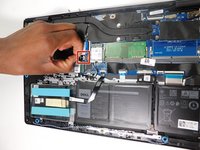
Remove the battery cable from the motherboard by lightly pulling on the black tape attached to the ribbon cable.
-
-
-
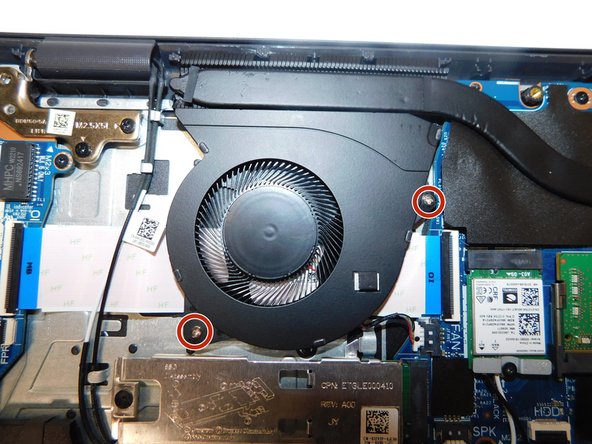
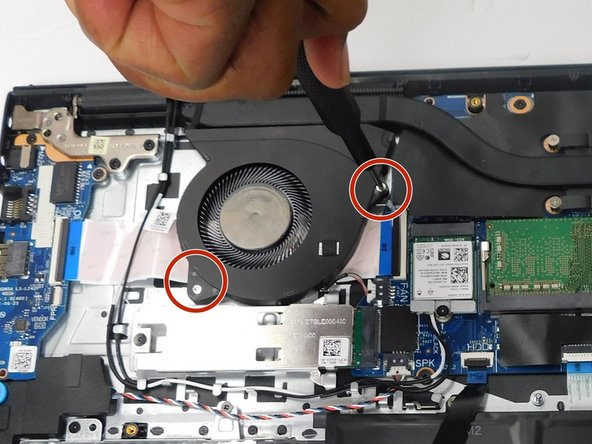
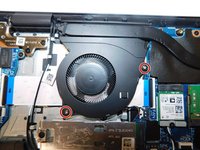
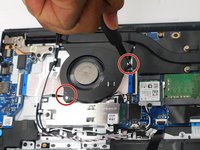
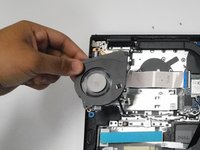
Use a Phillips #0 screwdriver to remove the two 1 mm screws that secure the CPU fan.
-


 Ask FixBot






To reassemble your device, follow these instructions in reverse order.

Team

Gateway, Team 16-1, Gonzalez Spring 2024 Member of Gateway, Team 16-1, Gonzalez Spring 2024
GCC-GONZALEZ-S24S16G1
4 Members
36 Guides authored
