Free Shipping on Domestic Orders $75+

Dell Vostro 3510 Battery Replacement

Views: 883

View statistics:

Past 24 Hours:
0
Past 7 Days:
25
Past 30 Days:
108
All Time:
883
Comments: 0

No one has left comments on this guide. Will you be first?

Go to guide comments
Completed: 2

2 people have marked this guide "completed." Will you be next?

Favorites: 0

No one has favorited (and subscribed to) this guide. Will you be the first?

Time Required: 10 - 20 minutes
Difficulty: Moderate
Better Introduction

Improve this guide by completing or revising its introduction.

Dell Vostro 3510 Battery Replacement

Introduction

Go to step 1 ↓

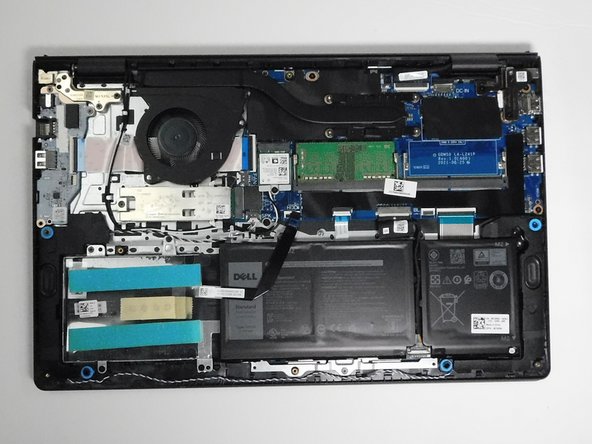
This guide is a battery replacement for the Dell Vostro 3510.

What you need

Parts

Tools

    1. Dell Vostro 3510 Battery Replacement, Battery: step 1, image 1 of 2 Dell Vostro 3510 Battery Replacement, Battery: step 1, image 2 of 2
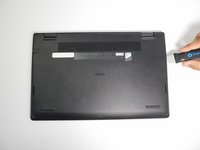
      • Ensure the laptop is powered off.

      • Flip the laptop over.

      Ask FixBot

      Add Comment

    2. Dell Vostro 3510 Battery Replacement: step 2, image 1 of 1
      Tool used on this step:
      Magnetic Project Mat
      $19.95
      Buy
      • Use a Phillips #0 screwdriver to remove the screws highlighted with red circles.

      • Loosen the two 1 mm captive screws (orange circles in the image) on the back corners of the bottom cover.

      • Keep track of each screw and make sure it goes back exactly where it came from to avoid damaging your laptop.

      Ask FixBot

      Add Comment

    3. Dell Vostro 3510 Battery Replacement: step 3, image 1 of 2 Dell Vostro 3510 Battery Replacement: step 3, image 2 of 2
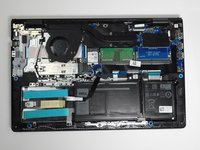
      • Open up the back cover of the laptop.

      • It is much easier to open up the laptop with any type of spudger or with Jimmy.

      Ask FixBot

      Add Comment

    4. Dell Vostro 3510 Battery Replacement: step 4, image 1 of 2 Dell Vostro 3510 Battery Replacement: step 4, image 2 of 2
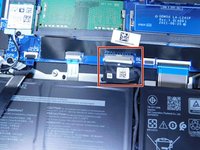
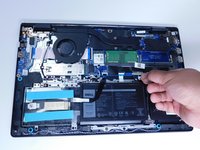
      • Remove the battery cable from the motherboard by lightly pulling on the black tape attached to the ribbon cable.

      Ask FixBot

      Add Comment

    5. Dell Vostro 3510 Battery Replacement: step 5, image 1 of 1
      • Use a Phillips #0 screwdriver to remove the three battery screws.

      • Carefully move the additional sata storage ribbon cable to the side.

      Ask FixBot

      Add Comment

    6. Dell Vostro 3510 Battery Replacement: step 6, image 1 of 1
      • Gently remove the battery from the laptop.

      • Be careful with the other ribbon cables.

      Ask FixBot

      Add Comment

Conclusion

To reassemble your device, follow these instructions in reverse order.

Cancel: I did not complete this guide.

2 other people completed this guide.

Jhoan Cruz

Member since: 02/01/24

517 Reputation

3 Guides authored

Team

Gateway, Team 16-1, Gonzalez Spring 2024 Member of Gateway, Team 16-1, Gonzalez Spring 2024

GCC-GONZALEZ-S24S16G1

4 Members

36 Guides authored

0 Guide Comments

Add Comment

View Statistics:

Past 24 Hours: 0

Past 7 Days: 25

Past 30 Days: 108

All Time: 883