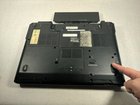
Dell Vostro 1500 Hard Drive Replacement

Nathaniel Joyal and 2 other contributors
Last updated on May 20, 2019
Views: 2.1K
View statistics:
- Past 24 Hours:
- 1
- Past 7 Days:
- 15
- Past 30 Days:
- 101
- All Time:
- 2,090
Comments: 1
1 comment on steps.
Completed: 4 5
4 people have marked this guide "completed." Will you be next?
5 people have marked this guide "completed." Including you — great job!
Favorites: 0 1
No one has favorited (and subscribed to) this guide. Will you be the first?
1 person has favorited (and subscribed to) this guide — and that's you!
Introduction
Go to step 1 ↓The instructions that follow will show how to replace the hard drive of your Dell Vostro 1500 computer. The hard drive is a component of a computer that both stores and retrieves data.
What you need
Tools

-
-
-
-
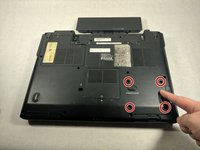
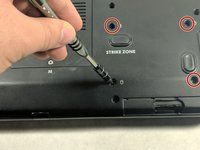
Unscrew the four Phillips head screws on the back of the computer.
-
-
-
-
Press the small black button on the side of the computer. There should be a piece that slightly pops out when this is done.
-
-
-
Pull the piece that protruded out slightly in the last step away from the computer to remove the hard drive.
-
-

 Ask FixBot




To reassemble your device, follow these instructions in reverse order.
Cancel: I did not complete this guide.
4 other people completed this guide.

Team

UMass Dartmouth, Team 1-3, Catania Fall 2016 Member of UMass Dartmouth, Team 1-3, Catania Fall 2016
UMASSD-CATANIA-F16S1G3
3 Members
60 Guides authored
