Free Shipping on Domestic Orders $75+

Dell Streak 7 Battery Replacement

What you need

  1. Dell Streak 7 Battery Replacement, Front Panel Assembly: step 1, image 1 of 1
    • Insert the spudger under the capacitive button panel, and slide the spudger all the way around.

    • You will want to heat up the screen edges with the iOpener to help facilitate removal.

    Ask FixBot

    Add Comment

  2. Dell Streak 7 Battery Replacement: step 2, image 1 of 1
    • Remove the button cover by lifting the cover away from the tablet.

    Ask FixBot

    Add Comment

  3. Dell Streak 7 Battery Replacement: step 3, image 1 of 1
    • Using the Torx screwdriver, remove the 4mm screws.

    Ask FixBot

    Add Comment

  4. Dell Streak 7 Battery Replacement: step 4, image 1 of 1
    • With the Torx screwdriver, remove the two 5mm screws.

    Ask FixBot

    Add Comment

  5. Dell Streak 7 Battery Replacement: step 5, image 1 of 2 Dell Streak 7 Battery Replacement: step 5, image 2 of 2
    • Using the spudger, insert it under the black side panel. Slide the spudger all the way around until the cover piece comes off.

    • With the Torx screwdriver, remove the two 4mm screws.

    Ask FixBot

    Add Comment

  6. Dell Streak 7 Battery Replacement: step 6, image 1 of 1
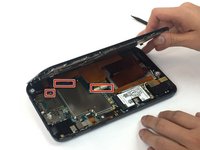
    • Use the spudger to go along the edges of the device and pop out the latches securing the display to the case.

    Ask FixBot

    Add Comment

  7. Dell Streak 7 Battery Replacement: step 7, image 1 of 2 Dell Streak 7 Battery Replacement: step 7, image 2 of 2
    • Ribbon cables are very sensitive and prone to breaking

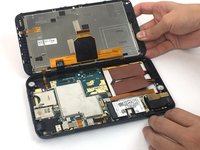
    • Disconnect the ribbon cables by unlocking the connector and pulling the cable out slowly.

    • Make sure all the cables are unplugged before opening the device completely. Failure to do so might lead to broken or torn cables.

    Ask FixBot

    Add Comment

  8. Dell Streak 7 Battery Replacement, Headphone Jack: step 8, image 1 of 1
    • Using the spudger, disconnect the ribbon cable by lifting up on the connector.

    • Ribbon cables are fragile and easily broken.

    Ask FixBot

    Add Comment

  9. Dell Streak 7 Battery Replacement: step 9, image 1 of 2 Dell Streak 7 Battery Replacement: step 9, image 2 of 2
    • Pull the headphone jack up, away from the case.

    Ask FixBot

    Add Comment

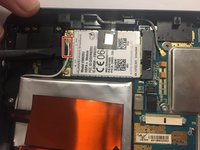
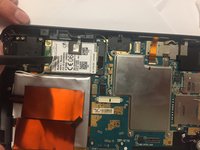
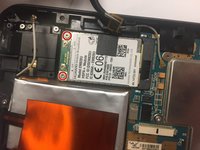
  10. Dell Streak 7 Battery Replacement, GSM Module: step 10, image 1 of 2 Dell Streak 7 Battery Replacement, GSM Module: step 10, image 2 of 2
    • With the spudger, disconnect the antenna cable located on the module.

    Ask FixBot

    Add Comment

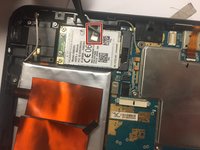
  11. Dell Streak 7 Battery Replacement: step 11, image 1 of 2 Dell Streak 7 Battery Replacement: step 11, image 2 of 2
    Tool used on this step:
    Tweezers
    $4.99
    Buy
    • Using tweezers, remove the tape connected to the GSM module.

    Ask FixBot

    Add Comment

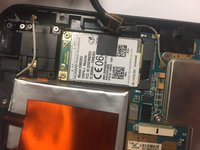
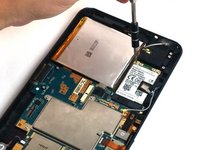
  12. Dell Streak 7 Battery Replacement: step 12, image 1 of 2 Dell Streak 7 Battery Replacement: step 12, image 2 of 2
    • Remove the two 3mm screws securing the GSM module. Use the Torx screwdriver.

    Ask FixBot

    Add Comment

  13. Dell Streak 7 Battery Replacement: step 13, image 1 of 1
    • Disconnect the GSM module by lifting the module up, out of the case.

    Ask FixBot

    Add Comment

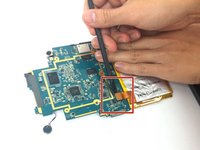
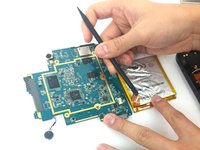
  14. Dell Streak 7 Battery Replacement, Motherboard: step 14, image 1 of 3 Dell Streak 7 Battery Replacement, Motherboard: step 14, image 2 of 3 Dell Streak 7 Battery Replacement, Motherboard: step 14, image 3 of 3
    • Using the spudger, disconnect the front camera by lifting up on the connector.

    Ask FixBot

    Add Comment

  15. Dell Streak 7 Battery Replacement: step 15, image 1 of 1
    • Using the Torx screwdriver, remove the six 3mm screws .

    Ask FixBot

    Add Comment

  16. Dell Streak 7 Battery Replacement: step 16, image 1 of 2 Dell Streak 7 Battery Replacement: step 16, image 2 of 2
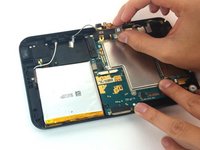
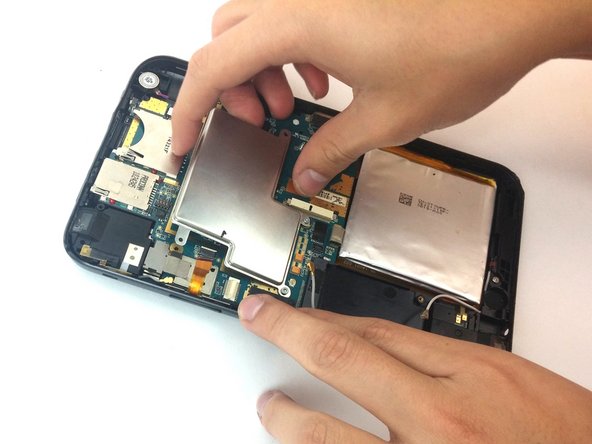
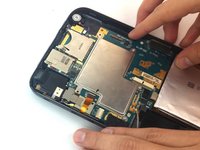
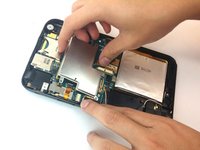
    • Lift up the metal cover.

    Ask FixBot

    Add Comment

  17. Dell Streak 7 Battery Replacement: step 17, image 1 of 1
    • Use the spudger to lift the vibration motor out of the case.

    Ask FixBot

    Add Comment

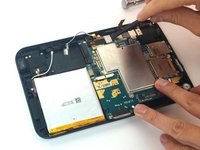
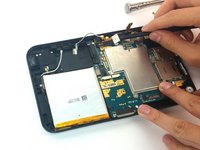
  18. Dell Streak 7 Battery Replacement: step 18, image 1 of 1
    • Pull out the motherboard and the battery.

    Ask FixBot

    Add Comment

  19. Dell Streak 7 Battery Replacement, Battery: step 19, image 1 of 2 Dell Streak 7 Battery Replacement, Battery: step 19, image 2 of 2
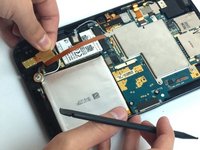
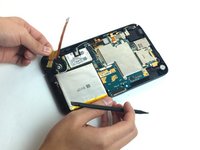
    • Use the spudger to lift up and detach the cable connecting the battery to the motherboard.

    Ask FixBot

    Add Comment

Conclusion

To reassemble your device, follow these instructions in reverse order.

Cancel: I did not complete this guide.

4 other people completed this guide.

Jair Garcia Varela

Member since: 09/29/16

337 Reputation

2 Guides authored

Team

USF Tampa, Team 4-6, Passmore Fall 2016 Member of USF Tampa, Team 4-6, Passmore Fall 2016

USFT-PASSMORE-F16S4G6

3 Members

12 Guides authored

0 Guide Comments

Add Comment

View Statistics:

Past 24 Hours: 0

Past 7 Days: 6

Past 30 Days: 20

All Time: 1,505