Introduction
Use this guide to replace the thermal paste for your Dell Precision T7600 if your CPU is overheating.
The CPU is the main part of the computer, as important as the heart of human. When the heat dissipation capacity is insufficient, the temperature is too high, your computer will become less efficient and less responsive. In severe cases, it may stop working or even shut down automatically.
In the replacement process, you do not need to remove the CPU, you can just add silicon grease (thermal paste) on top of it.
In the step 4 and 5, each tower has four 18mm TONG DIN912 screws, so total is eight screws.
Make sure to power down your device before you begin.
What you need
-
-
Remove the four 18mm screws from each of the black radiators with a Phillips #0 screwdriver. (8 screws total)
-
-
-
-
You need take all eight 18mm TONG DIN912 screws. (Each radiator has four.)
-
Remove the radiator vertically.
-
-
-
Lift the tower radiator up and off the board to reveal the CPU.
-
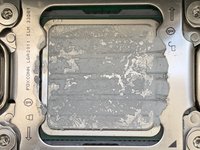
Clean the old thermal paste from the surface of the CPU. You can check out this nifty Thermal Paste Cleaning and Replacement Guide if you need any help!
-
-
-
Squeeze 1 ML of thermal paste onto the clean CPU.
-
Don't worry about spreading the thermal paste around, as the pressure from the radiator should spread the paste evenly. You can check out this nifty Thermal Paste Application Guide if you need any help.
-
-
-
Replace the radiator tower, applying even pressure as you make contact with the CPU.
-
Tighten the screws slowly in a cross pattern, making sure that one side doesn't have more pressure than the other.
-
-
-
Make sure the memory sticks are firmly affixed into the slots and the graphics card is connected.
-
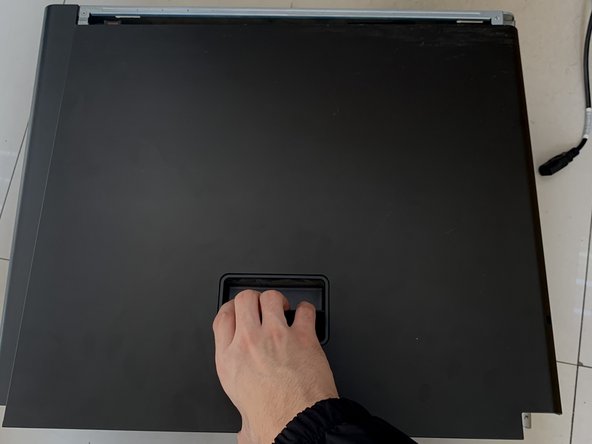
Close the case.
-
-
-
Plug in the power supply.
-
If the light does not go off (after 5 mins), you need to repeat steps 6 and 7.
-

 Ask FixBot






To reassemble your device, follow these instructions in reverse order.
Cancel: I did not complete this guide.
One other person completed this guide.

Team

York University, Team F-12, Woodhouse Fall 2021 Member of York University, Team F-12, Woodhouse Fall 2021
YORK-WOODHOUSE-F21SFG12
1 Member
2 Guides authored
