Free Shipping on Domestic Orders $75+

Dell Precision T3400 Video Card Replacement

  1. Dell Precision T3400 Video Card Replacement, Remove the computer's side panel.: step 1, image 1 of 2 Dell Precision T3400 Video Card Replacement, Remove the computer's side panel.: step 1, image 2 of 2
    • Lay the computer on its side so the panel faces up.

    • Push the cover release latch at the back of the computer's case. The cover should pop off and away from the computer.

    • Make sure the computer is on its side before you begin replacing any parts.

    Ask FixBot

    Add Comment

  2. Dell Precision T3400 Video Card Replacement, Move the heat-sink assembly lever out of the way: step 2, image 1 of 1
    • Push the tab on the blue plastic secure lever and pivot the lever down and away from the assembly

    • Make sure you ground yourself to prevent static discharge

    Ask FixBot

    Add Comment

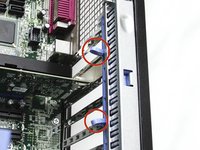
  3. Dell Precision T3400 Video Card Replacement, Open the video card secure hatch.: step 3, image 1 of 2 Dell Precision T3400 Video Card Replacement, Open the video card secure hatch.: step 3, image 2 of 2
    • Squeeze the two release tabs together and pivot the secure hatch to the right to open.

    Ask FixBot

    Add Comment

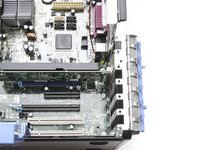
  4. Dell Precision T3400 Video Card Replacement, Remove the video card: step 4, image 1 of 1
    • Hold the card by its top corner and metal bracket and pull it out of its slot.

    Ask FixBot

    Add Comment

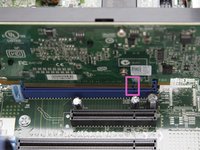
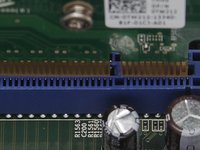
  5. Dell Precision T3400 Video Card Replacement, Install the new video card: step 5, image 1 of 2 Dell Precision T3400 Video Card Replacement, Install the new video card: step 5, image 2 of 2
    • Match the new card’s connectors with the notches in the slot and gently push it into place. The card should click into position when inserted correctly.

    • Close the card door and move the blue plastic secure lever back into place.\

    • Ensure that the card you are replacing the existing card with meets wattage and connectivity requirements. Do not force a card into the slot.

    Ask FixBot

    Add Comment

Conclusion

To reassemble your device, follow these instructions in reverse order. Step 1: Install new card and latch it in place. Step 2: Reinstall the side panel. Step 3: Plug everything back in

Cancel: I did not complete this guide.

8 other people completed this guide.

Josette Cormier

Member since: 09/10/13

13 Reputation

2 Guides authored

Team

UMass Dartmouth, Team 1-2, Gulbrandsen Fall 2013 Member of UMass Dartmouth, Team 1-2, Gulbrandsen Fall 2013

UMASSD-GULBRANDSEN-F13S1G2

3 Members

14 Guides authored

1 Guide Comment

Does it have PCI-E 2.0?

What dimensions the graphics card can have?

Maxime Raguenet - Reply Share

Add Comment

View Statistics:

Past 24 Hours: 3

Past 7 Days: 13

Past 30 Days: 59

All Time: 7,383