
Dell Precision M4800 Wi-Fi Card Replacement

Naveen and one other contributor
Last updated on Dec 22, 2023
Views: 2.1K
View statistics:
- Past 24 Hours:
- 3
- Past 7 Days:
- 29
- Past 30 Days:
- 113
- All Time:
- 2,135
Comments: 4
3 comments on steps, 1 guide comment.
Go to guide commentsCompleted: 0 1
No one has marked this guide "completed." Will you be the first?
1 person has marked this guide "completed." It's you — great job!
Favorites: 0 1
No one has favorited (and subscribed to) this guide. Will you be the first?
1 person has favorited (and subscribed to) this guide — and that's you!
Featured Student Guide
This guide has been the hard work of our awesome students and is found to be exceptionally cool by the iFixit staff.
Introduction
Go to step 1 ↓This guide is designed to help you successfully replace the Wi-Fi card in your Dell Precision M4800. Whether you're experiencing internet connectivity issues or looking to upgrade your wireless capabilities on your laptop, this replacement will address those concerns and have your laptop running smoothly again.
When looking for a replacement Wi-Fi card for your Dell M4800, it's essential to consider the following factors:
- Form Factor: Ensure that the replacement Wi-Fi card is a Mini-PCI Express (mPCIe) card, as this is the standard form factor used in many laptops, including the Dell M4800.
- Wireless Standards: Check for compatibility with the wireless standards you need. For example, modern Wi-Fi cards support standards like 802.11ac or 802.11ax, providing faster and more reliable wireless connections.
- Bluetooth Compatibility: If your original Wi-Fi card also included Bluetooth functionality, make sure the replacement card has Bluetooth support if needed.
Before beginning, make sure to shut down your laptop entirely and disconnect it from any power source. If your laptop has a swollen battery, exercise caution and handle it with care.
What you need

-
-
-
Unplug the charger from the laptop and shut it down.
-
Flip the computer, so the bottom is facing upwards.
-
Slide the release latch to release the battery.
-
Lift and remove the battery from the laptop.
 Ask FixBot
-
-
-
Using a Phillips #1 screwdriver, remove the two 5 mm screws fastening the backplate.
-
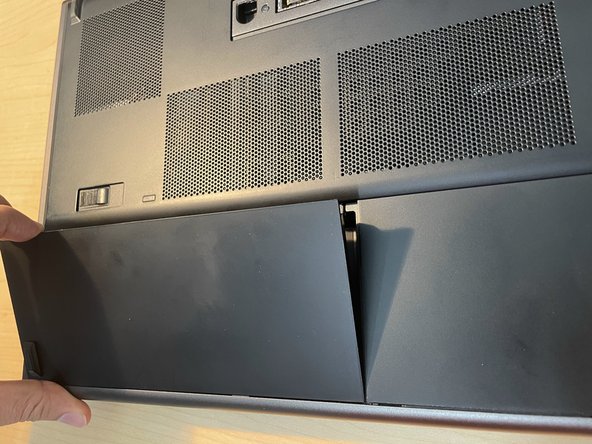
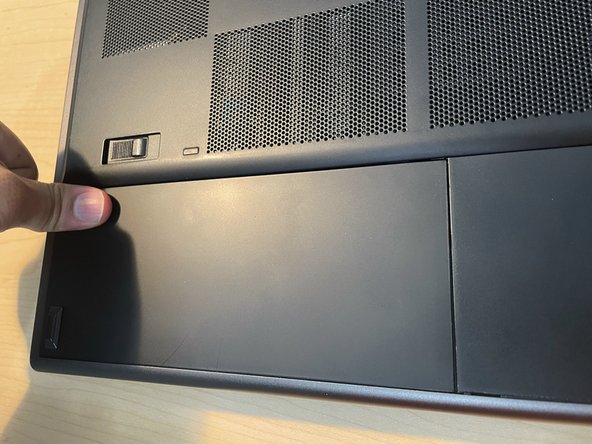
Slide the base cover towards the rear of the laptop.
-
Lift the base cover and remove it from the laptop.
-
-
-
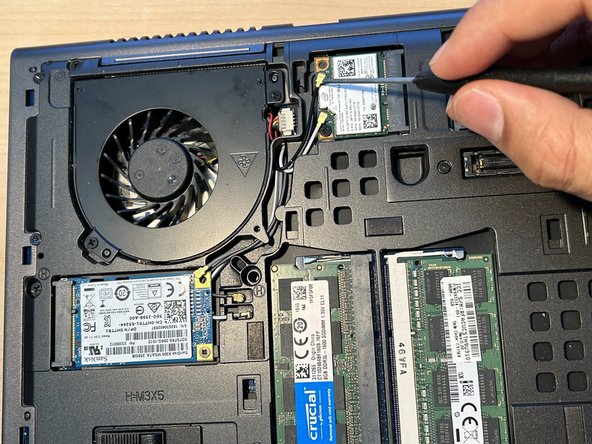
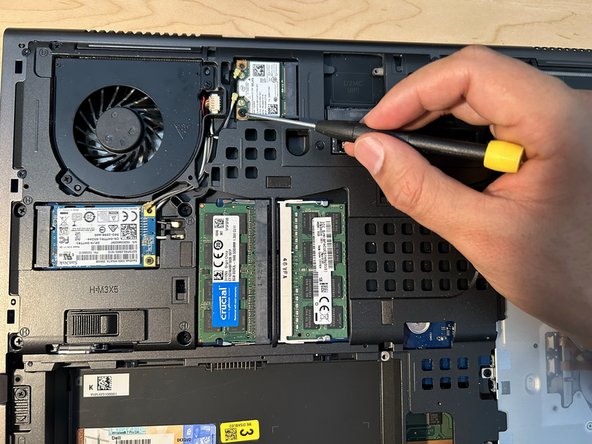
Disconnect the black and white antenna cables by carefully pulling them upwards away from the card, being cautious to not bend the connector.
-
Remove the screw.
-
-
-
-
Slide the replacement Wi-Fi card into the slot.
-
Tighten the screw securing the Wi-Fi card.
-
-
-
Connect both antenna cables back to the same places according to the color code on the Wi-Fi card.
-
-
-
Slide the base cover towards the front of the laptop.
-
Slide the battery back into its place.
-
-






To reassemble your device, follow these instructions in reverse order.

Team

York University, Team B-19, Woodhouse Fall 2023 Member of York University, Team B-19, Woodhouse Fall 2023
YORK-WOODHOUSE-F23SBG19
2 Members
12 Guides authored
1 Guide Comment
Great guide, well-written and concise. Thank you for sharing your knowledge and expertise. Best regards
