
Dell Precision M4700 RAM Replacement

dvalencia and 2 other contributors
Last updated on Jun 3, 2024
Views: 731
View statistics:
- Past 24 Hours:
- 4
- Past 7 Days:
- 29
- Past 30 Days:
- 84
- All Time:
- 731
Comments: 0
No one has left comments on this guide. Will you be first?
Go to guide commentsCompleted: 2 3
2 people have marked this guide "completed." Will you be next?
3 people have marked this guide "completed." Including you — great job!
Favorites: 0 1
No one has favorited (and subscribed to) this guide. Will you be the first?
1 person has favorited (and subscribed to) this guide — and that's you!
Introduction
Go to step 1 ↓If your Dell Precision M4700 laptop's performance has deteriorated from years of use or does not meet your current demands, use this guide to revitalize it by replacing the RAM.
The laptop's RAM provides temporary storage for data and instructions, facilitating the fast execution of tasks and programs on a computer. If your RAM is old or insufficient, it can result in slowness, freezing, crashing of applications, and an overall drop in performance.
What you need
Tools

-
-
-
Shut down the laptop.
-
Slide the battery eject button to the right until the battery lifts.
-
Carefully remove the battery from the laptop.
 Ask FixBot
-
-
-
Slide the back panel upwards.
-
Lift the panel out of the way to access the RAM bay.
-
-
-
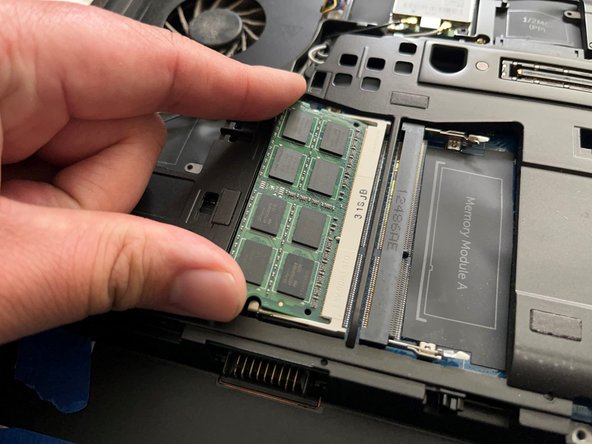
Use your fingers to push the metal retaining clips in opposite directions.
-
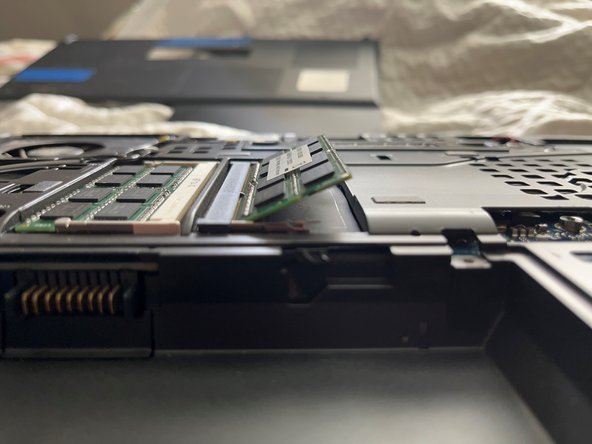
Remove the RAM from its slot.
-
-
-






To reassemble your device, follow these instructions in reverse order.
Cancel: I did not complete this guide.
2 other people completed this guide.

