Free Shipping on Domestic Orders $75+

Dell Precision M4600 Hard Drive Replacement

What you need

  1. Dell Precision M4600 Hard Drive Replacement, Battery: step 1, image 1 of 2 Dell Precision M4600 Hard Drive Replacement, Battery: step 1, image 2 of 2
    • Slide the battery release latch into the unlock position.

    • Remove the battery from the system.

  2. Dell Precision M4600 Hard Drive Replacement, Base Cover: step 2, image 1 of 3 Dell Precision M4600 Hard Drive Replacement, Base Cover: step 2, image 2 of 3 Dell Precision M4600 Hard Drive Replacement, Base Cover: step 2, image 3 of 3
    • Remove the screws that secure the base cover to the computer.

    • Press the rubber feet towards the rear of the system to disengage the bottom door.

    • Remove the base cover from the computer.

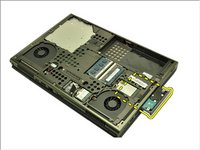
  3. Dell Precision M4600 Hard Drive Replacement, Hard Drive: step 3, image 1 of 3 Dell Precision M4600 Hard Drive Replacement, Hard Drive: step 3, image 2 of 3 Dell Precision M4600 Hard Drive Replacement, Hard Drive: step 3, image 3 of 3
    • Remove the screws securing the hard drive bracket in place.

    • Remove the screw securing the hard drive latch in place

    • Slide the hard drive release latch into the unlock position.

  4. Dell Precision M4600 Hard Drive Replacement: step 4, image 1 of 3 Dell Precision M4600 Hard Drive Replacement: step 4, image 2 of 3 Dell Precision M4600 Hard Drive Replacement: step 4, image 3 of 3
    • Remove the hard drive bracket from the system.

    • Flex the hard drive bracket outward and press the hard drive upwards from the bottom.

    • Remove the hard drive from the hard drive bracket.

Conclusion

To reassemble your device, follow these instructions in reverse order.

6 other people completed this guide.

Johnathan Hammond

Member since: 02/28/18

46,011 Reputation

408 Guides authored

Team

RampUP America, Inc. Member of RampUP America, Inc.

Community

45 Members

1,998 Guides authored

2 Guide Comments

New drive installed and ewaste pile avoided. Thanks!

David Widmann - Reply Share

As always, simple, clear and well illustrated instructions. Ifixit has been the go-to for years. Thanks.

mxbluedog - Reply Share

Add Comment

View Statistics:

Past 24 Hours: 0

Past 7 Days: 7

Past 30 Days: 40

All Time: 12,333