
Dell Precision M3800 Speaker Replacement

Brianna Hitchcock and 3 other contributors
Last updated on Dec 6, 2019
Views: 796
View statistics:
- Past 24 Hours:
- 2
- Past 7 Days:
- 12
- Past 30 Days:
- 57
- All Time:
- 796
Comments: 3
3 comments on steps.
Completed: 1 2
1 person has marked this guide "completed." Will you be next?
2 people have marked this guide "completed." Including you — great job!
Favorites: 0 1
No one has favorited (and subscribed to) this guide. Will you be the first?
1 person has favorited (and subscribed to) this guide — and that's you!
Community-Contributed Guide
An awesome member of our community made this guide. It was not created by iFixit staff.
Introduction
Go to step 1 ↓Overtime, every electronic device is going to experience some wear and tear. In some cases, if the volume is too high, the speakers of your device may become faulty. If the Dell Precision M3800 speakers are giving little to no audio or audio that is scratchy or distorted, use this guide to replace the faulty speakers.
Before beginning, be sure to power down the laptop, and unplug from the external power source(s).
What you need
Tools


-
-
-
Use a T5 Torx screwdriver to unscrew the ten 3mm screws on the laptop back cover.
-
Lift up the silver cover from the back panel to reveal two screws.
-
Use a Phillips screwdriver to remove the two screws underneath the silver cover.
 Ask FixBot
-
-
-
Use an opening tool to pry around the edges of the back panel to loosen the panel.
-
Remove the back panel.
-
-
-
-
-
Disconnect the battery cable from the system board [1].
-
Use a Phillips screwdriver to remove the four screws securing the battery to the laptop.
-
Lift the battery off the computer [2].
-
-
-
-
-
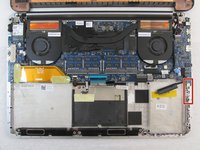
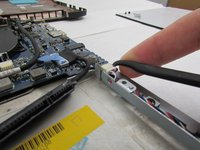
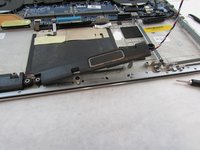
Unplug the red, white, and blue speaker wire connected to the main motherboard.
-
-
-
-
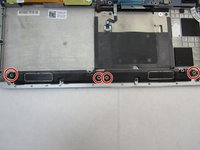
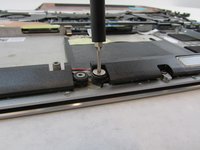
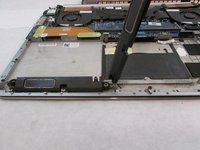
Remove the speakers by gently pulling up on the main unit on the left hand side. Make sure to not lose the rubber bushings that are attached to the sides of the speakers.
-
-






To reassemble your device, follow these instructions in reverse order.
Cancel: I did not complete this guide.
One other person completed this guide.

Team

Embry-Riddle Aeronautical University, Team S12-G2, Lamothe Fall 2019 Member of Embry-Riddle Aeronautical University, Team S12-G2, Lamothe Fall 2019
ERAU-LAMOTHE-F19S12G2
4 Members
84 Guides authored
