Free Shipping on Domestic Orders $75+

Dell Optiplex SX280 Hard Drive Replacement

Views: 6.6K

View statistics:

Past 24 Hours:
2
Past 7 Days:
24
Past 30 Days:
103
All Time:
6,573
Comments: 2

2 guide comments.

Go to guide comments
Completed: 6

6 people have marked this guide "completed." Will you be next?

Favorites: 2

2 people have favorited (and subscribed to) this guide. Will you be next?

Time Required: 10 minutes
Difficulty: Moderate
Dell Optiplex SX280 Hard Drive Replacement

Introduction

Go to step 1 ↓

Remove and Replace the Hard Drive

    1. Dell Optiplex SX280 Hard Drive Replacement, Panel Cover: step 1, image 1 of 1
      • Make sure the computer is turned off, by selecting the start menu and choosing “Shut Down”.

      • Ensure all cables, speakers and other devices are unplugged and turned off before opening the computer case.

      Ask FixBot

      Add Comment

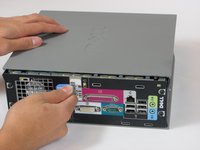
    2. Dell Optiplex SX280 Hard Drive Replacement: step 2, image 1 of 2 Dell Optiplex SX280 Hard Drive Replacement: step 2, image 2 of 2
      • Lay the computer on its side; you will see a blue knob.

      • Turn this knob 90 deg clockwise.

      Ask FixBot

      Add Comment

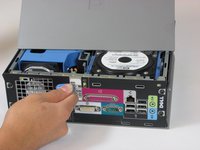
    3. Dell Optiplex SX280 Hard Drive Replacement: step 3, image 1 of 2 Dell Optiplex SX280 Hard Drive Replacement: step 3, image 2 of 2
      • Slide the panel case forward about 1/2 inch while knob is turned.

      • Lift panel case off computer.

      Ask FixBot

      Add Comment

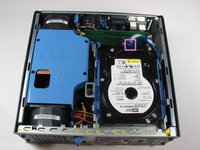
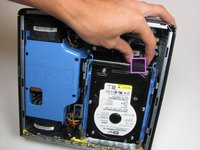
    1. Dell Optiplex SX280 Hard Drive Replacement, Hard Drive: step 4, image 1 of 2 Dell Optiplex SX280 Hard Drive Replacement, Hard Drive: step 4, image 2 of 2
      • Unplug the blue cable that connects the hard drive to the motherboard.

      Ask FixBot

      Add Comment

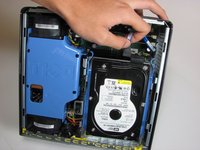
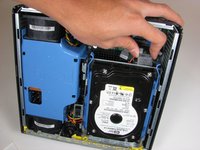
    2. Dell Optiplex SX280 Hard Drive Replacement: step 5, image 1 of 2 Dell Optiplex SX280 Hard Drive Replacement: step 5, image 2 of 2
      • Unplug the power supply, distinguished by its red and yellow wires (yellow wire obscured from view).

      Ask FixBot

      Add Comment

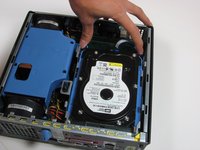
    3. Dell Optiplex SX280 Hard Drive Replacement: step 6, image 1 of 1
      • Squeeze the release tabs on either side of the hard drive.

      Ask FixBot

      Add Comment

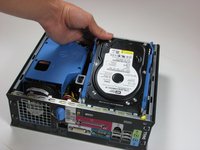
    4. Dell Optiplex SX280 Hard Drive Replacement: step 7, image 1 of 2 Dell Optiplex SX280 Hard Drive Replacement: step 7, image 2 of 2
      • Slide the Hard Drive out while squeezing the tabs.

      Ask FixBot

      Add Comment

Conclusion

To reassemble your device, follow these instructions in reverse order.

Cancel: I did not complete this guide.

6 other people completed this guide.

Wyatt

Member since: 10/06/10

784 Reputation

6 Guides authored

Team

Cal Poly, Team 22-4, Maness Fall 2010 Member of Cal Poly, Team 22-4, Maness Fall 2010

CPSU-MANESS-F10S22G4

4 Members

156 Guides authored

2 Guide Comments

Thanks for great tutorial.

Politers - Reply Share

Yeah great tutorial!

Rebinas - Reply Share

Add Comment

View Statistics:

Past 24 Hours: 2

Past 7 Days: 24

Past 30 Days: 103

All Time: 6,573