
Dell OptiPlex FX170 RAM Replacement

Ashley Hansen and 4 other contributors
Last updated on Jun 16, 2015
Views: 1.9K
View statistics:
- Past 24 Hours:
- 9
- Past 7 Days:
- 26
- Past 30 Days:
- 97
- All Time:
- 1,920
Comments: 1
1 comment on steps.
Completed: 2 3
2 people have marked this guide "completed." Will you be next?
3 people have marked this guide "completed." Including you — great job!
Favorites: 0 1
No one has favorited (and subscribed to) this guide. Will you be the first?
1 person has favorited (and subscribed to) this guide — and that's you!
Introduction
Go to step 1 ↓This guide was created for people who may need to replace the RAM for the Dell Optiplex FX 170. Someone may need to replace this component if it isn't working properly or has failed. This is an easy fix with no hazards. One should be familiar with electro-static discharge.
What you need
Tools
-
Spudger4.9


-
-
-
With the base stand facing upwards, unscrew the 6mm Phillips #2 screw.
-
Pull the base stand straight up from the device.
 Ask FixBot
-
-
-
Unscrew and remove the eight 4mm Phillips #0 screws (four on top, four on bottom) from the top and bottom of the device.
-
-
-
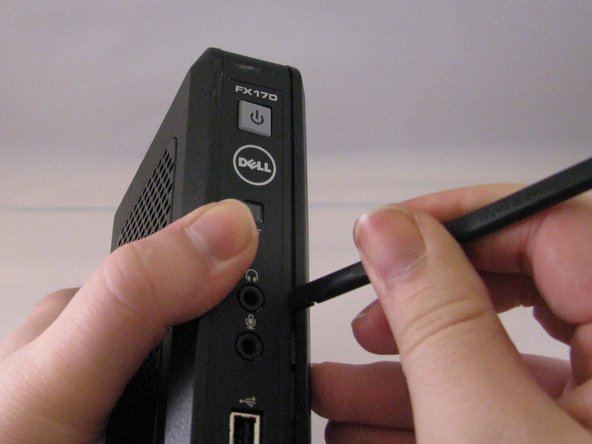
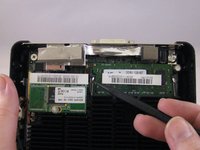
Run the flat side of the spudger along the entire line of the case starting from the back where the power plug and a small screw are located.
-
-
-
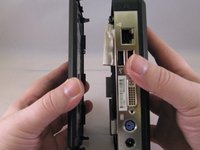
Once the clips have been released, gently disengage the cover from the rest of case by pulling in opposite directions.
-
-
-
-
-
-
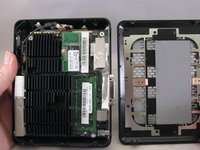
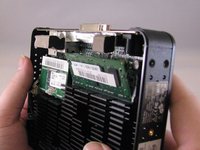
Using fingers, push the clips on either side of the RAM. The RAM will pop up at a 45 degree angle when both clips are disengaged.
-
-







To reassemble your device, follow these instructions in reverse order.
Cancel: I did not complete this guide.
2 other people completed this guide.

Team

Eastern Washington University, Team 1-4, Carnegie Winter 2015 Member of Eastern Washington University, Team 1-4, Carnegie Winter 2015
EWU-CARNEGIE-W15S1G4
3 Members
84 Guides authored
