
Dell Latitude E7440 Trackpad Replacement

Sheetal Prasanna and 3 other contributors
Last updated on Dec 19, 2019
Views: 3.9K
View statistics:
- Past 24 Hours:
- 5
- Past 7 Days:
- 26
- Past 30 Days:
- 117
- All Time:
- 3,884
Comments: 1
1 comment on steps.
Completed: 2 3
2 people have marked this guide "completed." Will you be next?
3 people have marked this guide "completed." Including you — great job!
Favorites: 0 1
No one has favorited (and subscribed to) this guide. Will you be the first?
1 person has favorited (and subscribed to) this guide — and that's you!
Introduction
Go to step 1 ↓If the trackpad or mousepad of your Dell Latitude E7440 is damaged in any form, use this guide to replace the trackpad.
The trackpad is used to navigate the cursor on the monitor and also to select and open files or folders. A damaged or worn out trackpad can be a hindrance while using the laptop.
Before using this guide, clean the trackpad using a soft cloth so that it is free of debris.
Before beginning, make sure to power off your laptop completely and disconnect from any external power source.
What you need
Parts
Tools


-
-
-
Remove two 3mm screws using the Phillips #0 screwdriver.
-
Slide access door down and remove it by slightly jerking it. Make sure no part of the door is sticking to the components.
-
-
-
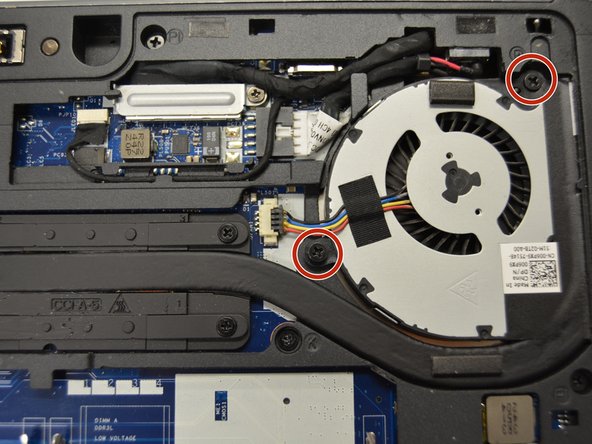
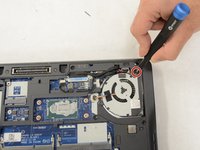
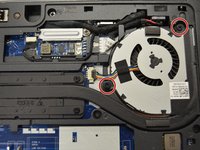
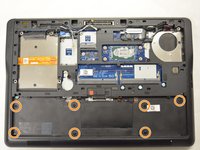
Remove two 5mm screws using the Phillips #0 screwdriver.
-
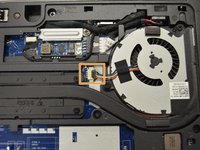
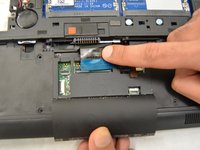
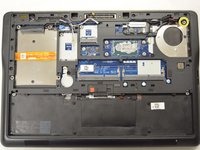
Unplug highlighted cable. Be careful not to snap it in half.
-
-
-
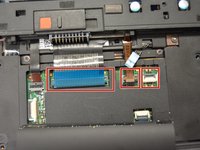
Remove cables on the bottom.
-
Remove two 5mm screws using the Phillips #0 screwdriver.
-
-
-
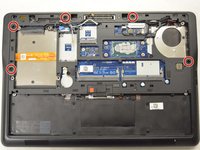
Remove the following screws using the Phillips #0 screwdriver.
-
Five 5mm screws.
-
Seven 3mm screws.
-
One 8mm screw.
-
-
-
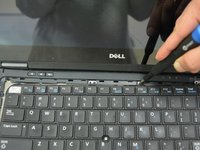
Remove the keyboard bezel. This might take some effort. Use some force in one direction only.
-
-
-
-
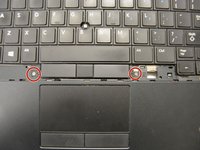
Remove the two 2.5mm mouse button screws using the Phillips #0 screwdriver.
-
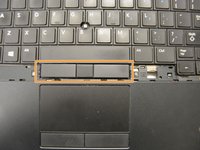
Remove the mouse button.
-
-
-
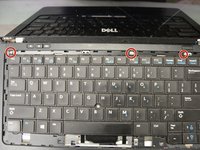
Remove three 3mm screws using the Phillips #0 screwdriver.
-
Remove the keyboard by pulling it in one direction.
-
-
-
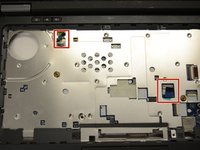
Disconnect the cables from the device.
-
Remove a single 5mm screw using the Phillips #0 screwdriver.
-
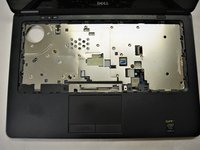
Remove the trackpad panel.
-


 Ask FixBot





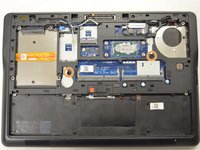








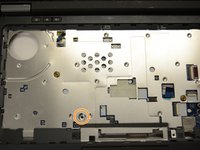
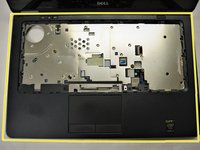
To reassemble your device, follow these instructions in reverse order.
Cancel: I did not complete this guide.
2 other people completed this guide.

Team

IUPUI, Team S1-G1, Stella Fall 2019 Member of IUPUI, Team S1-G1, Stella Fall 2019
IUPUI-STELLA-F19S1G1
4 Members
36 Guides authored
