Free Shipping on Domestic Orders $75+

Dell Latitude E7440 CMOS Battery Replacement

What you need

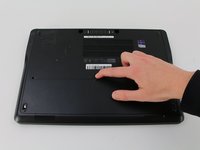
    1. Dell Latitude E7440 CMOS Battery Replacement, Prepare the laptop: step 1, image 1 of 1
      • Power off your laptop before starting.

      • Flip the device over so that the vents on the bottom are facing away from you.

      Ask FixBot

      Add Comment

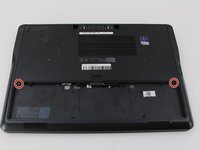
    2. Dell Latitude E7440 CMOS Battery Replacement, Release the battery: step 2, image 1 of 3 Dell Latitude E7440 CMOS Battery Replacement, Release the battery: step 2, image 2 of 3 Dell Latitude E7440 CMOS Battery Replacement, Release the battery: step 2, image 3 of 3
      • Place your finger on the latch located in the center of the laptop.

      • Slide the latch to the right, applying enough force to reveal a red indicator.

      • You will hear a soft click when the latch has been disengaged.

      Ask FixBot

      Add Comment

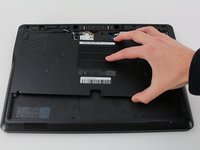
    3. Dell Latitude E7440 CMOS Battery Replacement, Remove the battery: step 3, image 1 of 1
      • Lift the battery by the top, away from the laptop body.

      Ask FixBot

      Add Comment

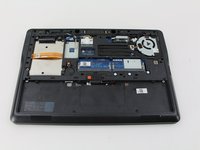
    1. Dell Latitude E7440 CMOS Battery Replacement, CMOS Battery: step 4, image 1 of 2 Dell Latitude E7440 CMOS Battery Replacement, CMOS Battery: step 4, image 2 of 2
      • Remove two M2 x 3mm Phillips #0 screws from the base cover.

      Ask FixBot

      Add Comment

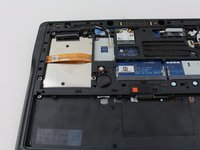
    2. Dell Latitude E7440 CMOS Battery Replacement: step 5, image 1 of 2 Dell Latitude E7440 CMOS Battery Replacement: step 5, image 2 of 2
      • Slide the base cover down slightly and remove it.

      Ask FixBot

      Add Comment

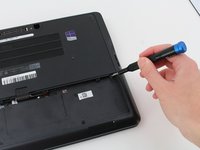
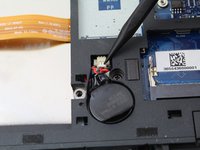
    3. Dell Latitude E7440 CMOS Battery Replacement: step 6, image 1 of 3 Dell Latitude E7440 CMOS Battery Replacement: step 6, image 2 of 3 Dell Latitude E7440 CMOS Battery Replacement: step 6, image 3 of 3
      • Position your nylon spudger on the edge of the white connector, in between the connector and the port.

      • Pull back on the connector until the plastic head disconnects from the port on the laptop body.

      • If the connector is stuck, move the broader end of the spudger back and forth across the connector to slowly loosen the connection.

      Ask FixBot

      Add Comment

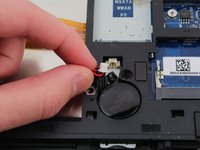
    4. Dell Latitude E7440 CMOS Battery Replacement: step 7, image 1 of 1
      • Separate the wrapped battery stack from the body by pulling up the wire.

      • You may need to use the flat end of the nylon spudger to separate the battery.

      • The stack is attached using glue, so you might hear a pop when removing it.

      • Reapplying an adhesive to the bottom of the battery is recommended, although not necessary, to keep it in place.

      Ask FixBot

      Add Comment

Conclusion

To reassemble your device, follow these instructions in reverse order.

Cancel: I did not complete this guide.

8 other people completed this guide.

Akash Kedia

Member since: 01/24/19

1,553 Reputation

5 Guides authored

Team

Cal Poly, Team S2-G5, White Winter 2019 Member of Cal Poly, Team S2-G5, White Winter 2019

CPSU-WHITE-W19S2G5

4 Members

60 Guides authored

2 Guide Comments

You list no part number for the replacement battery. Do we know the part number? I looked on Dell's website and find nothing. Otherwise, nice write-up!

jess13j - Reply Share

@jess13j, battery is a CR2032 coin cell.

senzog - Reply Share

Add Comment

View Statistics:

Past 24 Hours: 5

Past 7 Days: 38

Past 30 Days: 133

All Time: 16,229