Introduction
The RAM stands for random access memory and is used to find specific information quickly and perform faster. It is the main memory source in the computer.
You may be reading this guide if you are experiencing slower than usual loading, files are being corrupted, or installations are failing for unknown reasons.
What you need
-
-
-
Slide the battery release all the way to the right.
-
Once the battery release is pulled all the way, the battery will lift itself slightly from the casing.
-
Remove the battery.
 Ask FixBot
-
-
-
-
-
-
With the battery removed two screws will be visible. These will need to be removed.
-
Placing your hands on either side of the panel, push down and pull back to slide the plate back and off.
-
-
-
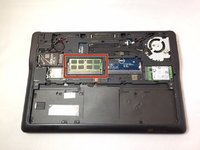
The RAM stick will be located on the left side of the computer.
-
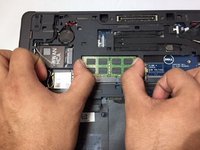
Located on either side of the RAM stick is a pair of metal bars. Gently pull them to the side of the ram and it will lift upwards.
-
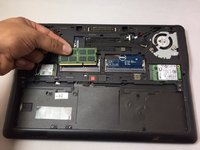
Pull the RAM stick gently, at an angle away from the rest of the computer.
-
-


To reassemble your device, follow these instructions in reverse order.
Cancel: I did not complete this guide.
4 other people completed this guide.

Team

University of North Texas, Team S2-G4, Thompson Fall 2017 Member of University of North Texas, Team S2-G4, Thompson Fall 2017
UNT-THOMPSON-F17S2G4
4 Members
36 Guides authored
