
Dell Latitude E6540 Battery Replacement

Last updated on Jan 15, 2024
Views: 9.5K
View statistics:
- Past 24 Hours:
- 2
- Past 7 Days:
- 23
- Past 30 Days:
- 135
- All Time:
- 9,528
Comments: 1
1 guide comment.
Go to guide commentsCompleted: 8 9
8 people have marked this guide "completed." Will you be next?
9 people have marked this guide "completed." Including you — great job!
Favorites: 1 2
1 person has favorited (and subscribed to) this guide. Will you be next?
2 people have favorited (and subscribed to) this guide — including you!
Community-Contributed Guide
An awesome member of our community made this guide. It was not created by iFixit staff.
Introduction
Go to step 1 ↓If you own one of these laptops, you are likely referencing this guide because your system shipped with the Core i7/Radeon 8790M GPU with a 6-cell battery that is either prematurely consumed, or does not run long due to the power draw this configuration is known for.
This guide will show you how to replace the battery in the E6540.
Note: If you have a slice battery installed, the slice battery must be removed first.
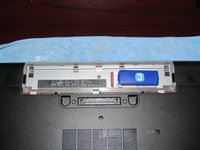
Along with battery replacement instructions, this guide will show you where the COA is located with versions of the system that shipped with Windows 7 (which is the vast majority) on most E-series Dell laptops of this era. When you are not using Dell SLIC media, this key is required to activate Windows.
Note: On Windows 8.1 systems, the key is stored in the BIOS and a tamper-evident sticker is attached to the bottom of the service panel on the laptop.
What you need
Parts
-
Battery (97Wh 9 Cell Extended)
DP/N: WT5WP/No longer manufactured/Aftermarket only
-
Battery (87Wh 9 cell Long life)Optional
Optional. DP/N: NHXVW 3 year warranty/No longer manufactured/Aftermarket only
-
Battery (65Wh 6 cell Stanard)Optional
Optional. DP/N: N3X1D/No longer manufactured/Aftermarket only
-
Battery (60Wh 6 cell Standard)Optional
Optional. DP/N: T54FJ/No longer manufactured/Aftermarket only
-
-
-
Locate the Hibernate option in the Start menu. Let the system fully hibernate (or shut down) before removing the battery.
 Ask FixBot
-
-
-
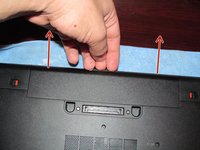
Flip the laptop over and unlock the 2 battery tabs. The tabs will remain unlocked until the battery is removed.
-
-
-
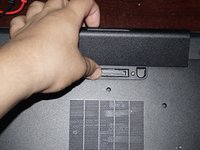
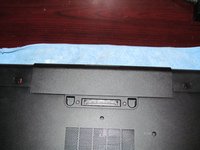
Remove the battery. Pull the battery up from the back.
-
-
-
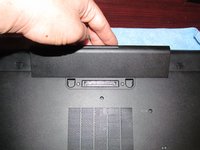
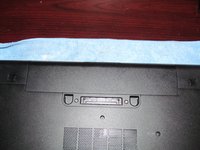
Align the battery with the tabs on the chassis. Drop the battery in place once lined up. If needed, use light pressure to seat it in the computer.
-
-
-





Cancel: I did not complete this guide.
8 other people completed this guide.

