Free Shipping on Domestic Orders $75+

Dell Latitude E6420 Fan Replacement

What you need

    1. Dell Latitude E6420 Fan Replacement, Battery: step 1, image 1 of 2 Dell Latitude E6420 Fan Replacement, Battery: step 1, image 2 of 2
      • Push the tabs on the left and right of the battery out towards the edge of the case.

      Ask FixBot

      Add Comment

    2. Dell Latitude E6420 Fan Replacement: step 2, image 1 of 1
      • While still pushing in the tabs, using your pinky finger, lift the battery out of the laptop.

      Ask FixBot

      Add Comment

    1. Dell Latitude E6420 Fan Replacement, CD/DVD Drive: step 3, image 1 of 2 Dell Latitude E6420 Fan Replacement, CD/DVD Drive: step 3, image 2 of 2
      • Push the button in on the CD/DVD drive to eject the drive.

      Ask FixBot

      Add Comment

    2. Dell Latitude E6420 Fan Replacement: step 4, image 1 of 2 Dell Latitude E6420 Fan Replacement: step 4, image 2 of 2
      • Slide the drive out of the laptop.

      • When removing the drive, keep it flat to prevent damage to anything inside the laptop.

      Ask FixBot

      Add Comment

    1. Dell Latitude E6420 Fan Replacement, Backplate: step 5, image 1 of 2 Dell Latitude E6420 Fan Replacement, Backplate: step 5, image 2 of 2
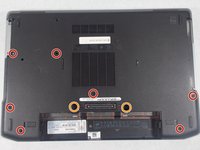
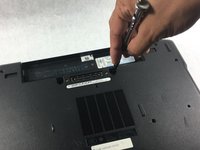
      • Using the screwdriver, remove seven 4mm Phillips #1 screws from the bottom of the laptop.

      • Using the screwdriver, remove two 9mm Phillips #00 screws from the bottom of the laptop.

      Ask FixBot

      Add Comment

    2. Dell Latitude E6420 Fan Replacement: step 6, image 1 of 2 Dell Latitude E6420 Fan Replacement: step 6, image 2 of 2
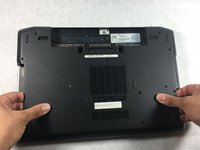
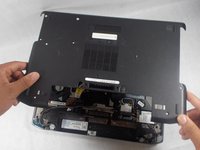
      • Gently lift the back plate off of the laptop making sure all of the tabs on the inside perimeter of the back plate are unhooked before lifting.

      • Be careful when removing the backplate. Lifting the backplate while the tabs are still hooked in will result in broken tabs.

      Ask FixBot

      Add Comment

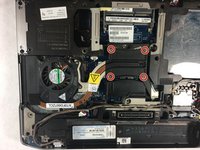
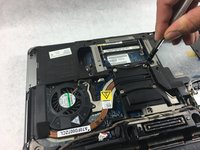
    1. Dell Latitude E6420 Fan Replacement, Fan: step 7, image 1 of 2 Dell Latitude E6420 Fan Replacement, Fan: step 7, image 2 of 2
      • Using the screwdriver, remove four 10mm Phillips #0 spring screws from the fan assembly.

      Ask FixBot

      Add Comment

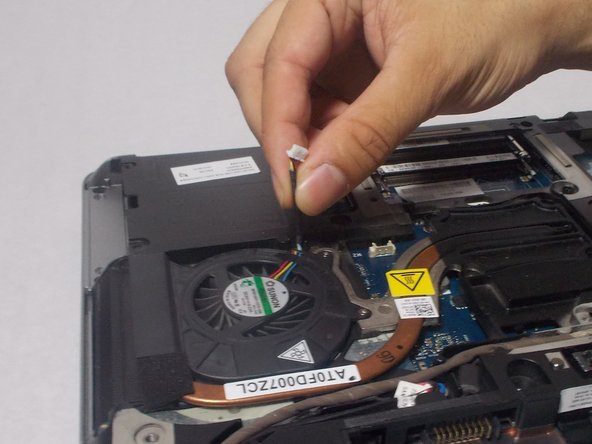
    2. Dell Latitude E6420 Fan Replacement: step 8, image 1 of 2 Dell Latitude E6420 Fan Replacement: step 8, image 2 of 2
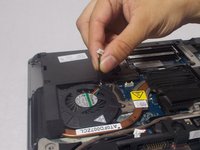
      • Use the plastic opening tool to unclip the connector.

      Ask FixBot

      Add Comment

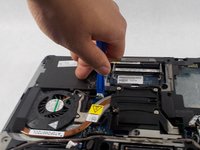
    3. Dell Latitude E6420 Fan Replacement: step 9, image 1 of 1
      • Lift the fan out of the laptop.

      Ask FixBot

      Add Comment

Conclusion

To reassemble your device, follow these instructions in reverse order.

Cancel: I did not complete this guide.

4 other people completed this guide.

Madysen Eames

Member since: 02/27/18

1,555 Reputation

7 Guides authored

Team

1 Guide Comment

very good explanatory steps. but you did not talk about the application of thermal paste for reassembly

Godwin Nwachukwu - Reply Share

Add Comment

View Statistics:

Past 24 Hours: 2

Past 7 Days: 13

Past 30 Days: 45

All Time: 2,797