
Dell Latitude E6410 Screen Assembly Replacement

Esteban Damian and 6 other contributors
Last updated on Aug 7, 2018
Views: 4.2K
View statistics:
- Past 24 Hours:
- 1
- Past 7 Days:
- 11
- Past 30 Days:
- 30
- All Time:
- 4,199
Comments: 0
No one has left comments on this guide. Will you be first?
Go to guide commentsCompleted: 10 11
10 people have marked this guide "completed." Will you be next?
11 people have marked this guide "completed." Including you — great job!
Favorites: 5 6
5 people have favorited (and subscribed to) this guide. Will you be next?
6 people have favorited (and subscribed to) this guide — including you!
Introduction
Go to step 1 ↓Use this guide to replace the entire Dell Latitude e6410 screen assembly. You will be removing the entire old screen assembly and replacing it with the new screen.
Use this guide only to replace the entire screen assembly. "Screen assembly" refers to the all of the screen components fully assembled into the screen case including the display, camera, and other components.
What you need
Tools

-
-
-
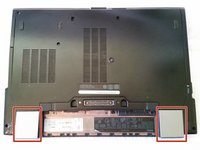
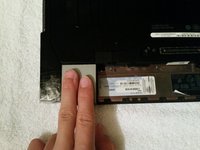
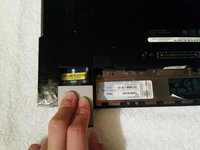
Slide both clips in towards each other to remove the battery from the laptop.
 Ask FixBot
-
-
-
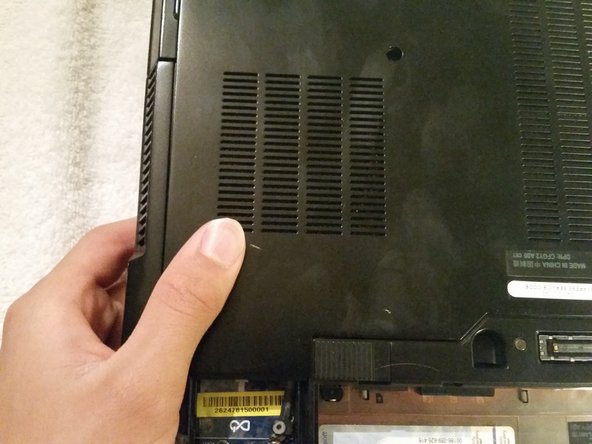
Remove the two 5 mm Phillip's screws located on the left and right side of the battery socket.
-
-
-
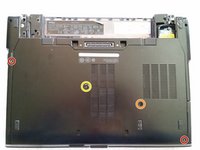
Remove the two 5mm Phillip's screws in the bottom right and the top left corners of the back panel.
-
Remove the 3mm Phillip's screw that is near the bottom right corner.
-
Loosen the Phillip's screw that is near the center until the spring pops up, but do not remove it.
-
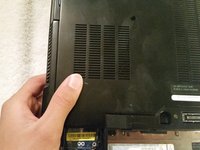
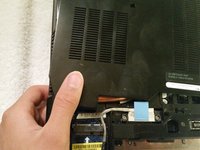
Detach the back case panel by sliding it away from the battery slot and lifting it out of place.
-
-
-
-
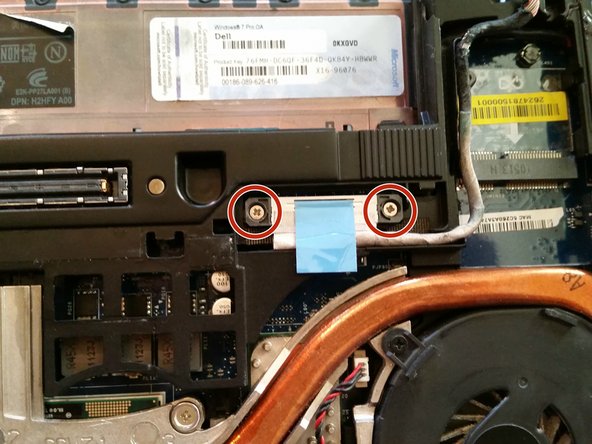
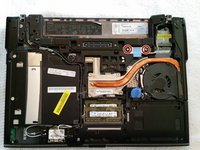
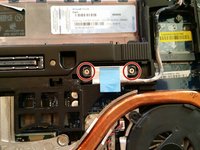
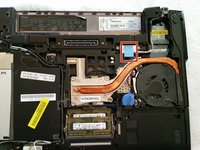
Loosen the two 5mm Phillip's screws near the top right corner that are holding the display cable onto the motherboard.
-
-
-
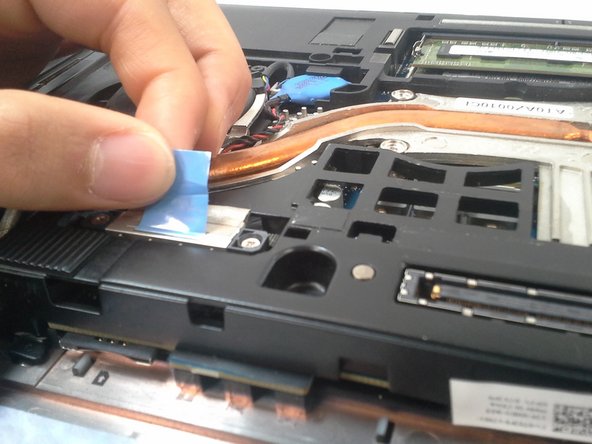
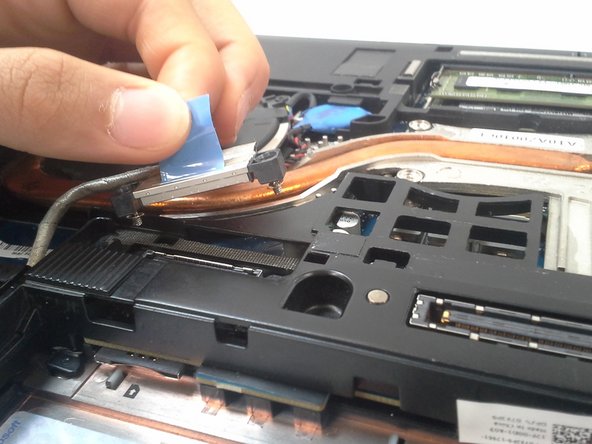
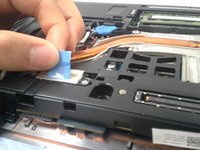
Detach the display cord from the motherboard by grabbing the blue tab in between your thumb and index finger and carefully pulling upwards.
-
-
-
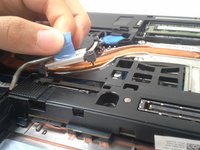
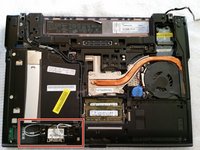
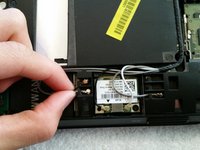
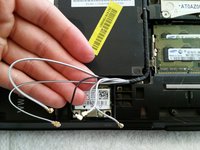
Near the bottom left corner, detach the grey, black, and white wires from the graphics card and the two wires hooked in place by carefully unhooking them or pulling them off.
-
-
-
Carefully unthread the wires detached in the last step from the hooks to completely free them from the laptop.
-
-
-
Remove the two 5mm Phillip's screws that are in the top right and left corners of the laptop.
-
-
-
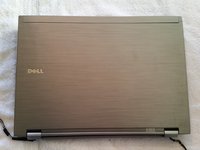
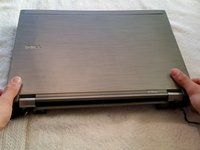
Flip the laptop so that the top is facing up and grab the back two corners of the laptop screen. Pull upwards to remove the screen.
-
-










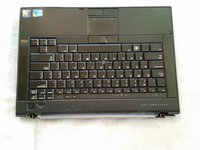
To reassemble your device, follow these instructions in reverse order.
Cancel: I did not complete this guide.
10 other people completed this guide.

Team

Central Coast New Tech High, Team 4-1, Rushing Spring 2016 Member of Central Coast New Tech High, Team 4-1, Rushing Spring 2016
CCNTH-RUSHING-S16S4G1
2 Members
12 Guides authored
