
Dell Latitude E5500 Wireless Card Replacement

Richard Harrison and 5 other contributors
Last updated on May 7, 2024
Views: 1.8K
View statistics:
- Past 24 Hours:
- 0
- Past 7 Days:
- 16
- Past 30 Days:
- 80
- All Time:
- 1,786
Comments: 0
No one has left comments on this guide. Will you be first?
Go to guide commentsCompleted: 3 4
3 people have marked this guide "completed." Will you be next?
4 people have marked this guide "completed." Including you — great job!
Favorites: 1 2
1 person has favorited (and subscribed to) this guide. Will you be next?
2 people have favorited (and subscribed to) this guide — including you!
Introduction
Go to step 1 ↓If the user would like to replace a faulty wireless card, or one that is not powerful enough, this guide will give step by step information on how to achieve this.
What you need
Tools


-
-
-
Unscrew the single 3.5mm Phillips #1 screw that holds on the bottom plate of the device.
 Ask FixBot
-
-
-
Place your hands on the plate and pull it toward yourself.
-
The plate will pop out of place and may then be removed.
-
-
-
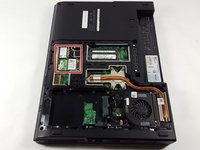
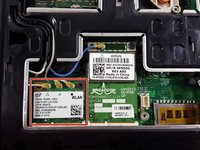
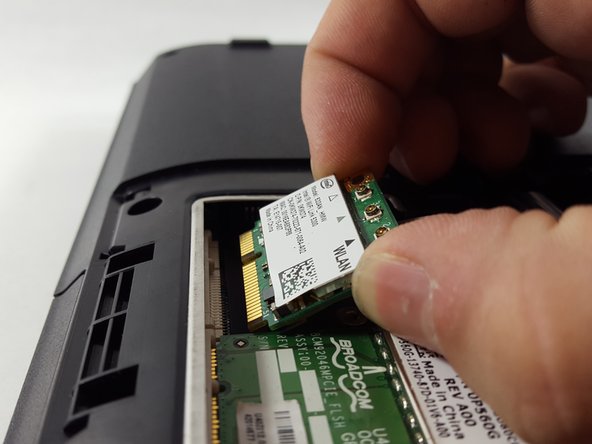
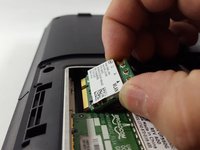
The wireless card is located near the front of the device, and is the expansion card with three antennas attached to it.
-
-
Tool used on this step:Tweezers$4.99
-
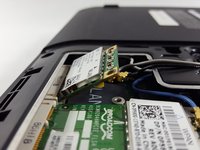
Remove the wires connecting the card to the laptop with a pair of tweezers.
-
-
-




To reassemble your device, follow these instructions in reverse order.
Cancel: I did not complete this guide.
3 other people completed this guide.

Team

UMass Dartmouth, Team 2-4, Isaacson Fall 2016 Member of UMass Dartmouth, Team 2-4, Isaacson Fall 2016
UMASSD-ISAACSON-F16S2G4
3 Members
60 Guides authored
