Free Shipping on Domestic Orders $75+

Dell Latitude E4310 RAM Replacement

What you need

    1. Dell Latitude E4310 RAM Replacement, Battery: step 1, image 1 of 1
      • Power down the laptop and remove all power cords.

      Ask FixBot

      Add Comment

    2. Dell Latitude E4310 RAM Replacement: step 2, image 1 of 2 Dell Latitude E4310 RAM Replacement: step 2, image 2 of 2
      • Push in the battery release button with your thumb.

      • Pull up on the battery to remove.

      Ask FixBot

      Add Comment

    1. Dell Latitude E4310 RAM Replacement, Memory Door: step 3, image 1 of 2 Dell Latitude E4310 RAM Replacement, Memory Door: step 3, image 2 of 2
      • Unscrew the two 4mm Phillips #1 screws.

      Ask FixBot

      Add Comment

    2. Dell Latitude E4310 RAM Replacement: step 4, image 1 of 2 Dell Latitude E4310 RAM Replacement: step 4, image 2 of 2
      • Lift up the panel with your finger.

      • The screws are clipped to the panel and will remain attached.

      Ask FixBot

      Add Comment

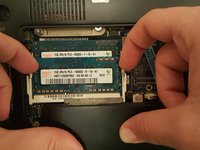
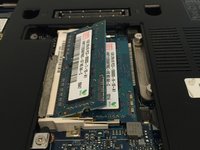
    1. Dell Latitude E4310 RAM Replacement, RAM: step 5, image 1 of 2 Dell Latitude E4310 RAM Replacement, RAM: step 5, image 2 of 2
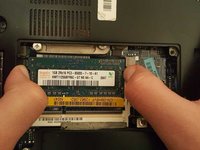
      • Pry the two metal clips away from the RAM module until the module pops out of place.

      Ask FixBot

      Add Comment

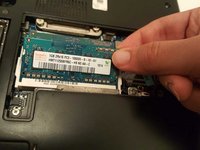
    2. Dell Latitude E4310 RAM Replacement: step 6, image 1 of 2 Dell Latitude E4310 RAM Replacement: step 6, image 2 of 2
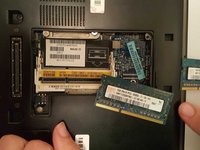
      • Slide the RAM backwards out of its socket to remove.

      Ask FixBot

      Add Comment

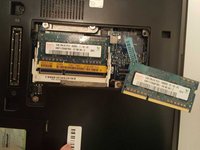
    3. Dell Latitude E4310 RAM Replacement: step 7, image 1 of 2 Dell Latitude E4310 RAM Replacement: step 7, image 2 of 2
      • Repeat steps 1 and 2 to remove the second RAM module.

      Ask FixBot

      Add Comment

Conclusion

To reassemble your device, follow these instructions in reverse order.

Cancel: I did not complete this guide.

One other person completed this guide.

0 Guide Comments

Add Comment

View Statistics:

Past 24 Hours: 2

Past 7 Days: 17

Past 30 Days: 67

All Time: 1,615