What you need
-
-
-
Orient the laptop so that the back is facing you.
-
With a phillip's head screwdriver, remove the two screws on the back corners of the laptop.
 Ask FixBot
-
-
-
Flip the laptop over, with the opening still facing up.
-
With a phillip's head screwdriver remove the two screws in the upper two corners.
-
-
-
Open the laptop up. Displaying the keyboard and screen.
-
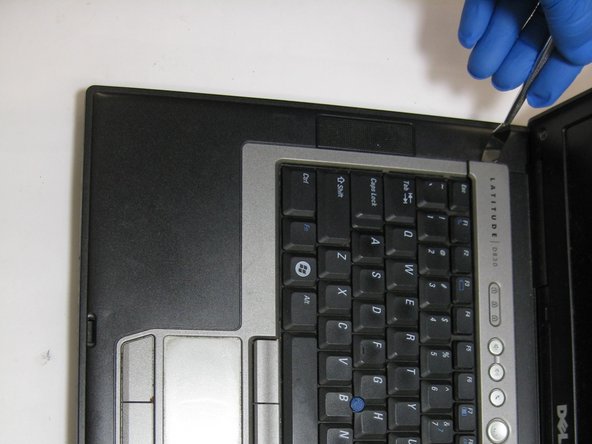
Take a spudger and insert it under the left edge of the panel between the keyboard and screen.
-
Use the spudger to pry under the panel.
-
-
-
Place the spudger under the middle of the panel and use it to pry the panel off.
-
-
-
-
Place the spudger under the right side of the panel and use it to pry the panel off.
-
For additional help the spudger can be placed around the edge of the panel and used to pry it off.
-
-
-
After you have the panel popped out, then you must pull the screen up as shows in the picture.
-
-
-
The screen will only be connected by the wiring.
-
Take the screen and gently place it on the table as shown in the picture.
-
Now you must remove the three screws highlighted in the picture.
-
-
-
After removing the three screws, slide the keyboard out so the mainframe of it is loose.
-
The a component still attached at the bottom.
-
-
-
Where the rectangle is, there is a silver lever that you must push back.
-
Then where the circle is on the photo, you must take the spudger and push in.
-
This will then pop the white clip off and the keyboard will be free.
-
-




To reassemble your device, follow these instructions in reverse order.
Cancel: I did not complete this guide.
2 other people completed this guide.

Team

The Citadel Military College of South Carolina, Team S3-G13, Eggleston Spring 2019 Member of The Citadel Military College of South Carolina, Team S3-G13, Eggleston Spring 2019
CMCSC-EGGLESTON-S19S3G13
3 Members
36 Guides authored
