Free Shipping on Domestic Orders $75+

Dell Latitude D610 Fan Replacement

Views: 4K

View statistics:

Past 24 Hours:
3
Past 7 Days:
30
Past 30 Days:
111
All Time:
4,015
Comments: 1

1 comment on steps.

Completed: 2

2 people have marked this guide "completed." Will you be next?

Favorites: 3

3 people have favorited (and subscribed to) this guide. Will you be next?

Time Required: 10 - 15 minutes
Difficulty: Moderate
Dell Latitude D610 Fan Replacement

Introduction

Go to step 1 ↓

Replacing a defective fan will stop your computer from overheating, preventing damage and increasing the life of your computer.

What you need

Parts

Tools

    1. Dell Latitude D610 Fan Replacement, Battery: step 1, image 1 of 2 Dell Latitude D610 Fan Replacement, Battery: step 1, image 2 of 2
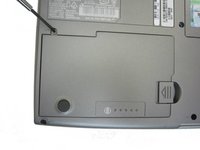
      • Remove the 3.9 mm Phillips #1 screw from the battery compartment.

      Ask FixBot

      Add Comment

    2. Dell Latitude D610 Fan Replacement: step 2, image 1 of 3 Dell Latitude D610 Fan Replacement: step 2, image 2 of 3 Dell Latitude D610 Fan Replacement: step 2, image 3 of 3
      • Locate the laptop battery release button lock

      • Push the battery release in the direction of the arrow, and pull upward.

      Ask FixBot
      Add Comment

    3. Dell Latitude D610 Fan Replacement: step 3, image 1 of 1
      • Remove the battery from its compartment.

      Ask FixBot
      Add Comment

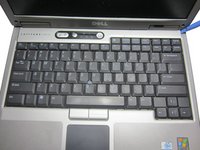
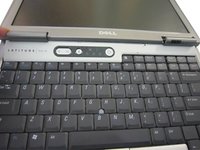
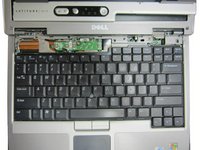
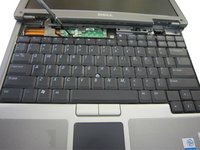
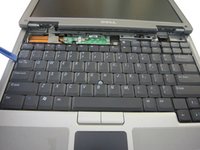
    1. Dell Latitude D610 Fan Replacement, Keyboard: step 4, image 1 of 3 Dell Latitude D610 Fan Replacement, Keyboard: step 4, image 2 of 3 Dell Latitude D610 Fan Replacement, Keyboard: step 4, image 3 of 3
      • Use an opening tool or flat tool to remove the plastic cover above the keyboard.

      Ask FixBot

      Add Comment

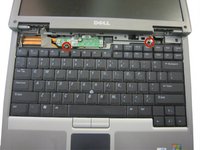
    2. Dell Latitude D610 Fan Replacement: step 5, image 1 of 2 Dell Latitude D610 Fan Replacement: step 5, image 2 of 2
      • Remove the two 3.9mm Philips #1 screws that are holding the keyboard in place.

      Ask FixBot

      Add Comment

    3. Dell Latitude D610 Fan Replacement: step 6, image 1 of 2 Dell Latitude D610 Fan Replacement: step 6, image 2 of 2
      • Using an opening tool, carefully release the keyboard from the case.

      • Making sure not to tear or damage the wires still connecting it to the laptop.

      Ask FixBot
      Add Comment

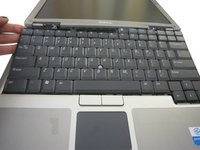
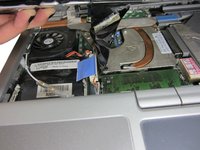
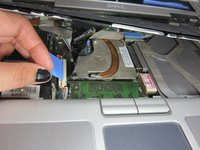
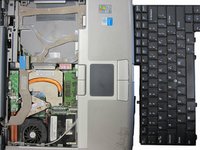
    4. Dell Latitude D610 Fan Replacement: step 7, image 1 of 3 Dell Latitude D610 Fan Replacement: step 7, image 2 of 3 Dell Latitude D610 Fan Replacement: step 7, image 3 of 3
      • Carfully lift the key board.

      • Lift only about 3 - 4 inches so that the wires holding the keyboard do not get damaged.

      • Pull on the blue tab to unplug the keyboard.

      Ask FixBot
      Add Comment

    1. Dell Latitude D610 Fan Replacement, Fan: step 8, image 1 of 2 Dell Latitude D610 Fan Replacement, Fan: step 8, image 2 of 2
      • Remove the two 3.9mm Philips #1 screws from the case.

      Ask FixBot

      Add Comment

    2. Dell Latitude D610 Fan Replacement: step 9, image 1 of 2 Dell Latitude D610 Fan Replacement: step 9, image 2 of 2
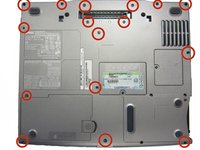
      • Remove the sixteen 3.9mm Philips #1 screws from the back.

      Ask FixBot

      Add Comment

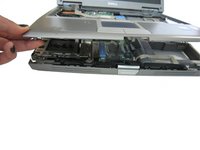
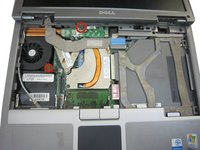
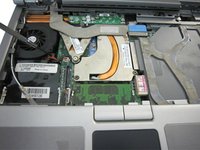
    3. Dell Latitude D610 Fan Replacement: step 10, image 1 of 3 Dell Latitude D610 Fan Replacement: step 10, image 2 of 3 Dell Latitude D610 Fan Replacement: step 10, image 3 of 3
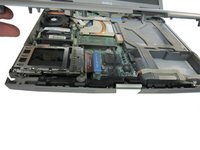
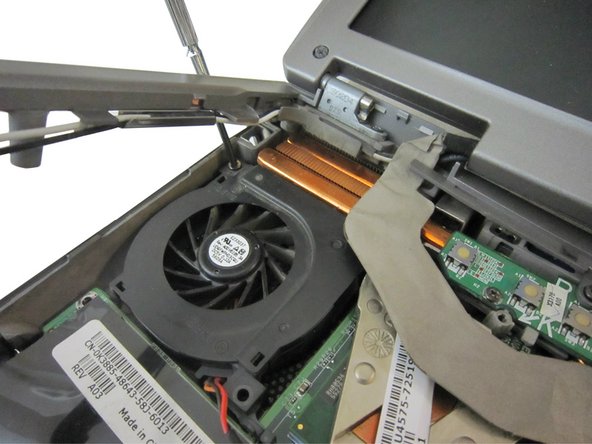
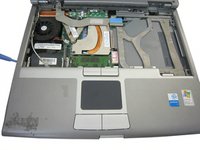
      • Turn the computer over. Using an opening tool seperate the top cover from the rest of the frame.

      • Do not open the computer too widely or quickly. Doing so will result in damage to the computer.
      Ask FixBot

      Add Comment

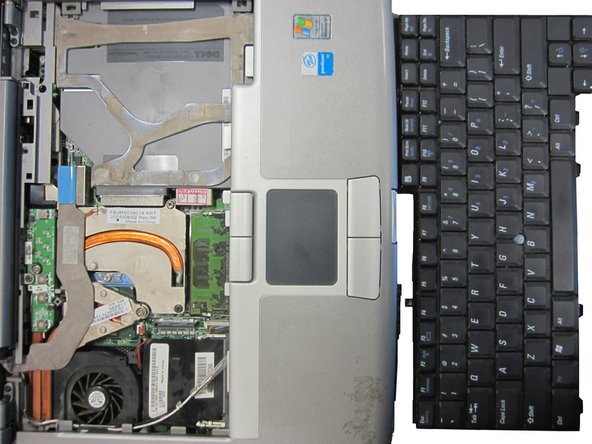
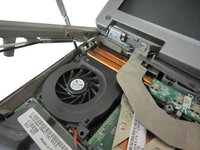
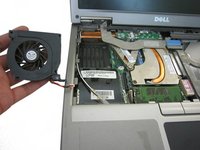
    4. Dell Latitude D610 Fan Replacement: step 11, image 1 of 3 Dell Latitude D610 Fan Replacement: step 11, image 2 of 3 Dell Latitude D610 Fan Replacement: step 11, image 3 of 3
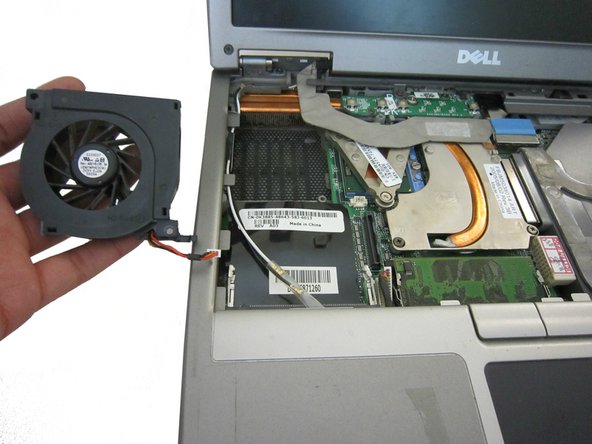
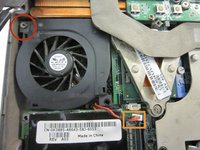
      • Remove the 3.9 mm Philips #1 screw.

      • Unplug the fan cable.

      • Lift fan out of compartment to remove the fan.

      Ask FixBot

      Add Comment

Conclusion

To reassemble your device, follow these instructions in reverse order.

Cancel: I did not complete this guide.

2 other people completed this guide.

Jordan Barham

Member since: 01/26/14

459 Reputation

3 Guides authored

Team

Cal Poly, Team 6-24, Maness Winter 2014 Member of Cal Poly, Team 6-24, Maness Winter 2014

CPSU-MANESS-W14S6G24

4 Members

60 Guides authored

0 Guide Comments

Add Comment

View Statistics:

Past 24 Hours: 3

Past 7 Days: 30

Past 30 Days: 111

All Time: 4,015