Dell Latitude CS RAM Replacement

Axuak and
Last updated on Oct 20, 2026
Views: 2.8K
View statistics:
- Past 24 Hours:
- 2
- Past 7 Days:
- 15
- Past 30 Days:
- 78
- All Time:
- 2,824
Comments: 0
No one has left comments on this guide. Will you be first?
Go to guide commentsCompleted: 3 4
3 people have marked this guide "completed." Will you be next?
4 people have marked this guide "completed." Including you — great job!
Favorites: 1 2
1 person has favorited (and subscribed to) this guide. Will you be next?
2 people have favorited (and subscribed to) this guide — including you!
Community-Contributed Guide
An awesome member of our community made this guide. It was not created by iFixit staff.
What you need


Introduction
Go to step 1 ↓Not much prior knowledge is required before starting. According to Dell, however, you must have the following tools:
"#0 and #1 magnetized Phillips-head screwdrivers
Small flat-blade screwdriver
5-mm socket wrench
7-mm socket wrench
Small plastic scribe"
(Guide found at: Dell Latitude CS Portable Computers Service Manual)


 Ask FixBot


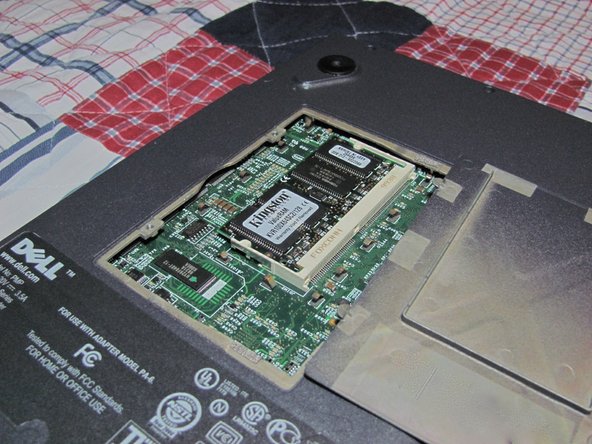

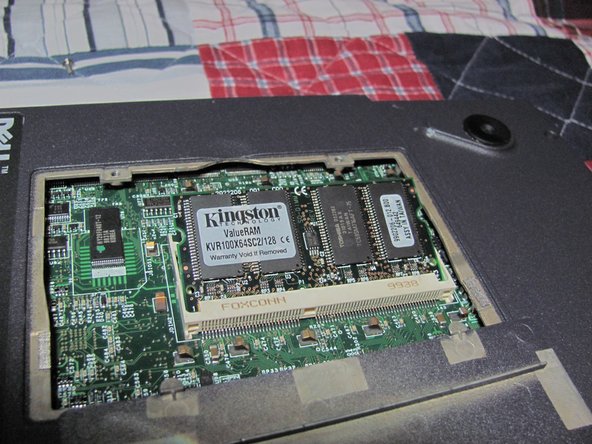
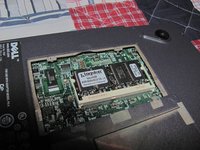
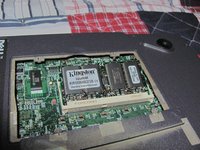

To reassemble your device, follow these instructions in reverse order.
Cancel: I did not complete this guide.
3 other people completed this guide.