Introduction
Use this guide to replace the CMOS battery in your Dell Latitude 7490 laptop.
If your laptop shows a BIOS configuration screen every time it's powered on, the CMOS battery may have died. Replace the CMOS battery to retain certain boot settings on your laptop.
What you need
-
-
-
Unplug all cables and fully shut down your laptop.
 Ask FixBot
-
-
-
-
-
Flip your laptop over so the rubber feet strips are facing up.
-
-
-
Use a Phillips screwdriver to fully loosen the eight captive screws securing the back cover.
-
-
-
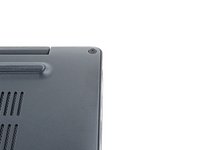
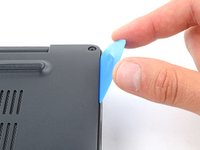
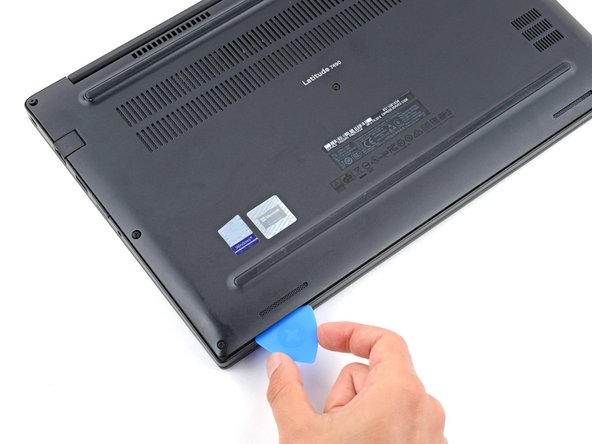
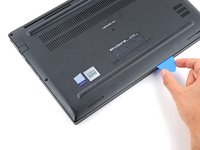
Insert the long side of an opening pick between the top right corner of the back cover and frame.
-
Pry the back cover up to release the clips securing the top right corner.
-
-
-
-
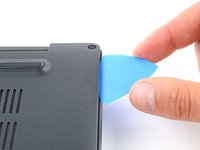
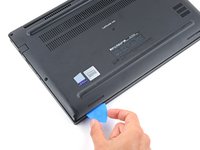
Slide the opening pick down the right edge and around the bottom right corner to release the clips.
-
-
-
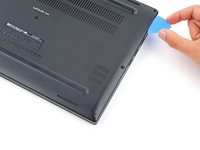
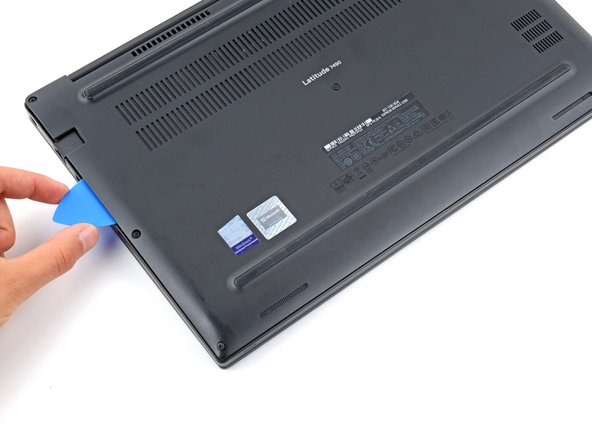
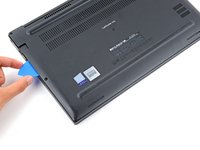
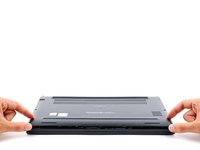
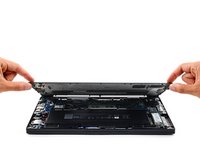
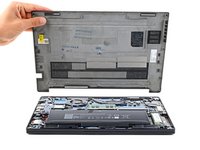
Slide the opening pick along the front edge and up to the top left corner to release the remaining clips securing the back cover.
-
-
-
-
-
Grip the plastic tab on the battery connector and pull straight up to disconnect it.
-
-
-
-
-
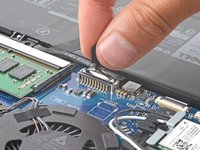
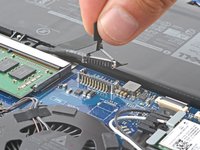
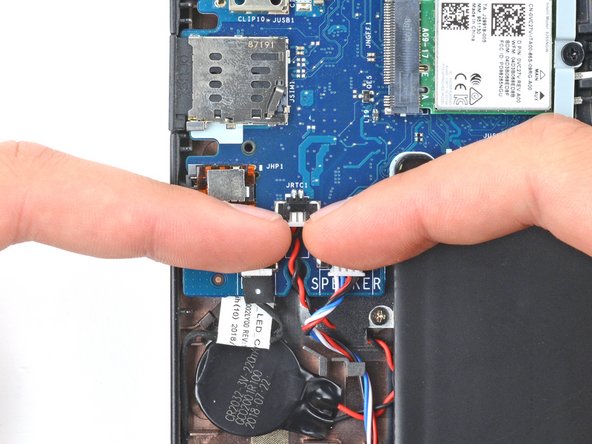
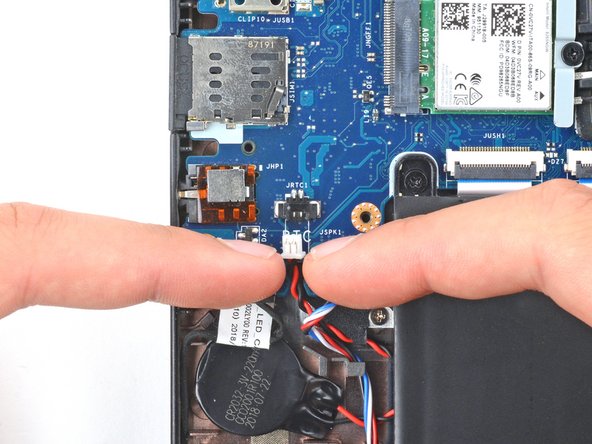
Use clean fingernails to pull the CMOS battery connector out of its socket on the motherboard's bottom left corner.
-
-
-
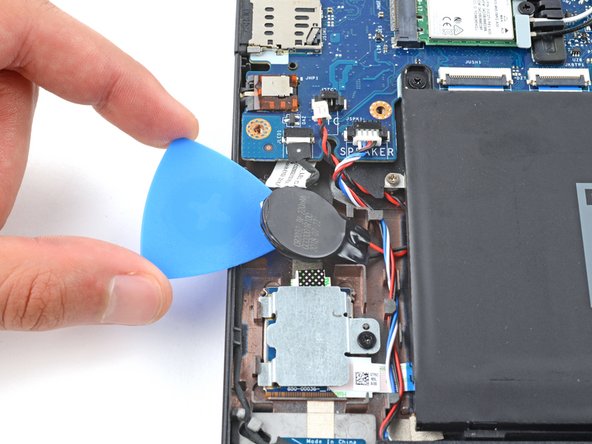
Insert an opening pick between the left edge of the CMOS battery and the frame.
-
Use your pick to pry up the CMOS battery and separate the adhesive securing it.
-
-
Tool used on this step:Tesa 61395 Tape$8.95
-
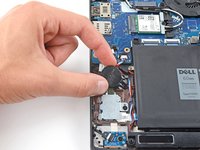
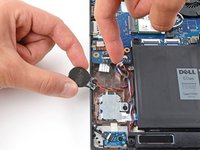
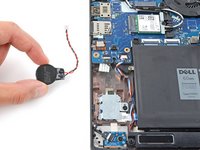
Remove the CMOS battery, using your fingers to guide its wires out from under the speaker wires.
-
Reconnect the CMOS battery.
-
Apply double-sided tape such as Tesa Tape to the battery and press it into place on the frame.
-
-












To reassemble your device, follow these instructions in reverse order.
Take your e-waste to an R2 or e-Stewards certified recycler.
Repair didn’t go as planned? Try some basic troubleshooting, or ask our Answers community for help.
Cancel: I did not complete this guide.
One other person completed this guide.


