
Dell Latitude 5500 Fan Replacement

Mark L and 3 other contributors
Last updated on May 29, 2026
Views: 240
View statistics:
- Past 24 Hours:
- 1
- Past 7 Days:
- 12
- Past 30 Days:
- 74
- All Time:
- 240
Comments: 0
No one has left comments on this guide. Will you be first?
Go to guide commentsCompleted: 0 1
No one has marked this guide "completed." Will you be the first?
1 person has marked this guide "completed." It's you — great job!
Favorites: 0 1
No one has favorited (and subscribed to) this guide. Will you be the first?
1 person has favorited (and subscribed to) this guide — and that's you!
Introduction
Go to step 1 ↓This guide will help you replace the fan in your Dell Latitude 5500 laptop. The fan is necessary to cool the laptop. Without the fan operating properly, the laptop could overheat. If you believe your fan needs to be replaced, check the troubleshooting page first. If the fan is not operating properly, try to clean it first before resorting to a replacement.
What you need
Tools


-
-
-
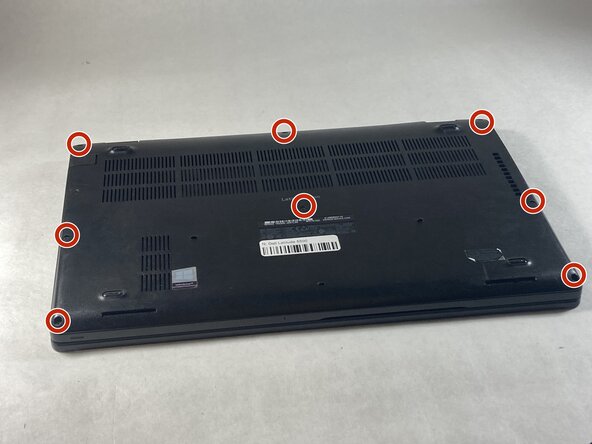
Use a Phillips #0 screwdriver to loosen the eight captive screws on the back panel.
 Ask FixBot
-
-
-
Use a Phillips #0 screwdriver to remove the single 6 mm screw on the right side of the battery.
-
-
-
-
Using hands or plastic prying tools, remove the flat-topped (low-profile) connector at the top of the battery.
-
Remove the battery.
-
-
-
-
-
Unplug the wire connecting the fan to the motherboard by pulling to the side.
-


To reassemble your device, follow these instructions in reverse order.

Team

UMass Dartmouth, Team 6-6, Botvin Spring 2026 Member of UMass Dartmouth, Team 6-6, Botvin Spring 2026
UMASSD-BOTVIN-S26S6G6
3 Members
72 Guides authored
