Introduction
This guide will show you how to replace the battery on your Dell Latitude 5491 laptop.
What you need
-
-
-
Begin by removing the back plate by loosening the eight captive screws on the back plate.
-
Use a prying tool to lift up the back plate and work around the edges to remove it.
 Ask FixBot
-
-
-
-
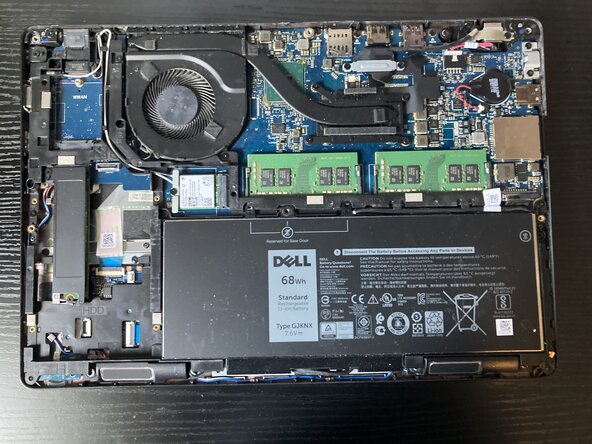
Once the back plate is off, remove the battery cable. To do so, pull upwards on the flexible black handle attached to the battery cable.
-
Once the battery cable is removed, you must remove the captive screw which is holding the battery down, as marked by the screw icon printed on the battery (the non crossed-out one).
-
Then push the battery forwards slightly toward the motherboard and pull the battery out.
-
-
-
Once the old battery is removed, insert the new battery at an angle, making sure the tabs on the bottom of the battery go in the correct location.
-
Once the battery is in place, reconnect the battery cable and retighten the captive screw.
-
-




To reassemble your device, follow these instructions in reverse order.

