
Dell Latitude 5490 Fan Replacement

Jordan and 3 other contributors
Last updated on Dec 17, 2025
Views: 517
View statistics:
- Past 24 Hours:
- 6
- Past 7 Days:
- 29
- Past 30 Days:
- 103
- All Time:
- 517
Comments: 0
No one has left comments on this guide. Will you be first?
Go to guide commentsCompleted: 0 1
No one has marked this guide "completed." Will you be the first?
1 person has marked this guide "completed." It's you — great job!
Favorites: 0 1
No one has favorited (and subscribed to) this guide. Will you be the first?
1 person has favorited (and subscribed to) this guide — and that's you!
Introduction
Go to step 1 ↓The fan prevents overheating by maintaining consistent airflow throughout your laptop.
In this guide, you will learn how to replace and install a fan into your Dell Latitude 5490 laptop.
The fan circulates air. This is critical because your laptop can slow down or potentially shut down due to overheating. Replacing a damaged fan will allow your laptop to function without faltering. An operational fan protects your laptop against heat related damage and can extend its lifetime.
What you need
Tools
-
-
Spudger4.9


-
-
-
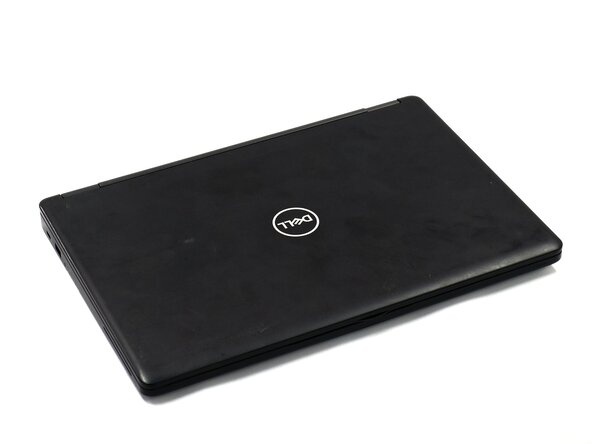
Close the device and flip the laptop over so the backplate is facing up.
 Ask FixBot
-
-
-
Using a Phillips #0 Screwdriver, loosen all eight captive screws in the backplate.
-
-
-
Using the spudger, pry the backplate from the laptop starting from external chassis (the back side of the laptop).
-
Continue prying in a clockwise direction around the backplate until it is able to be removed with just your hands.
-
Remove the backplate and put it aside for reassembly.
-
-
-
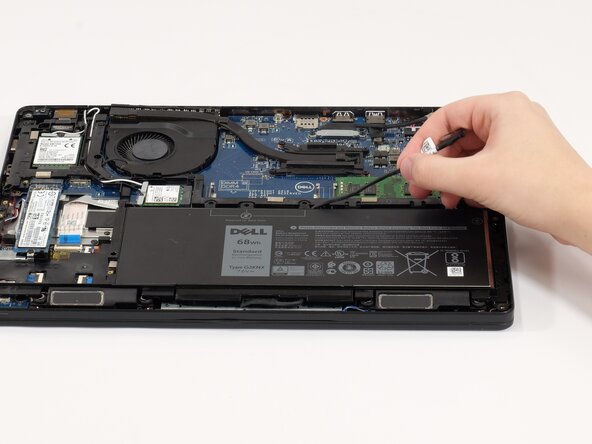
Using your finger, remove the battery connector using the handle found on top.
-
-
-
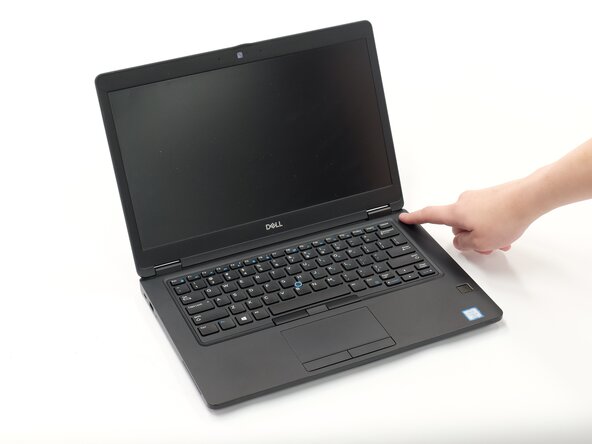
Hold down the power button for 15 seconds to discharge the remaining electricity within the laptop.
-
-
-
-
-
Remove the single marked 4 mm screw from the righthand side of the battery using a Phillips #0 screwdriver.
-
-
-
-
-
Remove the single 4 mm screw connecting the back of the SSD to the laptop using a Phillips #0 screwdriver.
-
-
-
Carefully slide the SSD straight out from the rear side, from the end where the screw was previously secured.
-
-
-
-
-
Remove the 4 mm screw holding the bracket above the WWAN card with a Phillips #0 screwdriver.
-
-
-
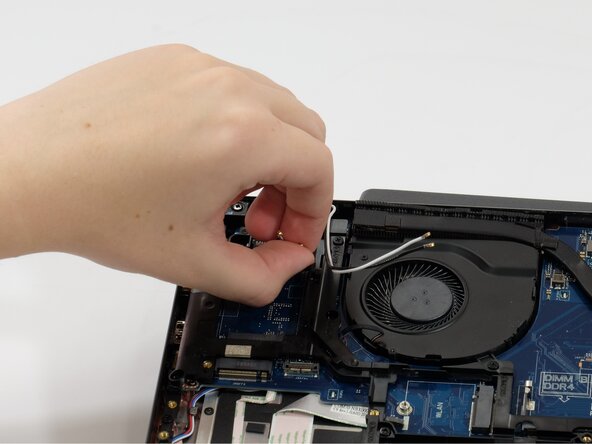
Carefully remove both antenna connectors. Ensure that you pull the antenna connectors straight up from the socket.
-
Using angled tweezers, hook one end of the tweezer under the connector. Set the other side at the end of the connector on the WWAN card. Keeping the tweezers flat, lightly squeeze.
-
-
-
Carefully slide the WWAN card out from the rear side, from the end where the antennas and bracket were.
-
-
-
-
-
Remove the 4 mm screw holding the bracket above the WLAN card with a Phillips #0 screwdriver.
-
-
-
Carefully remove both antenna connectors. Ensure that you pull the antenna connectors straight up from the socket.
-
Using angled tweezers, hook one end of the tweezer under the connector. Set the other side at the end of the connector on the WLAN card. Keeping the tweezers flat, lightly squeeze.
-
-
-
Carefully slide the WLAN card out from the rear side, from the end where the antennas and bracket were.
-
-
-
-
-
Using the angled tweezers, lift the small latches on the ribbon cables that are routed through the chassis. Gently remove them.
-
-
-






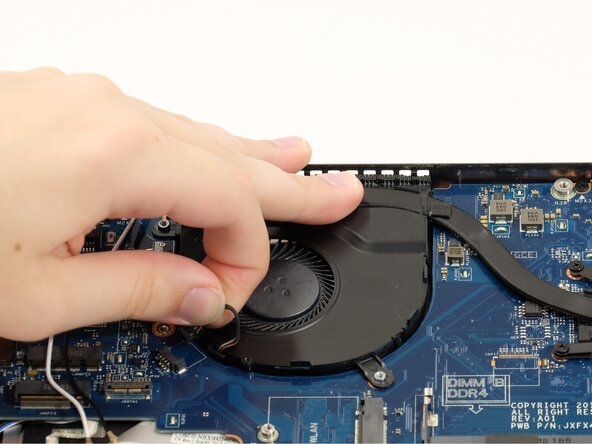


To reassemble your device, follow these instructions in reverse order.
Team

Linn Benton Community College, Team 1-3, Karnes Fall 2025 Member of Linn Benton Community College, Team 1-3, Karnes Fall 2025
LBCC-KARNES-F25S1G3
3 Members
108 Guides authored
