
Dell Latitude 5490 Battery Replacement

Shae Cathwulf VanCleave and 4 other contributors
Last updated on May 26, 2026
Views: 1.1K
View statistics:
- Past 24 Hours:
- 6
- Past 7 Days:
- 38
- Past 30 Days:
- 192
- All Time:
- 1,137
Comments: 0
No one has left comments on this guide. Will you be first?
Go to guide commentsCompleted: 0 1
No one has marked this guide "completed." Will you be the first?
1 person has marked this guide "completed." It's you — great job!
Favorites: 0 1
No one has favorited (and subscribed to) this guide. Will you be the first?
1 person has favorited (and subscribed to) this guide — and that's you!
Introduction
Go to step 1 ↓The battery provides a mobile power source for your laptop. Batteries will slowly lose capacity over time and replacing it can improve the lifespan of your laptop.
In this guide, we will show you how to install and replace the battery in your Dell Latitude 5490 laptop.
If your computer's charge does not last, you may need to replace the battery. An operational battery can restore your laptop to optimal condition.
What you need
Fix Kit
This kit contains all the parts and tools needed to complete this guide.

Parts


Tools
-
Spudger4.9


-
-
-
Close the device and flip the laptop over so the backplate is facing up.
 Ask FixBot
-
-
-
Using a Phillips #0 Screwdriver, loosen all eight captive screws in the backplate.
-
-
-
Using the spudger, pry the backplate from the laptop starting from external chassis (the back side of the laptop).
-
Continue prying in a clockwise direction around the backplate until it is able to be removed with just your hands.
-
Remove the backplate and put it aside for reassembly.
-
-
-
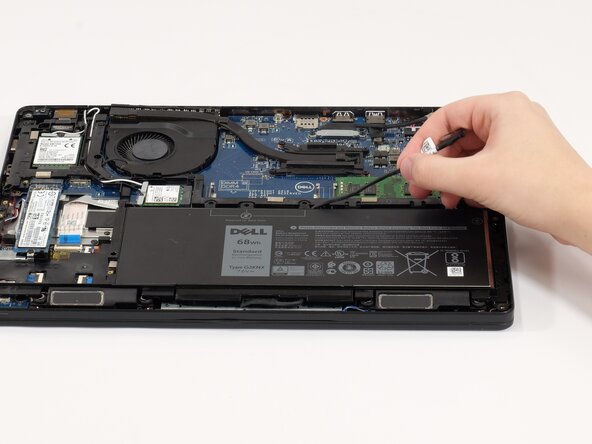
Using your finger, remove the battery connector using the handle found on top.
-
-
-
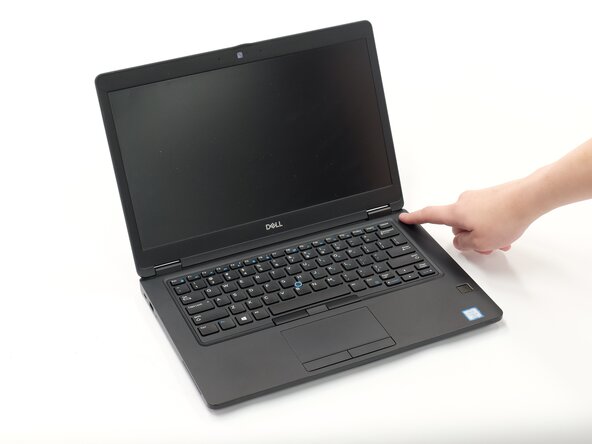
Hold down the power button for 15 seconds to discharge the remaining electricity within the laptop.
-
-
-
-
-
-
Remove the single marked 4 mm screw from the righthand side of the battery using a Phillips #0 screwdriver.
-





To reassemble your device, follow these instructions in reverse order.
Team

Linn Benton Community College, Team 1-3, Karnes Fall 2025 Member of Linn Benton Community College, Team 1-3, Karnes Fall 2025
LBCC-KARNES-F25S1G3
3 Members
108 Guides authored
