Free Shipping on Domestic Orders $75+

Dell Latitude 5480 Battery Replacement

What you need

    1. Dell Latitude 5480 Battery Replacement, Lower Case: step 1, image 1 of 1
      • Use a Phillips screwdriver to remove the eight 5.6 mm screws that secure the lower case.

      Ask FixBot

      Add Comment

    2. Dell Latitude 5480 Battery Replacement: step 2, image 1 of 3 Dell Latitude 5480 Battery Replacement: step 2, image 2 of 3 Dell Latitude 5480 Battery Replacement: step 2, image 3 of 3
      • Insert an opening tool into the seam between the lower case and chassis.

      • Pry up around the perimeter of the device until the lower case fully releases.

      • Lift off the lower case.

      Ask FixBot

      Add Comment

    1. Dell Latitude 5480 Battery Replacement, Dell Latitude 5480 Battery Disconnection: step 3, image 1 of 2 Dell Latitude 5480 Battery Replacement, Dell Latitude 5480 Battery Disconnection: step 3, image 2 of 2
      • Grip the black battery cable connector loop and pull it directly up to disconnect the battery.

      Ask FixBot

      Add Comment

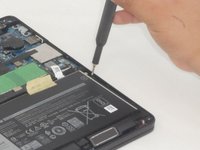
    1. Dell Latitude 5480 Battery Replacement, Battery: step 4, image 1 of 2 Dell Latitude 5480 Battery Replacement, Battery: step 4, image 2 of 2
      • Remove the four 5.6 mm Phillips screws that secure the battery.

      Ask FixBot

      Add Comment

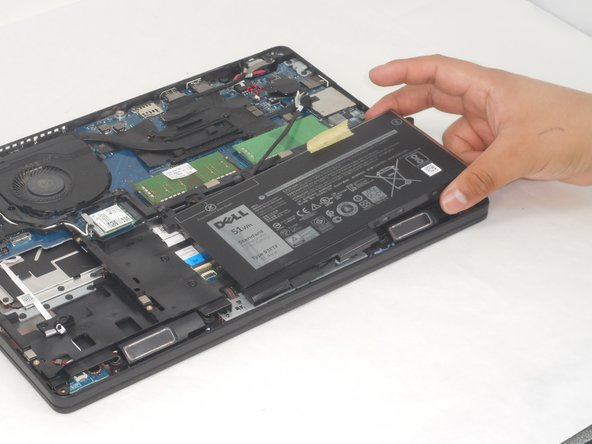
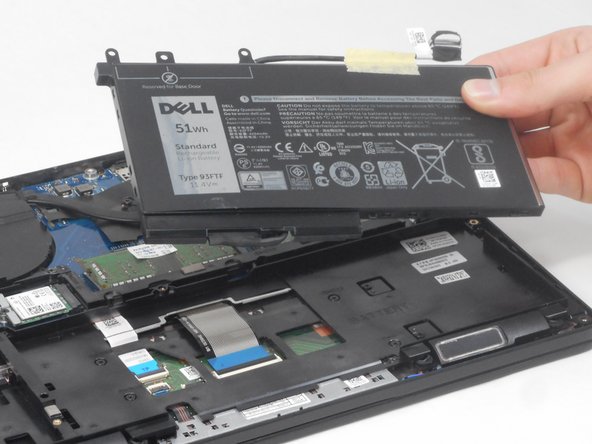
    2. Dell Latitude 5480 Battery Replacement: step 5, image 1 of 3 Dell Latitude 5480 Battery Replacement: step 5, image 2 of 3 Dell Latitude 5480 Battery Replacement: step 5, image 3 of 3
      • Lift the battery up and out of the chassis.

      Ask FixBot

      Add Comment

Conclusion

To reassemble your device, follow these instructions in reverse order.

Cancel: I did not complete this guide.

2 other people completed this guide.

0 Guide Comments

Add Comment

View Statistics:

Past 24 Hours: 4

Past 7 Days: 17

Past 30 Days: 68

All Time: 1,178