Introduction
This guide will walk you through replacing the battery on a Latitude 5480, 5490, 5491 series laptop. You’ll need a #1 Phillips screwdriver, and about ten minutes of patience.
What you need
-
-
-
Start by loosening the 8 captive screws on the backplate. These screws will not come fully out of the backplate, so you can't lose them.
-
Pry the backplate off with a spudger or long fingernail. There is an opening marked by the orange arrow, but you can open it any way you see fit.
 Ask FixBot
-
-
-
-
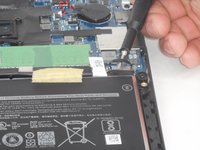
Unplug the battery using the little plastic tab. This is marked with the blue rectangle.
-
Remove the screw to the right of the battery holding the battery frame in. There is only one on this model of laptop. It is marked by the red circle in picture two.
-
-
-
Remove the screw located at the top right corner of the battery, then the three additional screws located along the top of the battery.
-
Identify the battery connection cable, located at the top of the battery compartment.
-
Release the battery connection cable from its secured position.
-
-



To reassemble your device, follow these instructions in reverse order.
Cancel: I did not complete this guide.
3 other people completed this guide.

2 Guide Comments
Thanks for this! It was super-simple, but I’m still grateful for the guide.
I got this computer used for my kids, and everything seemed to be going great until they let the battery drain completely. When that happens, the computer will no longer boot up until I open it up and physically disconnect the battery and then reconnect it. Once I do that, it works fine.
Any idea what I can do to keep from having it happen in the first place?
I’m running Ubuntu.
Thanks!
