Introduction
You can rely on this detailed manual as your go-to resource for comprehensive instructions on how to replace the fan in your laptop. Have you ever found yourself in an uncomfortable situation where your laptop seemed to transform into a veritable oven, emitting scorching heat that made it unbearable to touch as you diligently worked on your tasks? If you have endured the frustration of your laptop heating up to alarming levels, causing discomfort, and potentially affecting its performance, then you are not alone. Excessive heat can lead to a range of issues, from reduced processing speed to potential hardware damage.
By following the steps in this manual, you can proactively address this heat-related concern by replacing the fan in your laptop. A well-functioning fan is crucial for effective heat dissipation, ensuring that your laptop remains cool and comfortable to use even during extended work or gaming sessions. Moreover, it can help prolong the lifespan of your laptop by preventing overheating-related damage. So, with the help of this manual, you can regain control over your laptop's temperature and enjoy a more efficient and comfortable computing experience.
What you need
-
-
-
Push the microSD-card to eject it from the slot.
-
Remove the microSD-card from the computer.
 Ask FixBot
-
-
-
-
-
Loosen the nine screws 2mm Phillips #0 that secure the base cover to the assembly.
-
Using a plastic scribe, pry open the base cover starting from the recesses located in the indents near the hinges at the top edge of the base cover.
-
Carefully lift and remove the base cover.
-
-
-
-
-
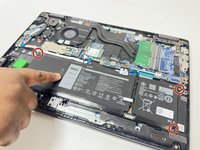
Use the white side to disconnect. The rainbow side is extremely difficult to get back together
-
Slide the metal above the connector on the battery to unlock. -DO NOT USE THE RAINBW SIDE TO DISCONNECT. USE THE WHITE SIDE.
-
-
-
-
-
-
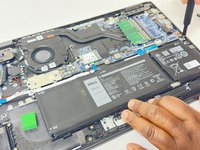
Disconnect the system fan cable from the connector on the system board.
-
-




To reassemble your device, follow these instructions in reverse order.
Cancel: I did not complete this guide.
One other person completed this guide.

Team

University of New Orleans, Team 4-2, McDonald Fall 2023 Member of University of New Orleans, Team 4-2, McDonald Fall 2023
UNO-MCDONALD-F23S4G2
4 Members
84 Guides authored
