Introduction
If your Dell Latitude 3440 keyboard is not working properly e.g., keys not responding or physical damage, use this guide to replace the keyboard.
The keyboard is the primary method of input for this device; a faulty keyboard will result in some or all keys not registering when pressed.
What you need
-
-
-
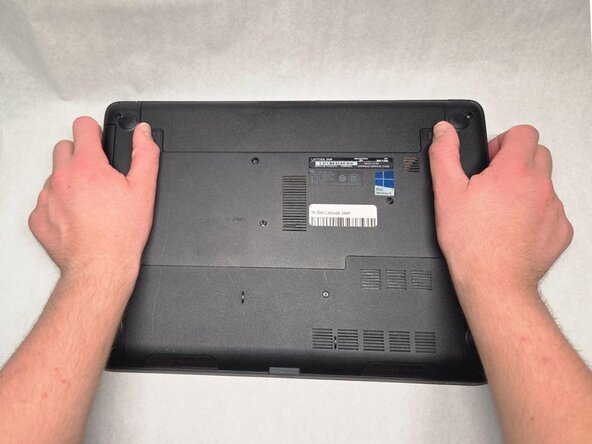
Slide the battery latches outwards in opposite directions.
-
Remove the battery from the device.
 Ask FixBot
-
-
-
-
-
Remove two 5.9 mm screws from the back of the computer using a Phillips #1 screwdriver.
-
-
-
-
Press the tabs on the palm rest assembly.
-
Slide the keyboard towards the display assembly.
-
-
-
Lift the keyboard to gain access to the ribbon cable underneath.
-
Disconnect the keyboard cable from the system board and lift it to remove it from the computer.
-
-


To reassemble your device, follow these instructions in reverse order.
Cancel: I did not complete this guide.
One other person completed this guide.

Team

Purdue University Northwest, Team 4-9, Dieterle Fall 2025 Member of Purdue University Northwest, Team 4-9, Dieterle Fall 2025
PNW-DIETERLE-F25S4G9
4 Members
60 Guides authored
