Introduction
If your Dell Latitude 3190 laptop is losing power after a short amount of time after being unplugged, use this guide to replace the battery of the laptop.
The battery of a laptop allows the user to store power in the laptop for a certain amount of time while not having to be connected to an external power source such as an outlet in order for the laptop to work.
The laptop’s battery needs to be replaced when the battery is not powering the laptop very long before needing to be plugged in.
Before beginning this guide, be sure to power off your device and unplug it from the charging cable.
What you need
-
-
-
Use a Phillips #0 screwdriver to remove the seven 7 mm screws securing the back case.
 Ask FixBot
-
-
-
Using a plastic opening tool carefully separate the plastic base cover from the rest of the laptop.
-
Lift the bottom cover from the laptop.
-
-
-
-
-
-
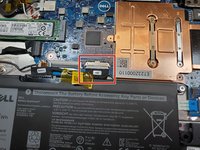
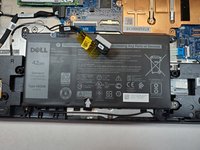
Disconnect the battery cable located on the top of the battery.
-
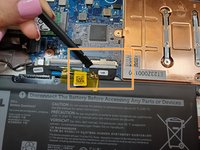
Use the spudger and disconnect the battery cable.
-
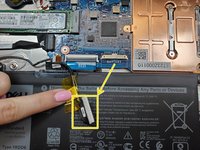
Pull the cable out of the way.
-
-
-
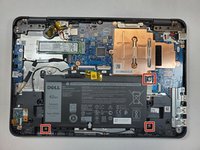
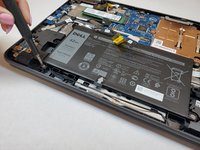
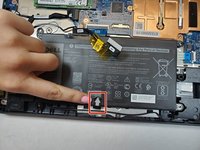
Use a Phillips #0 screwdriver to remove the three 3 mm screws from the battery.
-






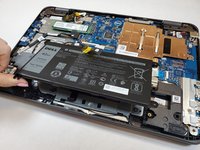
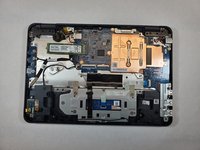
To reassemble your device, follow these instructions in reverse order.
Cancel: I did not complete this guide.
2 other people completed this guide.

Team

Gateway, Team 1-5, Saknee Fall 2021 Member of Gateway, Team 1-5, Saknee Fall 2021
GCC-SAKNEE-F21S1G5
3 Members
72 Guides authored
