Free Shipping on Domestic Orders $75+

Dell Latitude 3189 Keyboard Replacement

What you need

  1. Dell Latitude 3189 Keyboard Replacement, Lower Case: step 1, image 1 of 2 Dell Latitude 3189 Keyboard Replacement, Lower Case: step 1, image 2 of 2
    • Before beginning, power off and unplug the device.

    • Use a Phillips screwdriver to loosen the seven captive screws that secure the lower case.

    Ask FixBot

    Add Comment

  2. Dell Latitude 3189 Keyboard Replacement: step 2, image 1 of 3 Dell Latitude 3189 Keyboard Replacement: step 2, image 2 of 3 Dell Latitude 3189 Keyboard Replacement: step 2, image 3 of 3
    • Insert a nylon spudger between the lower case and chassis at the two hinge spaces on the back side of the laptop and pry up the lower case.

    • Do not use metal items to pry the base cover off, like a screwdriver, as it could slip and damage internal components.

    • Avoid prying at the ports.

    Ask FixBot

    Add Comment

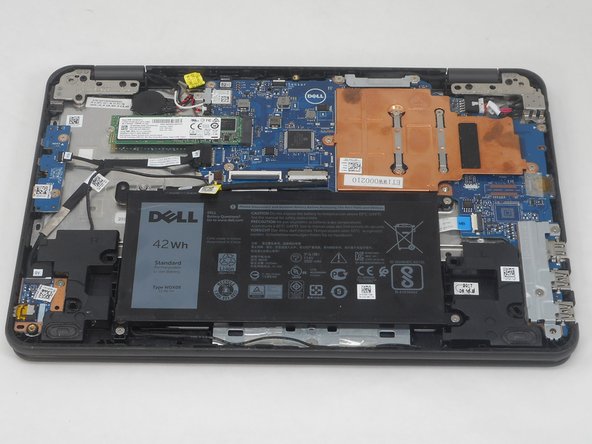
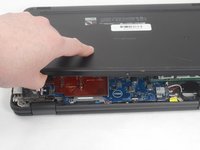
  3. Dell Latitude 3189 Keyboard Replacement: step 3, image 1 of 2 Dell Latitude 3189 Keyboard Replacement: step 3, image 2 of 2
    • Grip and lift the lower case up and away.

    • If you feel any significant resistance, double check that all of the screws are loosened.

    Ask FixBot

    Add Comment

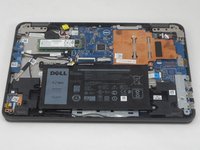
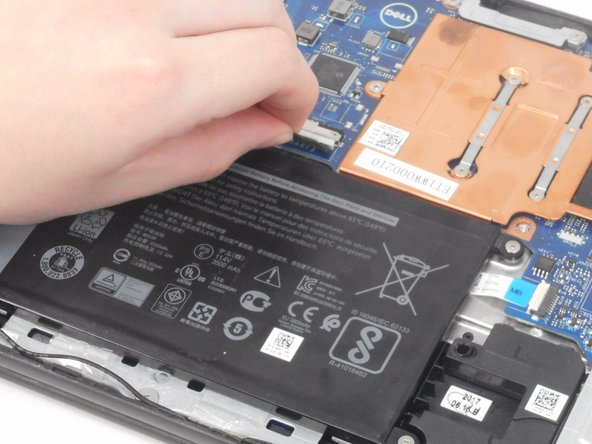
  4. Dell Latitude 3189 Keyboard Replacement: step 4, image 1 of 3 Dell Latitude 3189 Keyboard Replacement: step 4, image 2 of 3 Dell Latitude 3189 Keyboard Replacement: step 4, image 3 of 3
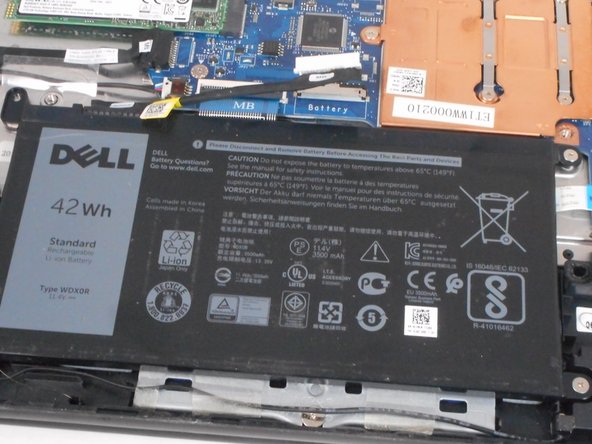
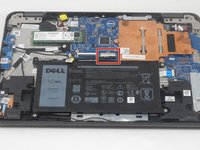
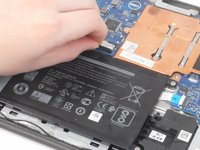
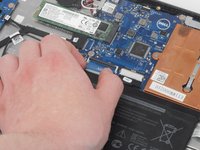
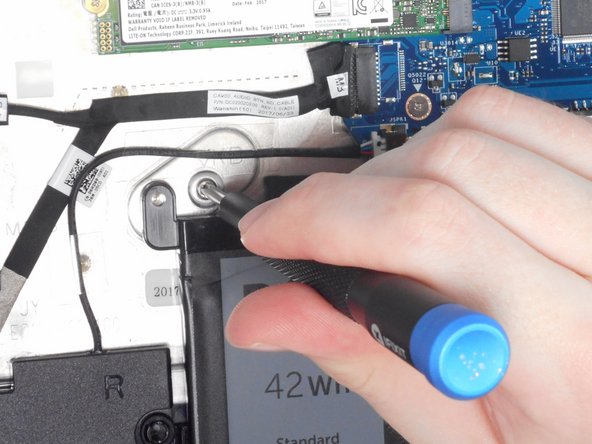
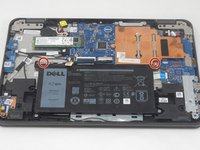
    • Before performing any operations within the laptop, unplug the battery.

    • Pull the white battery connector directly out of its motherboard port.

    • Do not pull on the wires.

    Ask FixBot

    Add Comment

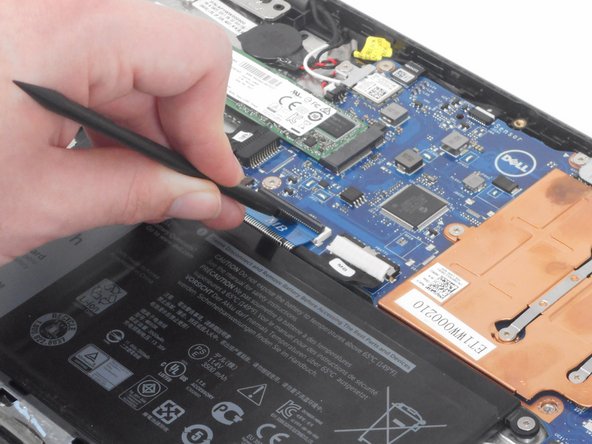
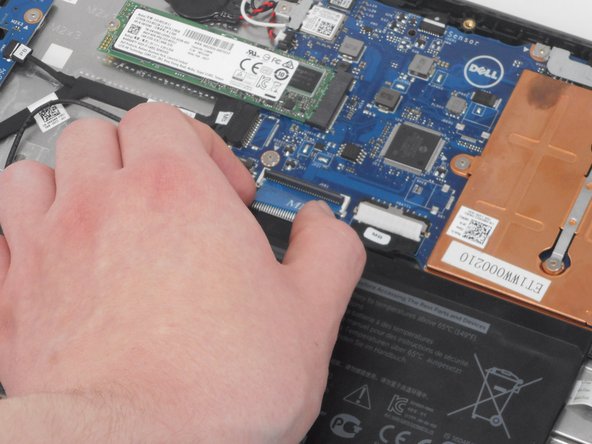
  5. Dell Latitude 3189 Keyboard Replacement, Keyboard: step 5, image 1 of 3 Dell Latitude 3189 Keyboard Replacement, Keyboard: step 5, image 2 of 3 Dell Latitude 3189 Keyboard Replacement, Keyboard: step 5, image 3 of 3
    • Flip up the black lock bar on the ZIF connector with a plastic spudger.

    • Make sure to only lift the flap and not the connector socket because the socket easily breaks off.

    • Gently pull the ribbon cable directly out of its socket.

    • This should require almost no force.

    Ask FixBot

    Add Comment

  6. Dell Latitude 3189 Keyboard Replacement: step 6, image 1 of 2 Dell Latitude 3189 Keyboard Replacement: step 6, image 2 of 2
    • Use a blunt tool to push through the two highlighted holes labeled "KB." This will dislodge the keyboard.

    • The keyboard will be removed from the opposite side.

    Ask FixBot

    Add Comment

  7. Dell Latitude 3189 Keyboard Replacement: step 7, image 1 of 1
    • From the front side of the laptop, pull the keyboard up and away.

    • Pulling the keyboard away will be undoing plastic clips and maybe require more force than you initially think. Slide opening picks around the perimeter to help disconnect the plastic clips.

    Ask FixBot

    Add Comment

Conclusion

To reassemble your device, follow these instructions in reverse order.

Cancel: I did not complete this guide.

0 Guide Comments

Add Comment

View Statistics:

Past 24 Hours: 1

Past 7 Days: 9

Past 30 Days: 34

All Time: 515