
Dell Latitude 3150 RAM Replacement

Kohl Taylor and
Last updated on Dec 19, 2025
Views: 368
View statistics:
- Past 24 Hours:
- 1
- Past 7 Days:
- 10
- Past 30 Days:
- 57
- All Time:
- 368
Comments: 0
No one has left comments on this guide. Will you be first?
Go to guide commentsCompleted: 1 2
1 person has marked this guide "completed." Will you be next?
2 people have marked this guide "completed." Including you — great job!
Favorites: 0 1
No one has favorited (and subscribed to) this guide. Will you be the first?
1 person has favorited (and subscribed to) this guide — and that's you!
What you need
Tools


Introduction
Go to step 1 ↓If your Dell Latitude 3150 becomes slow, unresponsive, or jitters unexpectedly, it might be time to replace the RAM. Random-access memory (RAM) is a crucial part of the device that allows quick access and short-term storage. Replacing it yourself is an affordable option and can be done quickly with the right tools and careful handling.
-
-
-
Remove the seven 5 mm screws using a Phillips #1 screwdriver.
-
Pry the back open with a plastic opening tool, working around the edges until all the retaining clips are disengaged.
 Ask FixBot
-
-
-
-
Remove the two Phillips 3 mm screws connected to the battery using a Phillips #1 screwdriver.
-
Carefully lift the battery and unplug the battery cable from the device.
-
Remove the battery from the laptop.
-
-
-
-
-
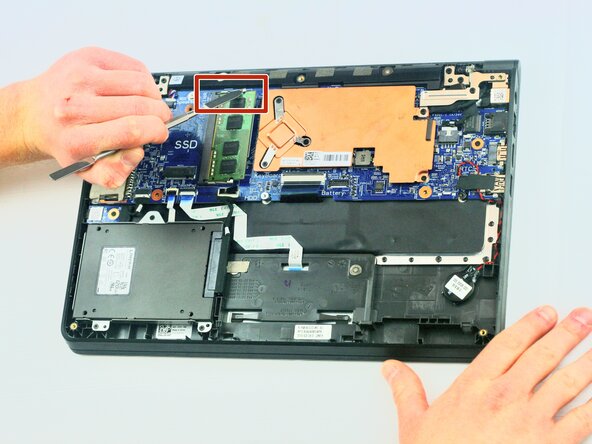
Using the metal spudger, push the pins on the sides of the RAM out.
-
The RAM will pop out; carefully remove it from the laptop.
-
-




To reassemble your device, follow these instructions in reverse order.
Cancel: I did not complete this guide.
One other person completed this guide.

Team

Texas Tech, Team 2-3, Johansen Fall 2025 Member of Texas Tech, Team 2-3, Johansen Fall 2025
TTU-JOHANSEN-F25S2G3
5 Members
60 Guides authored
