Free Shipping on Domestic Orders $75+

Dell Inspiron n5050 RAM Replacement

What you need

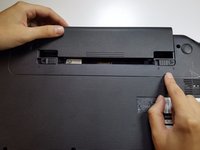
  1. Dell Inspiron n5050 RAM Replacement, Battery: step 1, image 1 of 1
    • Flip your laptop over to view the bottom and locate the two locks.

    Ask FixBot

    Add Comment

  2. Dell Inspiron n5050 RAM Replacement: step 2, image 1 of 1
    • Slide the two locks away from each other.

    • Sliding these locks will loosen the battery to allow removal.

    Ask FixBot

    Add Comment

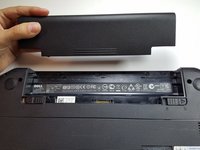
  3. Dell Inspiron n5050 RAM Replacement: step 3, image 1 of 2 Dell Inspiron n5050 RAM Replacement: step 3, image 2 of 2
    • Pull battery out of the laptop.

    • Your laptop's battery should be completely removed.

    Ask FixBot

    Add Comment

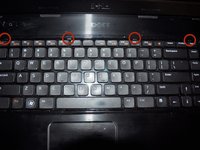
  4. Dell Inspiron n5050 RAM Replacement, Keyboard: step 4, image 1 of 2 Dell Inspiron n5050 RAM Replacement, Keyboard: step 4, image 2 of 2
    • Flip the laptop right side up. Open the laptop.

    • Gently press in the four retaining tabs along the top of the keyboard with a spudger, one at a time.

    • After the first tab is released, gently lift up on the keyboard so it doesn't lock again. Finish the other three tabs while gently lifting up on the keyboard. The keyboard will hinge up along the bottom.

    Ask FixBot

    Add Comment

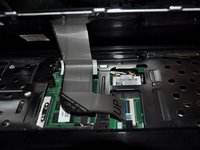
  5. Dell Inspiron n5050 RAM Replacement: step 5, image 1 of 3 Dell Inspiron n5050 RAM Replacement: step 5, image 2 of 3 Dell Inspiron n5050 RAM Replacement: step 5, image 3 of 3
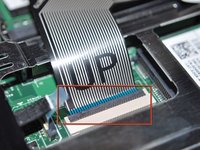
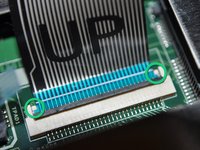
    • Gently flip the data cable latch away from the data cable with flat side of spudger.

    • Lift the cable up and out.

    • When reinstalling cable, there are two retainer wings on the sides of the cable that the cable that lock onto the bottom of the cable latch area. When these are in place the cable is properly inserted.

    • For removing the optical drive you don't need to disconnect the keyboard ribbon cable.

    Ask FixBot

    Add Comment

  6. Dell Inspiron n5050 RAM Replacement, RAM: step 6, image 1 of 3 Dell Inspiron n5050 RAM Replacement, RAM: step 6, image 2 of 3 Dell Inspiron n5050 RAM Replacement, RAM: step 6, image 3 of 3
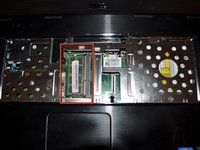
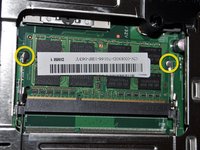
    • Locate RAM

    • Push outwards on both retaining clips, the RAM will pop up slightly when it is free from the clips.

    Ask FixBot

    Add Comment

  7. Dell Inspiron n5050 RAM Replacement: step 7, image 1 of 1
    • The RAM will pop up, and then you can slide it out at the same angle it is at.

    Ask FixBot

    Add Comment

Conclusion

To reassemble your device, follow these instructions in reverse order.

Cancel: I did not complete this guide.

8 other people completed this guide.

Tyler

Member since: 06/19/12

5,088 Reputation

16 Guides authored

Team

TechForce Member of TechForce

Business

2 Members

29 Guides authored

2 Guide Comments

Dell Inspiron 15 - M5040 N5040 N5050 disassembly

https://youtu.be/3c5P0pJgckg

mohamed - Reply Share

Dell laptop inspion15 _M5040 N5050

Anas Shaikh - Reply Share

Add Comment

View Statistics:

Past 24 Hours: 3

Past 7 Days: 14

Past 30 Days: 56

All Time: 11,021