Free Shipping on Domestic Orders $75+

Dell Inspiron N4010 Keyboard Replacement

What you need

    1. Dell Inspiron N4010 Keyboard Replacement, Battery: step 1, image 1 of 1
      • Make sure the laptop is not plugged into any wall outlets or the charger

      • Unlock the battery by sliding the right-hand switch to the right.

      Ask FixBot

      Add Comment

    2. Dell Inspiron N4010 Keyboard Replacement: step 2, image 1 of 2 Dell Inspiron N4010 Keyboard Replacement: step 2, image 2 of 2
      • While holding the left-hand switch to the left position, pull the battery away from the laptop.

      Ask FixBot

      Add Comment

    3. Dell Inspiron N4010 Keyboard Replacement: step 3, image 1 of 1
      • The battery is now fully removed and the laptop will not power on without it.

      Ask FixBot

      Add Comment

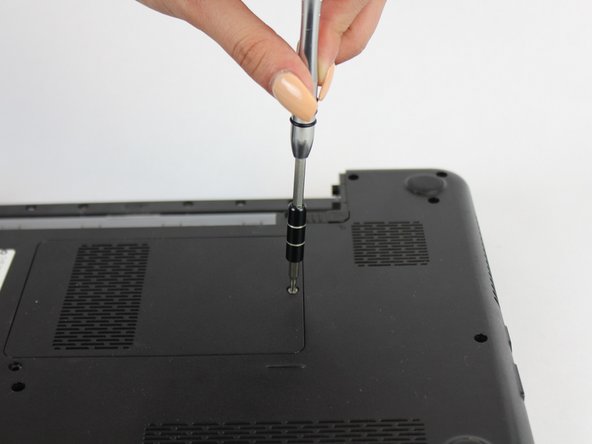
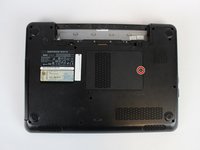
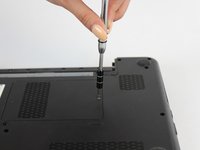
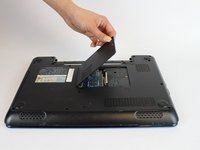
    1. Dell Inspiron N4010 Keyboard Replacement, Keyboard: step 4, image 1 of 3 Dell Inspiron N4010 Keyboard Replacement, Keyboard: step 4, image 2 of 3 Dell Inspiron N4010 Keyboard Replacement, Keyboard: step 4, image 3 of 3
      • Using the #0 Philips head, unscrew the indicated screw.

      • Carefully pull the RAM cover up and away.

      Ask FixBot

      Add Comment

    2. Dell Inspiron N4010 Keyboard Replacement: step 5, image 1 of 1
      • Unscrew the indicated 5.7mm screw beneath the RAM Cover.

      Ask FixBot

      Add Comment

      • Remove another screw above the battery release tab

      Ask FixBot

      Add Comment

    3. Dell Inspiron N4010 Keyboard Replacement: step 7, image 1 of 2 Dell Inspiron N4010 Keyboard Replacement: step 7, image 2 of 2
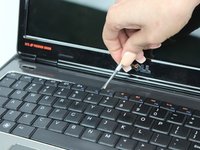
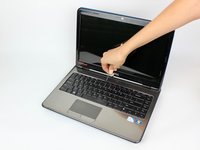
      • Using a thin plastic tool (such as a guitar pick or spudger) at the top of the keyboard just above the F7 key, gently pry the keyboard away.

      • Move the spudger to either end at the top of the keyboard to fully undo all plastic clips.

      Ask FixBot

      Add Comment

    4. Dell Inspiron N4010 Keyboard Replacement: step 8, image 1 of 2 Dell Inspiron N4010 Keyboard Replacement: step 8, image 2 of 2
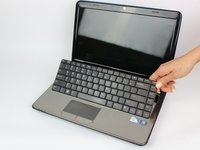
      • Carefully tip the keyboard upwards and pull it slightly away from the body of the laptop.

      • Be careful not to put stress on the ribbon cable below.

      Ask FixBot

      Add Comment

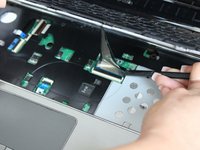
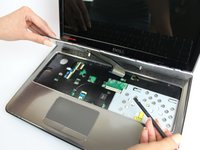
    5. Dell Inspiron N4010 Keyboard Replacement: step 9, image 1 of 2 Dell Inspiron N4010 Keyboard Replacement: step 9, image 2 of 2
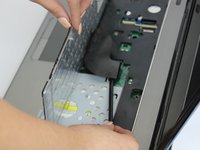
      • Carefully unclip the ribbon cable by tipping the keyboard towards the screen.

      • The keyboard is now completely disconnected.

      Ask FixBot

      Add Comment

Conclusion

To reassemble your device, follow these instructions in reverse order.

Cancel: I did not complete this guide.

2 other people completed this guide.

Jonathan Sellier

Member since: 09/26/17

952 Reputation

7 Guides authored

Team

USF Tampa, Team S13-G5, Boczar Fall 2017 Member of USF Tampa, Team S13-G5, Boczar Fall 2017

USFT-BOCZAR-F17S13G5

5 Members

108 Guides authored

1 Guide Comment

Add Comment

View Statistics:

Past 24 Hours: 4

Past 7 Days: 25

Past 30 Days: 105

All Time: 1,636