Free Shipping on Domestic Orders $75+

Dell Inspiron N4010 Fan Replacement

What you need

  1. Dell Inspiron N4010 Fan  Replacement, Battery: step 1, image 1 of 1
    • Make sure the laptop is not plugged into any wall outlets or the charger

    • Unlock the battery by sliding the right-hand switch to the right.

    Ask FixBot

    Add Comment

  2. Dell Inspiron N4010 Fan  Replacement: step 2, image 1 of 2 Dell Inspiron N4010 Fan  Replacement: step 2, image 2 of 2
    • While holding the left-hand switch to the left position, pull the battery away from the laptop.

    Ask FixBot

    Add Comment

  3. Dell Inspiron N4010 Fan  Replacement: step 3, image 1 of 1
    • The battery is now fully removed and the laptop will not power on without it.

    Ask FixBot
    Add Comment

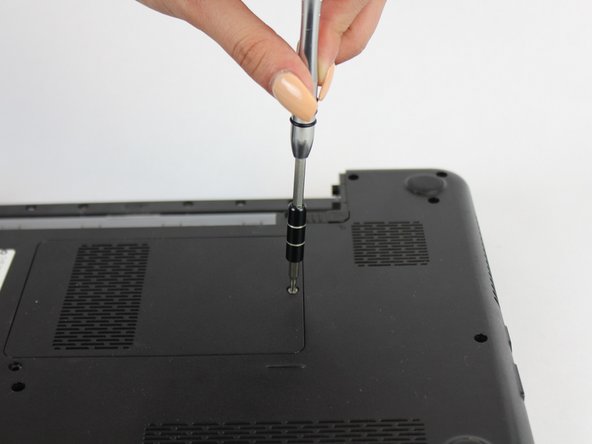
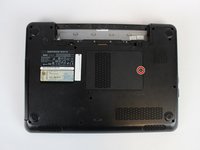
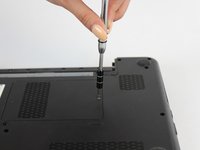
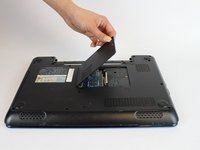
  4. Dell Inspiron N4010 Fan  Replacement, Keyboard: step 4, image 1 of 3 Dell Inspiron N4010 Fan  Replacement, Keyboard: step 4, image 2 of 3 Dell Inspiron N4010 Fan  Replacement, Keyboard: step 4, image 3 of 3
    • Using the #0 Philips head, unscrew the indicated screw.

    • Carefully pull the RAM cover up and away.

    Ask FixBot
    Add Comment

  5. Dell Inspiron N4010 Fan  Replacement: step 5, image 1 of 1
    • Unscrew the indicated 5.7mm screw beneath the RAM Cover.

    Ask FixBot

    Add Comment

    • Remove another screw above the battery release tab

    Ask FixBot

    Add Comment

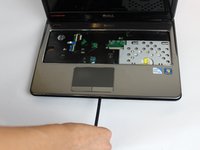
  6. Dell Inspiron N4010 Fan  Replacement: step 7, image 1 of 2 Dell Inspiron N4010 Fan  Replacement: step 7, image 2 of 2
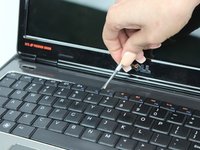
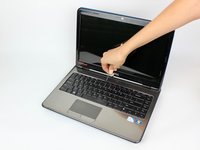
    • Using a thin plastic tool (such as a guitar pick or spudger) at the top of the keyboard just above the F7 key, gently pry the keyboard away.

    • Move the spudger to either end at the top of the keyboard to fully undo all plastic clips.

    Ask FixBot

    Add Comment

  7. Dell Inspiron N4010 Fan  Replacement: step 8, image 1 of 2 Dell Inspiron N4010 Fan  Replacement: step 8, image 2 of 2
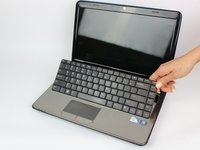
    • Carefully tip the keyboard upwards and pull it slightly away from the body of the laptop.

    • Be careful not to put stress on the ribbon cable below.

    Ask FixBot

    Add Comment

  8. Dell Inspiron N4010 Fan  Replacement: step 9, image 1 of 2 Dell Inspiron N4010 Fan  Replacement: step 9, image 2 of 2
    • Carefully unclip the ribbon cable by tipping the keyboard towards the screen.

    • The keyboard is now completely disconnected.

    Ask FixBot
    Add Comment

  9. Dell Inspiron N4010 Fan  Replacement, Palm Rest Assembly: step 10, image 1 of 2 Dell Inspiron N4010 Fan  Replacement, Palm Rest Assembly: step 10, image 2 of 2
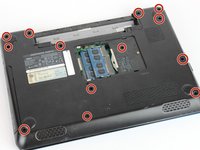
    • Remove the indicated 5.7mm screws.

    • Remove the smaller 3mm screws from underneath the battery compartment.

    Ask FixBot
    Add Comment

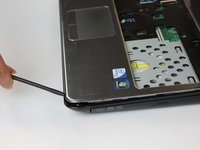
  10. Dell Inspiron N4010 Fan  Replacement: step 11, image 1 of 2 Dell Inspiron N4010 Fan  Replacement: step 11, image 2 of 2
    • With a plastic spudger, pry away the silver top cover from the black casing.

    • Move the tool to the right and left along the seams to fully disconnect the cover.

    Ask FixBot

    Add Comment

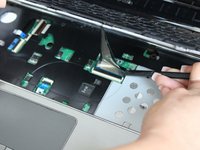
  11. Dell Inspiron N4010 Fan  Replacement: step 12, image 1 of 1
    • Disconnect the indicated ribbon cables underneath where the keyboard sits.

    Ask FixBot

    Add Comment

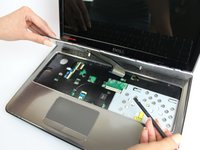
  12. Dell Inspiron N4010 Fan  Replacement: step 13, image 1 of 1
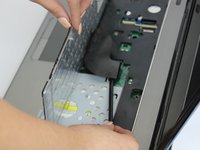
    • Lift the cover upwards and away from the body of the laptop, after removing the optical drive and unscrewing the three screws on the right.

    Ask FixBot

    Add Comment

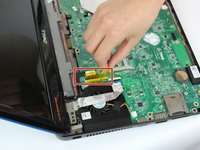
  13. Dell Inspiron N4010 Fan  Replacement, Fan: step 14, image 1 of 2 Dell Inspiron N4010 Fan  Replacement, Fan: step 14, image 2 of 2
    • Peel back the yellow tape to expose the ribbon connector.

    • Unplug the ribbon cable from the motherboard.

    Ask FixBot

    Add Comment

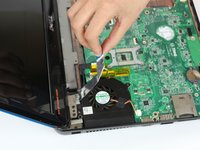
  14. Dell Inspiron N4010 Fan  Replacement: step 15, image 1 of 1
    • Unplug the 3-wire connector from the motherboard.

    Ask FixBot

    Add Comment

  15. Dell Inspiron N4010 Fan  Replacement: step 16, image 1 of 1
    • Unscrew the indicated 5.6mm screws with the #0 Phillips Head Screwdriver.

    Ask FixBot

    Add Comment

  16. Dell Inspiron N4010 Fan  Replacement: step 17, image 1 of 1
    • Remove the fan from the device.

    Ask FixBot

    Add Comment

Conclusion

To reassemble your device, follow these instructions in reverse order.

Cancel: I did not complete this guide.

Andre Tomlinson

Member since: 09/27/17

101 Reputation

1 Guide authored

Team

USF Tampa, Team S13-G5, Boczar Fall 2017 Member of USF Tampa, Team S13-G5, Boczar Fall 2017

USFT-BOCZAR-F17S13G5

5 Members

9 Guides authored

0 Guide Comments

Add Comment

View Statistics:

Past 24 Hours: 1

Past 7 Days: 18

Past 30 Days: 43

All Time: 1,448