Free Shipping on Domestic Orders $75+

Dell Inspiron Mini 1210 Keyboard Replacement

What you need

    1. Dell Inspiron Mini 1210 Keyboard Replacement, Battery: step 1, image 1 of 1
      • Lay the laptop on the table with the plastic back facing you.

      Ask FixBot

      Add Comment

    2. Dell Inspiron Mini 1210 Keyboard Replacement: step 2, image 1 of 1
      • Place both thumbs on the plastic slides with the unlock and lock symbols underneath them as shown in the picture.

      • Move the slides outward towards the unlock symbols.

      Ask FixBot

      Add Comment

    3. Dell Inspiron Mini 1210 Keyboard Replacement: step 3, image 1 of 1
      • Grip the battery and pull it out.

      Ask FixBot

      Add Comment

    1. Dell Inspiron Mini 1210 Keyboard Replacement, Keyboard: step 4, image 1 of 1
      • Remove the black strip with the power button.

      Ask FixBot

      Add Comment

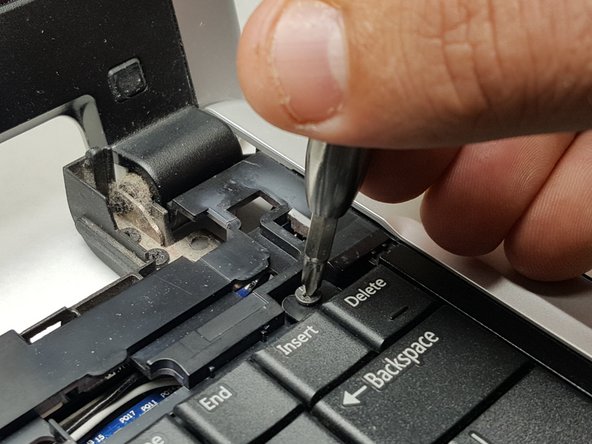
    2. Dell Inspiron Mini 1210 Keyboard Replacement: step 5, image 1 of 1
      • Remove two 4.65mm screws on top of the keyboard.

      Ask FixBot

      Add Comment

    3. Dell Inspiron Mini 1210 Keyboard Replacement: step 6, image 1 of 1
      • Lift up on the keyboard and remove ribbon from its connector.

      Ask FixBot

      Add Comment

Conclusion

To reassemble your device, follow these instructions in reverse order.

Cancel: I did not complete this guide.

2 other people completed this guide.

Jacob Barker

Member since: 03/21/17

228 Reputation

1 Guide authored

Team

IUPUI, Team S3-G2, Baechle Spring 2017 Member of IUPUI, Team S3-G2, Baechle Spring 2017

IUPUI-BAECHLE-S17S3G2

4 Members

24 Guides authored

0 Guide Comments

Add Comment

View Statistics:

Past 24 Hours: 1

Past 7 Days: 1

Past 30 Days: 17

All Time: 473